LESSON 8
186
Customizing Tables
6
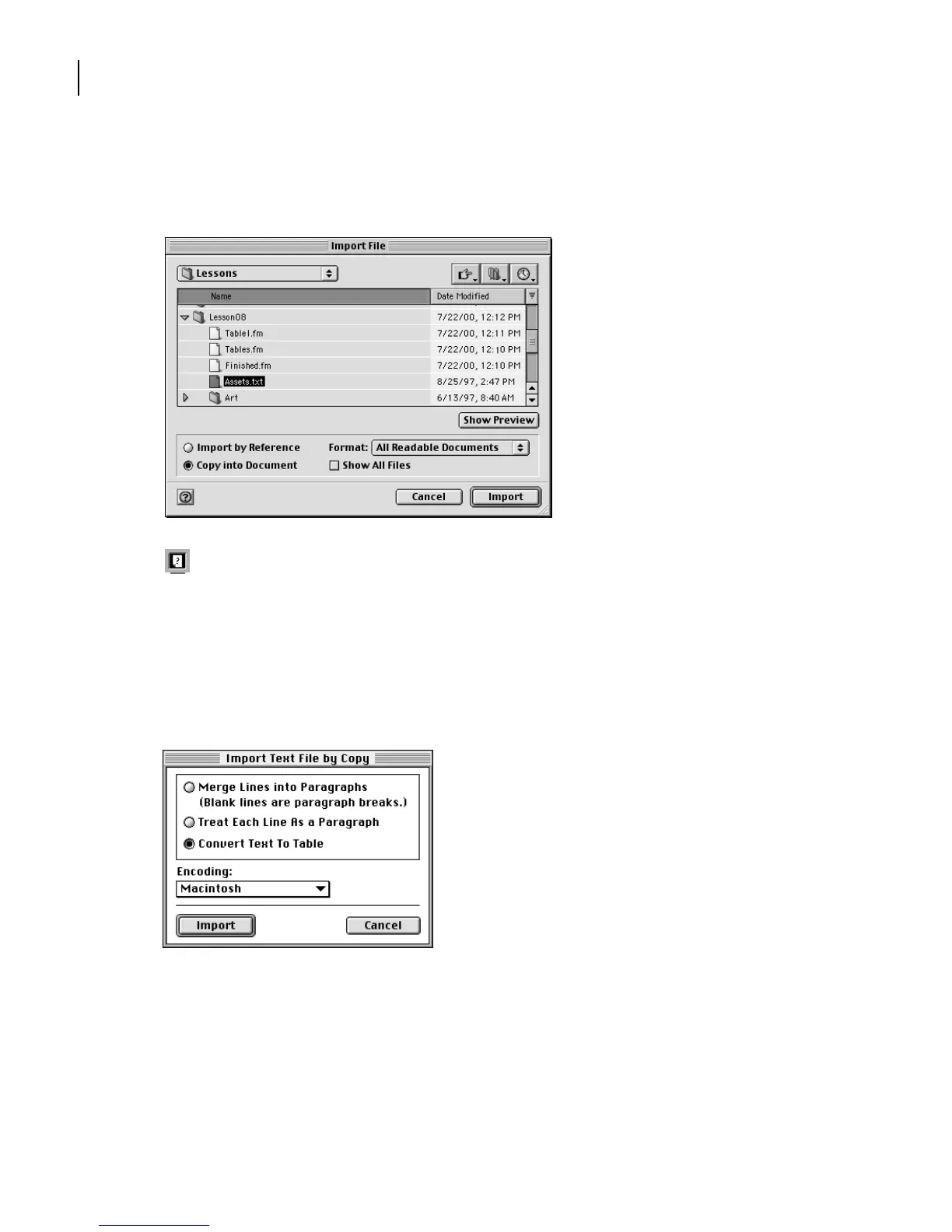
Select Assets.txt in the Lesson08 folder.
7
Select Copy into Document and then click Import.
Online Help provides additional information on file types and filters.
8
If the Unknown File Type dialog box appears, select Text in the scroll list and
click Convert.
9
Select Convert Text to Table. The Encoding pop-up menu selects the appropriate
option depending on whether you are running FrameMaker 7.0 on Windows, on a
Mac OS, or on a UNIX system.
10
Click Import.
No table format has been set up for financial data, so you’ll use one of the default table
formats and then modify it later.
11
Select Format A in the Table Format scroll list.



 To Next Page