LESSON 8
198
Customizing Tables
9 Choose Table > Straddle. The text now spans two cells.
Using tabs in table cells
Earlier in this lesson, you added tab stops to the RowLabel paragraph format that’s used
for the labels at the left side of each body row. You’ll use these tab stops now.
1 Click at the beginning of the second row label (the one that contains the text Cash &
cash equivalents).
2 Press Esc+Tab to insert a tab.
If you had simply pressed the Tab key as you do in regular body text, the next cell would
have been selected.
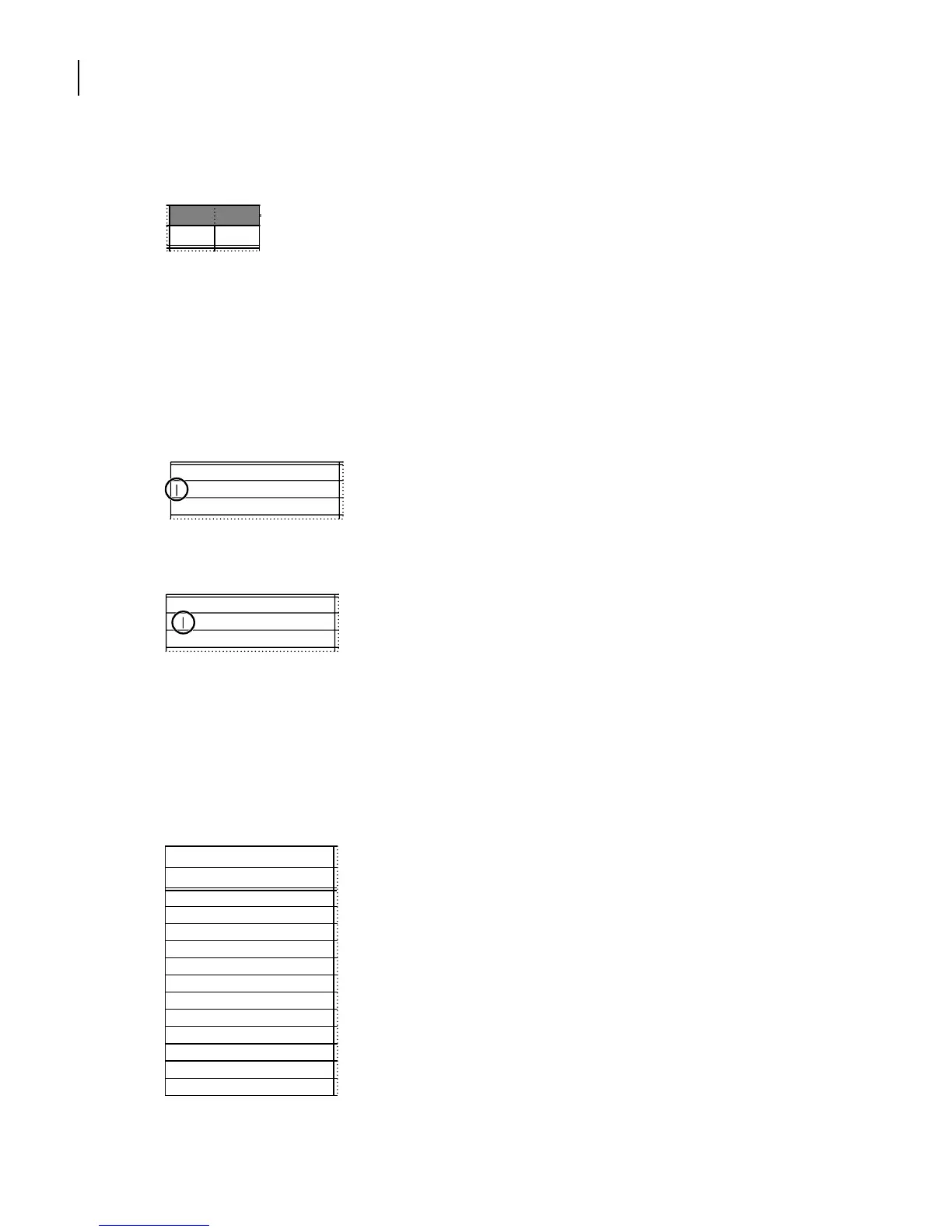
3 Click at the beginning of a row label and press Esc+Tab to insert a tab in each row label
as needed (see below). In the row labels Total current assets and Total assets, press Esc+Tab
twice to increase the indentation.
FISCAL YEAR
2000 1999
Current assets:
Cash & cash equivalents
Short-term investments
Current assets:
Cash & cash equivalents
Short-term investments
Current assets:
Cash & cash equivalents
Short-term investments
Accounts receivable
Inventories
Deferred income taxes
Other current assets
Total current assets
Investments
Furniture, fixtures, and equipment, net
Other assets
Total assets



 To Next Page