447
ADOBE FRAMEMAKER 7.0
Classroom in a Book
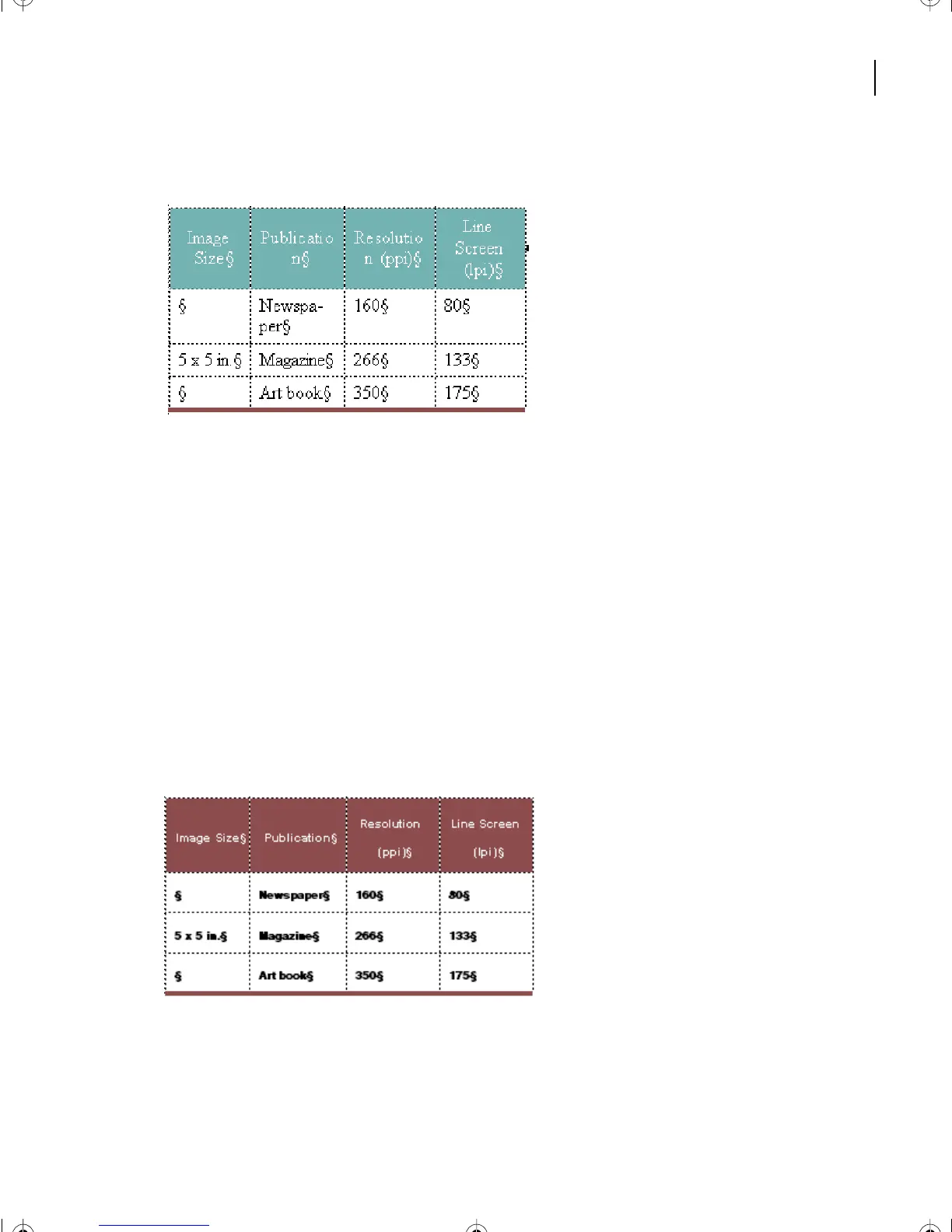
9 In the Table.fm file, select the entire Heading row.
Text source file Table.fm for completing [Table] element in
CIBColorDoc1.fm.
10 Choose Edit > Copy.
11 In the main document, drag to select the entire Heading row.
12 Choose Edit > Paste. The Paste Rows box appears.
13 Select Replace Current Rows, and click Paste. The Heading Row has been inserted into
CIBColorDoc1.fm.
14 In the file Table.fm, drag to select the remainder of the cells in the table body.
15 Choose Edit > Copy.
16 Drag to select all the body cells in the CIBColorDoc1.fm table.
17 Repeat the paste process you used for the Heading Row.
18 Close the Table.fm document. Leave the main document open and save it.
L17.fm Page 447 Saturday, July 6, 2002 4:37 PM



 To Next Page