16
USING ADOBE MEDIA SERVER ON AMAZON WEB SERVICES
Getting started
Last updated 9/20/2013
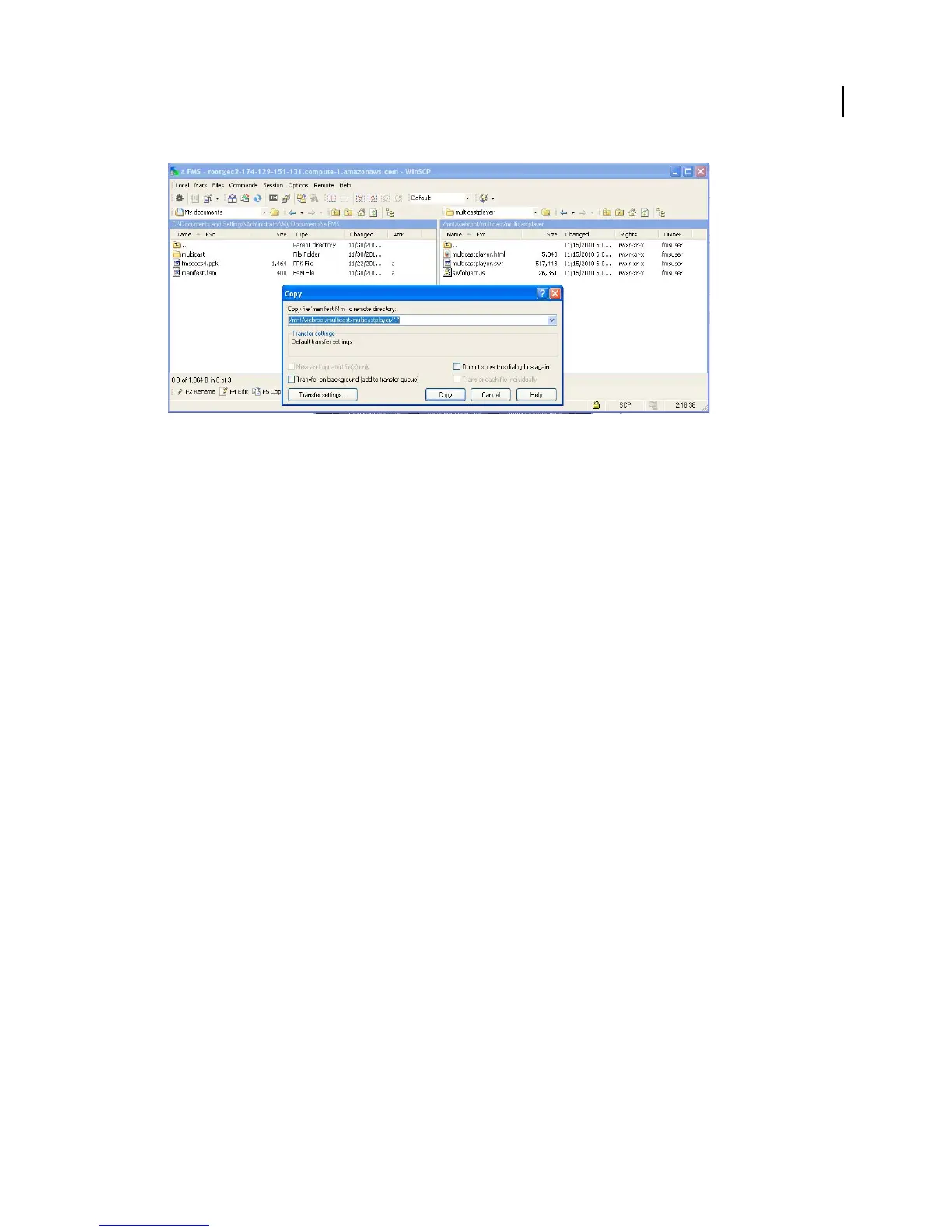
Using WinSCP to move the /multicast directory to the /mnt/webroot directory
Configure a multicast event
To multicast a live stream, use the Multicast Configurator to configure the streaming event. The Multicast
Configurator generates a Publisher Stream Name that you’ll use to publish a stream from Flash Media Live Encoder.
The Multicast Configurator also generates an F4M (Flash Manifest) file that you’ll use to play the stream in the
Multicast Player.
to generate a stream name and a manifest file for the Multicast Player
1 Open the following URL in a web browser:
http://public-dns/multicast/configurator/configurator.html
For example:
http://ec2-174-129-151-131.compute-1.amazonaws.com/multicast/configurator/configurator.html
2 Select Peer to Peer multicast.
Adobe Media Server on Amazon Web Services does not support Fusion or IP Multicast.
3 Enter the server name (or IP address) and the full path to the multicast application:
rtmfp://public-dns/multicast
4 Enter the name of the live stream. This tutorial uses livestream.
5 Enter a publish password.
The password ensures that only the multicast server can publish a multicast stream into the group. Other peers do
not have the publish password and can only play the stream, not publish a stream.
6 Enter a name for the group. This tutorial uses the default name, ams.multicast.example.
You can leave Make Unique unchecked.
7 Click Generate. The Multicast Configurator generates the following:
• A name for the live stream. To publish a stream, you’ll click Copy and paste this value into the Flash Media Live
Encoder Stream field.
• An F4M file to use with the client multicast player. To view the F4M file, click View Manifest File.
8 Click Save Manifest File and do the following:
a Save the manifest.f4m file to your local computer.



 To Next Page