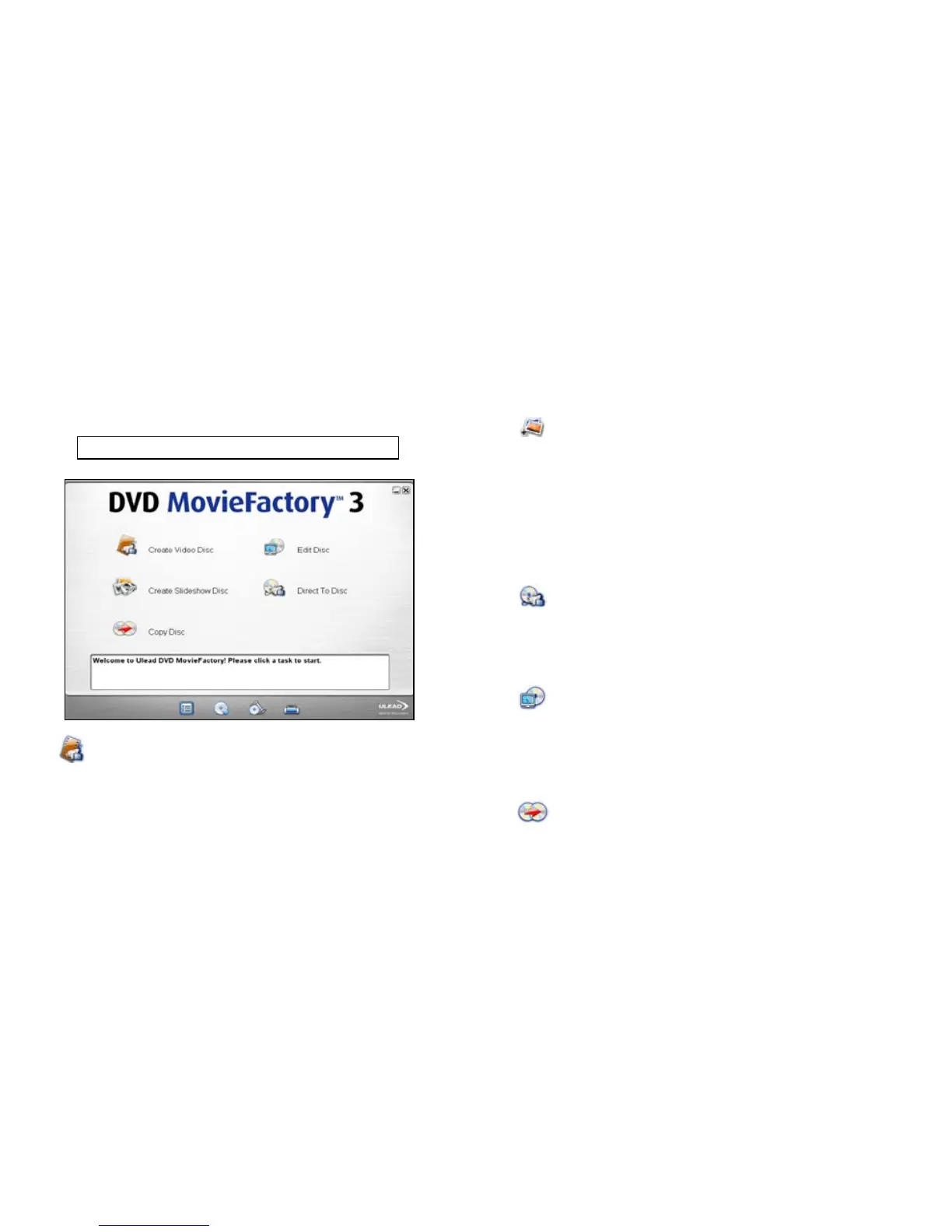
DVD MovieFactory launcher
The DVD MovieFactory launcher serves as a control panel where you can nd the tasks you’ll need for
disc-authoring. Clicking a task icon will launch the program module associated with it.
Note: Opening previously created project les from outside DVD MovieFactory launcher will
automatically launch the associated program.
Create Video Disc
Opens the DVD MovieFactory Start dialog box where you can create a new video project or open an
existing one.
To start a new video project:
1. Select New Project.
2. Select the output disc format.
3. Click OK.
To open an existing video project:
1. Select Existing Project.
2. Select an existing project from the list or click Browse to locate one.
3. Click OK. See “Create Video Disc” for more details.
Create Slideshow Disc
Opens the DVD MovieFactory Start dialog box where you can create a new photo slideshow or open an existing
slideshow project.
To start a new slideshow project:
1. Select New Project.
2. Select the output disc format.
3. Click OK.
To open an existing slideshow project:
1. Select Existing Project.
2. Click Browse and locate the project le.
3. Click OK. See “Creating a slideshow” for more details.
Direct to Disc
You can capture videos from your source device and burn these videos directly onto a disc.
To start the Direct to Disc process:
1. Select an output disc format.
2. Select the burner drive.
3. Click OK. See “Direct to Disc” for more details.
Edit Disc
You can modify existing videos and menus in a DVD+R/RW, DVD-R/ RW, or mini-DVD disc using a compatible
disc burner.
To start the Edit Disc process:
1. Select the burner drive where the disc you want to edit is loaded.
2. Select whether to append data or edit video.
3. Click OK. See “Edit Disc (on-disc editing)” for more details.
Copy Disc
Makes a copy of a disc or burns a disc from a disc image le.


 To Next Page