English
52
Understanding
the menu structure
Using the menu
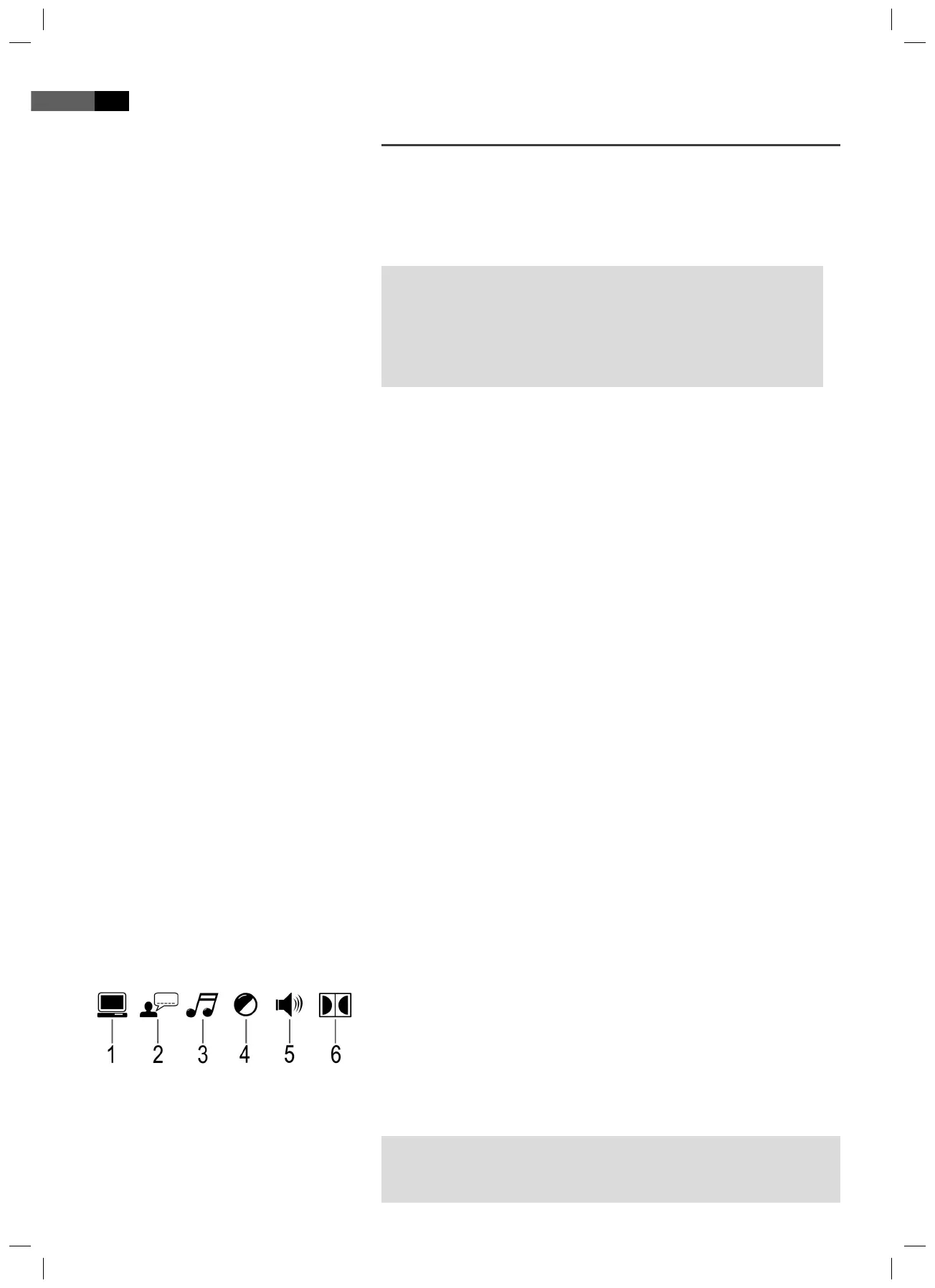
Overview of the main menu
Changing the default settings
A large number of default settings can be comfortably changed via the screen
menu.
Press the SETUP button (Fig. 3/27) on the remote control to start the
menu for changing the default settings.
NOTE:
Many of these default settings can be changed via both the remote
control and the menu. The di erence is: If you change the default
settings via the remote control, these changes will only be valid
until the DVD-Player is switched o or the DVD is changed.
However, any changes made in the menu are permanent.
The Setup menu has two menu levels:
Main menu: The main level is represented by graphical symbols.
Submenu: The corresponding sub-menu options can be found under
each of the main menu options.
Navigation and selection
Use the Cursor Buttons (Fig. 3/26) ( / ) on the remote control to
browse through the main menu.
In contrast to this, you must use the Cursor Buttons (/) to move
in the sub-menu.
Select a menu option with the ENTER button (Fig. 3/7).
Use the ENTER button also to select an option. The selected option is
now highlighted.
Slide control
In some menus you will nd slide controls with which you can adjust the
volume or picture brightness, for example. The slide control is used as
follows:
1. Select with the ENTER button.
2. Move the control with the Cursor Buttons (/).
3. Con rm the entry with the ENTER button.
System settings (1)
Language settings (2)
Audio settings (3)
Video settings (4)
Speaker settings (5)
Digital settings (6)
NOTE:
Some of the menu settings are only available in stop mode (depending
on the DVD).
05-DVD 4534 N AEG_GB.indd 5205-DVD 4534 N AEG_GB.indd 52 16.06.2009 9:47:32 Uhr16.06.2009 9:47:32 Uhr


 To Next Page