aigo A208 Digital Audio Player USER MANUAL
Page 14
4. Use the Skip to Next (or Skip to Previous) button to navigate through the voice files until you
reach the desired one.
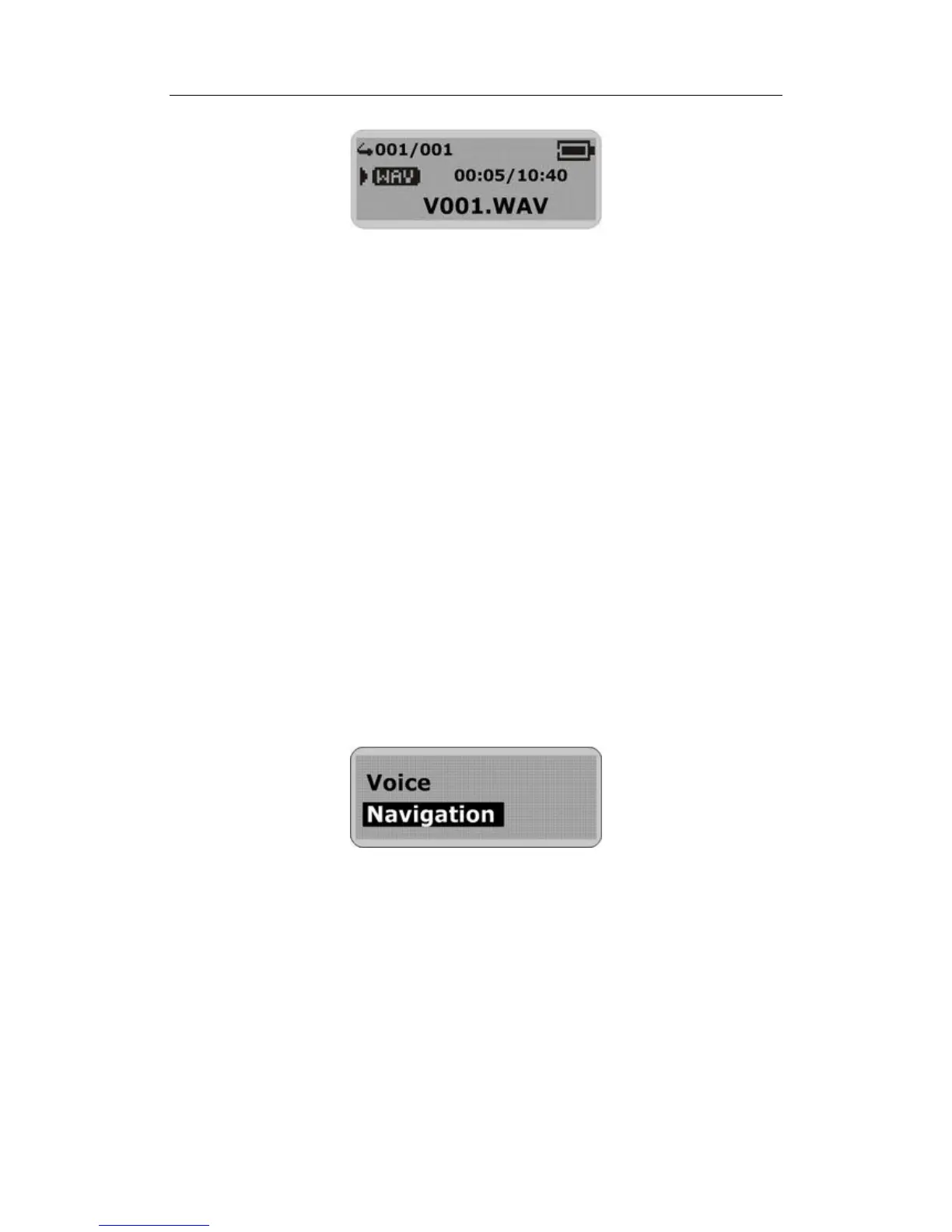
5. Press the PLAY button to playback the recorded voice file.
The timer will begin to increase as the file plays.
6. Press the STOP key briefly to stop the playing of the voice.
7. To exit the Voice mode, press MENU button on the side of the Player to access the Main
Menu and select another mode.
Navigation mode
The Navigation mode enables you to navigate around the various files and folders on the Player.
Entering the Navigation sub-menu
To enter the Navigation sub-menu:
1. Press the MENU button to access the Main Menu.
2. Use the Skip to Next (or Skip to Previous) button to scroll through the menu option until
“Navigation” is selected.
3. Press the MENU button to confirm your selection and enter the Navigation mode.
The LCD screen will display the following information:
Line 1: Folder icon / MP3 music icon / WMA music icon / WAV file icon /
Upper directory icon
Line 2: File name / Folder name / Return to previous level
Changing or selecting a new Folder or File
1. Once in the Navigation mode, use Skip to Next (or Skip to Previous) button to scroll through



 To Next Page