AirServer Connect User Guide
15
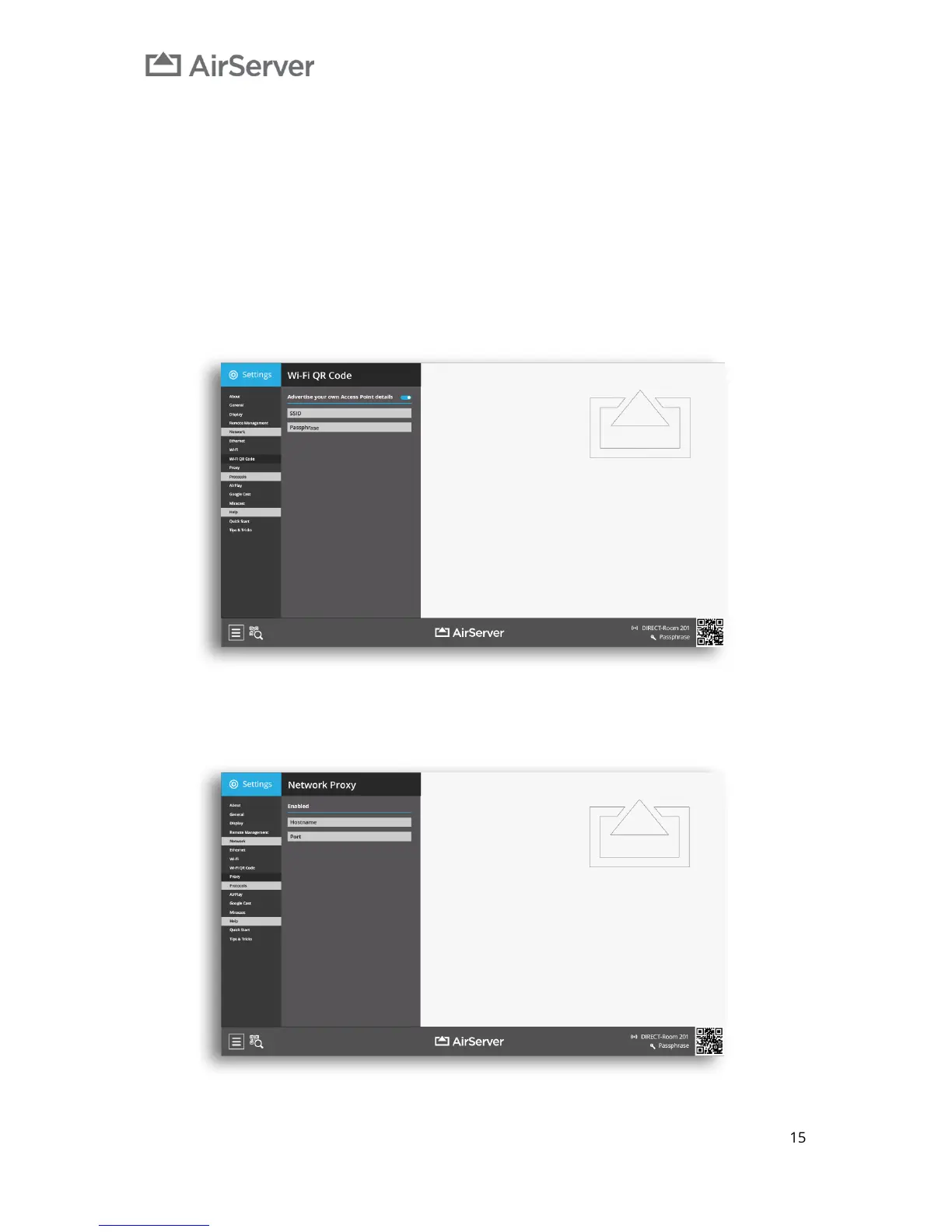
Wi-Fi QR Code
Using the built in Wi-Fi access point for a guest network is easy, but in some cases our customers want to
use their own Wi-Fi infrastructure and guest networks. Thus, it is possible to override the Wi-Fi QR code in
the lower right corner of the home screen if you want to use existing Wi-Fi infrastructure but still have iOS
users be able to join by scanning a QR code.
If you already have a guest network in place and do not wish to use the Wi-Fi access point on the AirServer
Connect, enable the Advertise your own Access Point Details setting. Then add the Wi-Fi access point
SSID and Passphrase and the QR code will update to reflect your Wi-Fi infrastructure instead of the built-
in access point. If disabled, the QR code will revert to the built-in access point on the AirServer Connect.
Proxy
Should your network require a Network Proxy it can be enabled in the Proxy menu.
Select Enabled to activate proxy settings, then fill out Hostname and Port.


 To Next Page