18
Control Panel Operation
The T-TAP can be controlled by various software applications running on a host computer.
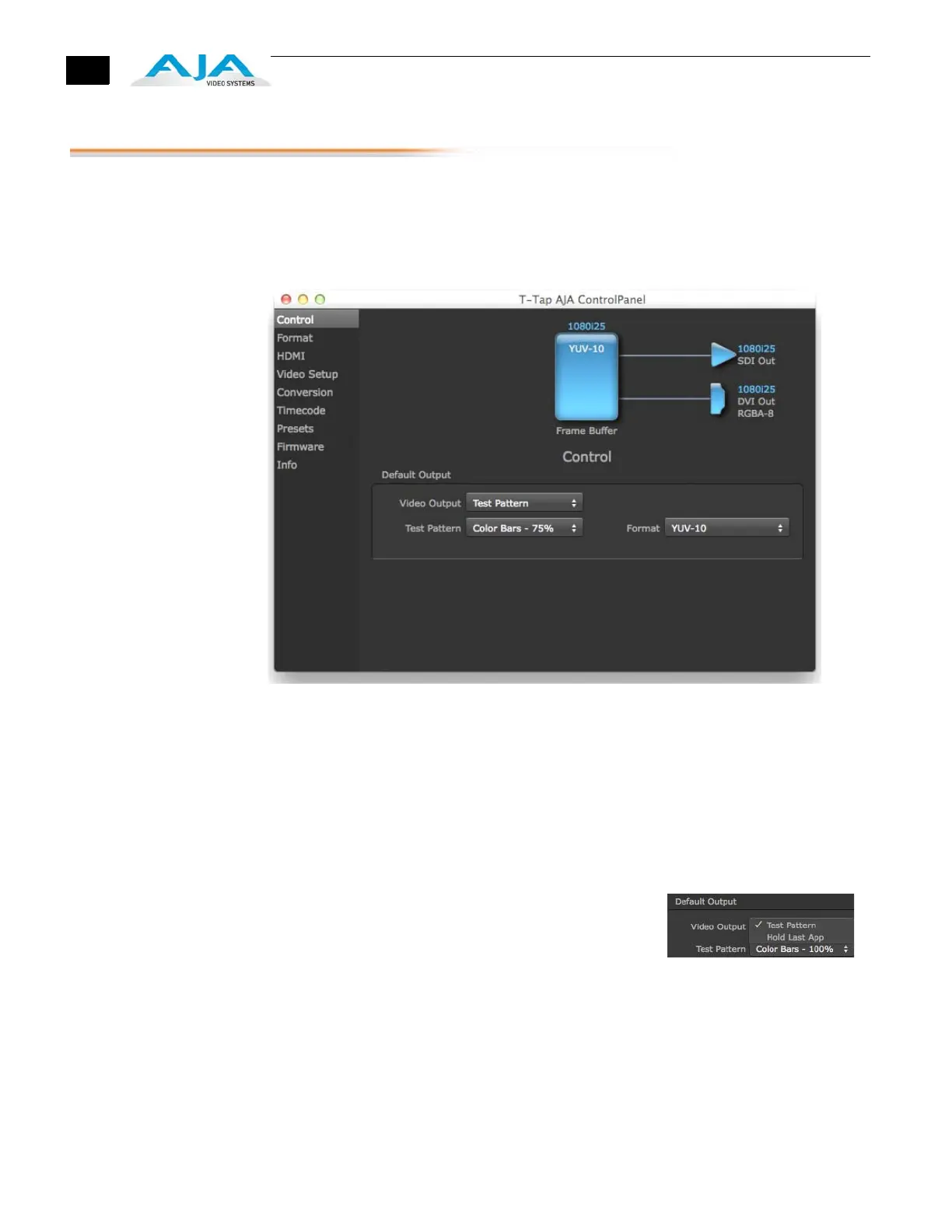
The Control Screen is where you select how the T-TAP directs video and is used by
application software.
At the right-top of the block diagram it will show the current Default Output and the
application currently controlling the T-TAP.
AJA Control Panel, Control Screen
Control Screen
Settings
Default Output—this is where you select what T-TAP will output as a default when no
application has control of the board, such as when the Finder is active. Since T-TAP can be
controlled by multiple software applications and its own control panel, the output can
change dynamically. When you select many video applications, they will grab control of the
T-TAP outputs. These settings determine what happens when an application that doesn't
grab the T-TAP outputs is active.
Default Output Choices and their meanings:
Video Output: this selection directs T-TAP to output
either a selected Test Pattern or Hold the Last Application
output, whenever an application isn't controlling T-Tap.
Hold Last Application directs T-TAP to hold and output
the last frame of video from the last application to control T-TAP. This can be helpful
when operating in an environment where you're switching back and forth between
multiple application windows.
Test Pattern: this selection determines the particular Test Pattern for output when no
other application is using the T-TAP and Test Pattern is selected for the Video Output.
You can choose from:
Black, Color bars (75% or 100%), Ramp, Multiburst, Line Sweep, Multi Pattern, or Flat Field.
While in Test Pattern mode, you can select YUV 10-bit or 8-bit output via a pulldown
menu.


 To Next Page