• Key Pad and User passcode
Setting a passcode for arming/disarming
Setting a duress code for silent alarm
Selecting the functionality for the function button
• Off
• Send panic alarm
• Silence fire alarm
If active, the system can be armed by pressing Arm button
without passcode
Auto-lock after wrong password
attempts
If active, the keyboard is locked for the pre-set time after
entering incorrect passcode three times in a row (during 30
min). During this time, the system cannot be disarmed via Key
Pad.
Lock period after wrong passcode attempts
Brightness of the keyboard backlight
Jeweller Signal Strength Test
Switches the device to the signal strength test mode
Switches the Key Pad to the signal fade test mode (available in
devices with firmware version 3.50 and later)
Opens the Key Pad User Manual
Disconnects the device from the hub and deletes its settings
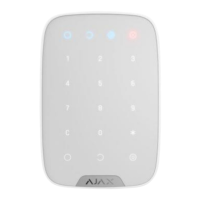
Key Pad allows to set both general and personal passcodes for each user.
To install a personal passcode:
1. Go to profile settings (Hub Settings -- Users -- Your profile settings)
2. Click Access Code Settings (in this menu you can also see the user identifier)
3. Set the User Code and Duress Code
Each user sets a personal passcode individually!


 To Next Page