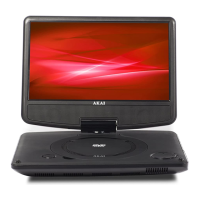
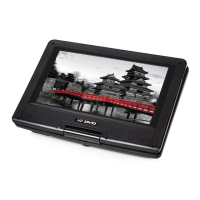
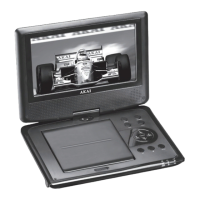
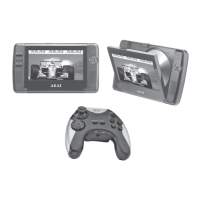
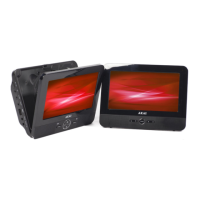
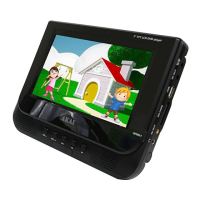
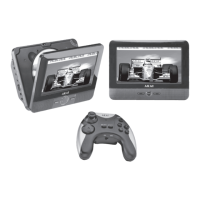
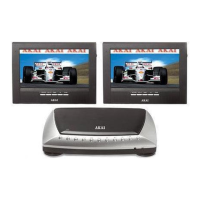
The APD710T is a portable media player designed for versatile use, including in-car mounting. It comprises two main units that connect to each other, offering a comprehensive entertainment solution. This device supports various media formats, allowing users to enjoy music files (MP3/WMA), video files (MPEG-4), and photo files (JPEG). These files can be accessed from multiple sources, including DVD, CD, and USB.
Function Description
The primary function of the APD710T is to act as a portable media player. It features a laser system for disc playback, which requires careful handling to prevent direct exposure to the laser beam. The device is designed to be user-friendly, with clear instructions for unpacking, installation, and operation.
Usage Features
Preparations for Use:
Before using the APD710T, it's essential to unpack it carefully and verify the package contents against the provided list. The package includes the portable DVD player, an APD710T Secondary Unit, a remote control, a button cell battery (pre-inserted in the remote), a quick start guide, a 12V Car adapter, a CINCH cable, a mounting kit, and a carry bag. It is recommended to retain the original carton and packing materials for potential future service needs.
Installation and Connections:
The APD710T requires proper connections for operation. The two main screens are linked together, and for power supply, the system must be connected to the car via the 12V Auto adapter. For personal listening, headphones can be connected to the headphone jack, with a reminder to adjust the volume to a comfortable level to prevent hearing damage.
Battery Management:
The remote control uses a CR2025 3V lithium battery. To change the battery, pull out the battery holder, insert a new battery observing the correct polarity markings (+ and -), and then reinsert the battery tray into the remote control.
Remote Control Functions:
The remote control is central to operating the APD710T, offering a wide array of buttons for various functions:
- SEARCH: To go to a specific time point, title, or chapter in DVD Mode.
- ZOOM: For zooming in and out on photos and DVDs (2x, 3x, 4x, 1/2, 1/3, 1/4, OFF ratios available).
- Digit buttons (0-9, 10+): To select chapters, tracks, or folders/files.
- ANGLE: To select the camera angle during DVD playback.
- SUBTITLE: To select subtitles for video files.
- TITLE: To view a specific title of a DVD.
- ENTER: To select a setting or menu item.
- Arrow buttons (Up, Down, Left, Right): For navigation, scrolling through submenus, and moving through pictures during zoom.
- SETUP: To access and store settings, and exit menus.
- AB: To repeat a specific section of a DVD.
- REPEAT: To repeat a current chapter/track or all chapters/tracks.
- PROGRAM: To store favorite tracks or enter slide show mode for JPEG images.
- DISPLAY: For displaying information.
- MUTE: To mute or restore sound.
- SOURCE: To switch between DVD or USB input.
- STEP: To play DVD frame by frame.
- AUDIO: To select the audio language of a DVD or desired sound (STEREO, LEFT, RIGHT) for CD/VCD.
- MENU: To return to the content menu during playback.
- STOP: To stop playback temporarily or permanently.
- PLAY/PAUSE: To pause or resume playback.
- RETURN: To return to the upper page or cancel selection.
- VOLUME +/-: To adjust the volume.
- REVERSE SKIP/FORWARD SKIP: To select the next or previous chapter/track.
- FAST FORWARD/FAST BACKWARD: To forward or rewind DVDs at various speeds (2x, 4x, 8x, 20x).
APD710T Portable DVD Unit Controls:
The main unit also features several controls:
- On/Off navigation button: To power the device on or off.
- USB 2.0 slot: For connecting USB devices.
- Headphone jack: For connecting headphones.
- AV Out/DC Out/DC In 9-12V/AV In: For various audio/video and power connections.
- SETUP/UP/PREVIOUS/DOWN/NEXT/ENTER/VOLUME +/-/SOURCE/MUTE/MODE/LEFT/RIGHT/BACK LIGHT buttons: These mirror many remote control functions for direct control on the unit.
The setup menu allows for customization of screen display, audio, and video settings.
- SYSTEM SETUP:
- TV SYSTEM: Select video output format (PAL, AUTO, NTSC) to match the TV system. Incorrect selection can lead to poor image quality.
- TV TYPE: Select aspect ratio (4:3 PANSCAN, 4:3 LETTERBOX for conventional TVs, or 16:9 for widescreen TVs).
- PASSWORD: Change the default password (0000). The default password remains active even if reset.
- RATING: Set a parental lock rating for movies.
- DEFAULT: Restore default settings.
- LANGUAGE SETUP:
- OSD LANG: Choose the On-Screen Display language.
- AUDIO LANG: Choose the audio language.
- SUBTITLE LANG: Choose the subtitle language.
- STANDBY SETTINGS: Set the automatic standby mode after 3 or 4 hours of inactivity, or disable it (OFF).
- VIDEO SETUP: Adjust BRIGHTNESS, CONTRAST, HUE, SATURATION, and SHARPNESS of the screen.
DVD/CD Functions:
Once a disc is loaded, a content menu appears. Users can navigate this menu using arrow buttons and the ENTER button.
- Playback Control: Select chapters/tracks using digit buttons, pause/resume with PLAY/PAUSE, stop with STOP, and navigate between chapters/tracks with PREV/NEXT.
- Speed Control: Forward or rewind DVDs using FWD/REV buttons.
- Audio/Subtitle/Angle: Adjust volume, mute sound, select subtitles, audio language (for DVD), or sound view (for CD/VCD), and choose camera angles.
- Frame-by-frame playback: Use the STEP button.
USB Functions:
The USB slot allows connection of USB devices. The device can only be connected in one way.
- Navigation: After connection, a content menu displays. Use arrow buttons or digit buttons to select folders or files.
- Playback Control: Select tracks with PREV/NEXT, pause/resume with PLAY/PAUSE, stop with STOP, and adjust volume.
- Removal: Gently pull out the USB device from the slot.
- Compatibility Note: Due to the variety of USB products, full compatibility and functionality with all devices cannot be guaranteed.
Maintenance Features
Cleaning and Maintenance:
- Safety First: Always switch off and unplug the appliance before cleaning or maintenance.
- Appliance Cleaning: Clean the outside of the appliance with a soft cloth. For very dirty surfaces, dampen the cloth slightly with water and a neutral solution.
- Disc Handling and Care:
- Hold discs by the outer edge and/or the center spindle hole; avoid touching the disc surface.
- Do not bend or press discs.
- Protect discs from direct sunlight or heating sources.
- Clean disc surfaces with a soft, dry cleaning cloth, wiping gently and radially from the center to the outer edge.
- Never use thinner, alcohol, chemical solvent, or sprays for cleaning, as these can permanently damage the disc surface.
General Safety Instructions:
- Warnings: Pay attention to warnings indicating potential injury or death if instructions are not followed.
- Cautions: Observe cautions to prevent damage to the equipment.
- Laser Safety: Do not open the appliance to prevent direct exposure to the laser beam.
- Physical Handling: Do not put force on the appliance to prevent serious injury from falling.
- Ventilation: Do not block ventilation holes.
- Environmental Exposure: Do not expose the appliance to direct sunlight.
- Liquids: Do not spill any liquid on the appliance.

 Need help?
 General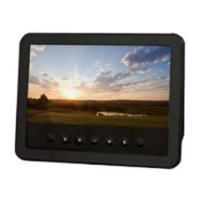

 To Next Page