EasyManua.ls Logo

Alarm.Com ADC-T40K-HD - User Manual

Alarm.Com ADC-T40K-HD
9 pages
Print Icon
To Next Page IconTo Next Page
Loading...
Smart Thermostat HD
Inallation Guide
ADCT40KHD

Questions and Answers

  • B
    Brian ThomasAug 2, 2025
    What to do if my Alarm.Com ADC-T40K-HD Thermostat display is not working?
    • D
      Dean JarvisAug 3, 2025
      If the Alarm.Com Thermostat display isn't working, first tap the screen to wake it up. If you want the display to wake up when you approach, check the settings in the configuration menu. Also, ensure the display is powered by removing it from the thermostat and checking if the thermostat LED is on, indicating it has power. Then, put the display back on the thermostat. Keep in mind that if the display is broken or removed, your HVAC control may not function as expected, so contact your HVAC professional as soon as possible.
  • B
    Bernard FranklinAug 7, 2025
    How do I reset my Alarm.Com Smart Thermostat HD to factory settings?
    • T
      Terry ChoiAug 7, 2025
      To reset your Alarm.Com Smart Thermostat HD to factory settings, which will reset all HVAC settings, rules, and schedules, and also delete it from the Z-Wave network, open the Navigation menu and proceed to the relevant settings. If you can't use the Display, remove the Display. Then press and hold the button on the Thermostat for 30 seconds. When the Status LED slowly blinks, release the button. The Status LED will blink 10 times rapidly before turning off. When the LED turns back on, the device has been factory reset. After factory resetting the thermostat, put the Display back on the Thermostat and restart the setup process. It is recommended that you delete the Smart Thermostat HD from the Z-Wave network before performing this reset.
  • A
    alexandra84Aug 11, 2025
    Why Alarm.Com ADC-T40K-HD Thermostat heating/cooling doesn't turn on immediately?
    • W
      williamsmichealAug 11, 2025
      The Alarm.Com Smart Thermostat HD includes a short delay to protect the compressor. Verify if the heating or cooling starts after a few minutes.
  • J
    Jonathan DiazAug 15, 2025
    Why is my Alarm.Com heat pump cooling when it should be heating, or heating when it should be cooling?
    • C
      Christopher MoralesAug 15, 2025
      If your Alarm.Com heat pump is cooling when it should be heating, or vice versa, it might be due to the reversing valve being wired incorrectly. Some heat pumps use the O terminal, while others use the B terminal. To resolve this, turn off power to the HVAC system at the circuit breaker. Remove the Display. Hold down the terminal to remove the wire, remove the wire, hold down the opposite terminal, insert the wire fully. Reattach the Display to the Thermostat. Power on your HVAC system. If this doesn't work, contact your local HVAC professional.
  • M
    Michelle GallowayAug 20, 2025
    What to do if heating or cooling does not turn on when the setpoint is above or below the room temperature on my Alarm.Com ADC-T40K-HD?
    • K
      Kristen WilliamsAug 20, 2025
      If your heating or cooling doesn't turn on when the setpoint is above or below the room temperature on your Alarm.Com Thermostat, it may be due to a delay inserted by the Smart Thermostat HD to protect the compressor. Change the setpoint to 2 degrees beyond the current setpoint and wait 5 minutes, at which point the system should turn on. If this does not work, contact your local HVAC professional.
  • A
    Aaron TorresAug 25, 2025
    Why is my Alarm.Com Thermostat heat pump cooling instead of heating?
    • S
      Stephanie MorrisAug 25, 2025
      If your heat pump is cooling when it should be heating, or heating when it should be cooling, it might be due to the wiring. Some heat pumps use the O terminal for the reversing valve, while others use the B terminal. Ensure the wiring of your heat pump matches how your Alarm.Com thermostat is wired.
  • K
    kelseyfosterAug 28, 2025
    What to do if Alarm.Com ADC-T40K-HD Thermostat display doesn't wake up?
    • M
      Mackenzie ThomasAug 28, 2025
      If the Alarm.Com Smart Thermostat HD display doesn't wake up when you approach, tap the screen to wake it. Also, verify that the display is receiving power.

Summary

Installation Precautions

Product Overview

Thermostat Components

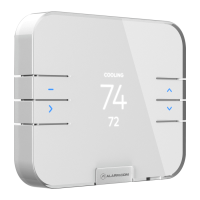
Details the physical thermostat components, including the Status LED and Button.

Display Elements

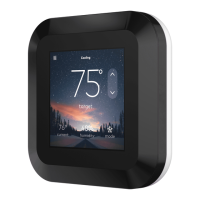
Explains the display interface, covering settings menu, setpoint, temperature, and mode.

In the Box Contents

Recommended Tools for Installation

Installation Considerations

Optimal Installation Location

Guides on selecting the best placement for the thermostat, avoiding interference and environmental factors.

Pre-installation Preparation Steps

Covers essential preparation like Z-Wave setup, system testing, and power disconnection before installation.

Thermostat Installation Procedure

Mounting the Thermostat Unit

Instructions for securely mounting the thermostat to the wall using hardware and optional trim plate.

Wiring the Thermostat Correctly

Details on inserting wires into terminals, covering R wire and unused wire considerations.

Display Unit Installation

Connecting the Display Unit

Steps for attaching the display to the thermostat and initial power-on behavior.

On-Screen Setup Wizard

Guidance on the setup wizard for configuring the thermostat and connecting to a Z-Wave network.

System Testing Procedures

Additional Configuration Options

Troubleshooting Common Issues

Regulatory Information

FCC Compliance Information

Details the device's compliance with FCC rules and operational conditions.

IC Compliance Notice

States compliance with Industry Canada license-exempt RSS standards for radio devices.

Radiation Exposure Statement Details

Explains the device's compliance with radiation exposure requirements for uncontrolled environments.

Alarm.Com ADC-T40K-HD Specifications

General IconGeneral
TypeSmart Thermostat
Operating Temperature32°F to 104°F (0°C to 40°C)
Humidity SensorYes
DisplayColor touchscreen
ConnectivityWi-Fi
Power Supply24VAC (C-wire required)
Operating Humidity0% to 95% RH, non-condensing
SensorsTemperature, Humidity
ControlTouchscreen, Mobile App (Alarm.com)
Scheduling7-day programmable
Energy Saving FeaturesEnergy Reports

Related product manuals