63 64
1
6
8
3
4
5
2
7
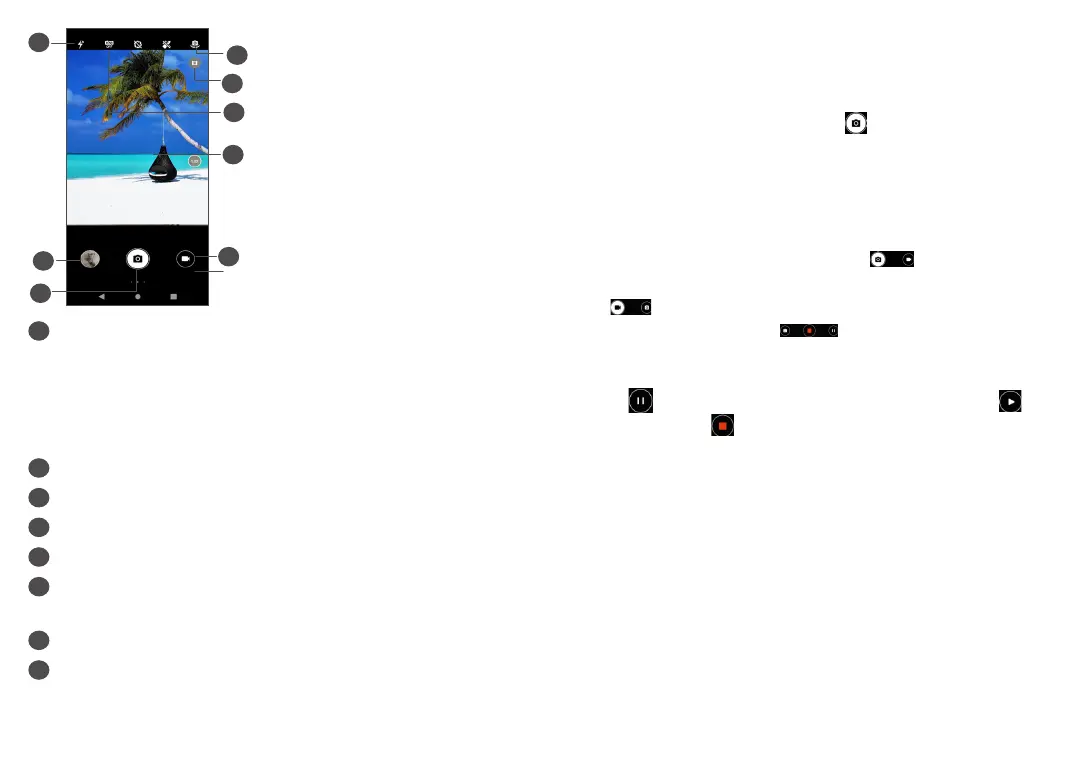
1
Flash mode
Touch to turn on/off the camera flash
WARNING: Keep a safe distance when using the
flash. Do not point the flash toward people’s or
animals’ eyes.
2
Ultra Wide mode
3
Take HDR photos
4
Switch between front and rear camera
5
Take a video
6
Pinch fingers together to zoom out, or spread
fingers apart to zoom in
7
View the photos or videos you have taken
8
Take a photo
To take a photo
The screen acts as the viewfinder. First, position the
object or landscape in the viewfinder, touch the screen
to focus if necessary and touch or press the Volume
key to take a photo. The photo will be automatically
saved.
To take a video
Touch the right part of this icon to change the
camera mode to video, then touch the left part of this
icon to start video recording. You can also touch
the left part of this icon to take a picture during
video recording.
Touch to pause video recording and touch to
continue. Touch to stop recording. The video will be
automatically saved.
5.1.1 Modes and settings
Slide right to switch Camera Mode. Slide left to enter
Camera settings.



 To Next Page