31 32
8
Camera ..............................................
Your mobile phone is equipped with a camera for taking photos and shooting videos that you can use
in different ways:
• store them as your creations on SD card or phone.
• send them in a multimedia message (MMS) to a mobile phone.
• send them directly by MMS, Bluetooth.
• customise your Home screen.
• select them as incoming call images for contacts in your Contacts.
• transfer them by data cable or microSD card to your computer.
8.1 Access
Select from the main menu to access this function.
8.2 Camera
8.2.1 Take a photo, save or delete
The screen acts as the viewfinder. Position the object or landscape in the viewfinder and press to
take the picture. The images will be automatically saved if you activate "Auto save" under "settings". If
you don’t want the image, you can delete it straight away.
8.2.2 Settings in framing mode
Before taking a photo, you can adjust a number of settings:
From the main camera screen, access "More Options" by double pressing the Left softkey for the
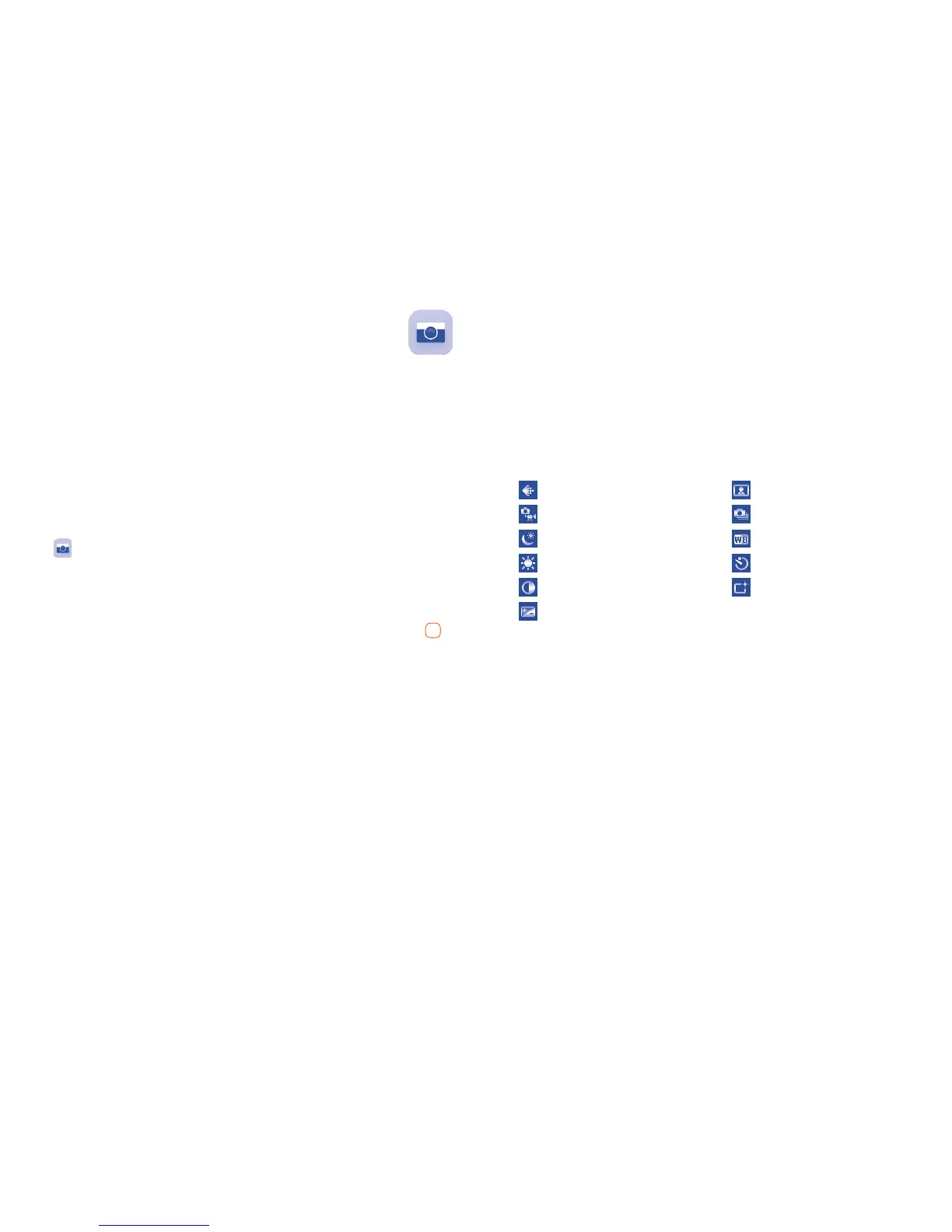
settings of: "Shoot mode", " Size", "Night mode", "Brightness", "Contrast", " Exposure bias", "Frame",
"Cont.shot" "White balance", "Delay", "Effect". You can also access the following functions:
DV mode • Access video recording mode.
Image viewer
• Access "My files\Phone" or "My files\Memory Card" to view the
photos you have taken.
Settings • You can set the photo quality, banding values storage location etc.
Help • Access the instructions to shortcuts in framing mode.
Size Frame
Shoot mode Cont.shot
Night mode White balance
Brightness Delay
Contrast Effect
Exposure bias
8.2.3 Options available after taking the photo
Once you have taken a photo, you can send it by Bluetooth, MMS, delete it, set as wallpaper, or go
to "Image viewer" to view it.


 To Next Page