Need help?
Do you have a question about the Alcatel 2053 and is the answer not in the manual?
Precautions for using the phone while driving and potential interference with vehicle systems.
Guidelines for operating the phone in various environments and conditions.
Precautions for handling non-unibody phone batteries.
Precautions for non-removable batteries in non-unibody phones.
Information about phone chargers and their operating conditions.
Advice on preventing hearing damage from high volume listening.
Information on respecting privacy laws regarding photography and sound recording.
Initial battery charging instruction.
Declaration of conformity with EU directives and radio equipment compliance.
Details on accessories, components, and software compliance.
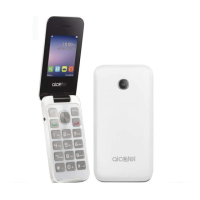
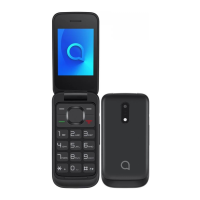
Description of the phone's keys and their functions.
Instructions for setting up the phone, including SIM and SD card insertion.
Guide on how to charge the phone's battery correctly.
Steps to turn on and turn off the Alcatel 2053 phone.
Instructions on how to dial numbers and make phone calls.
How to access voicemail services on the phone.
Steps for answering and ending incoming calls.
Functions accessible during an active phone call.
Using the phone's sound recorder to capture audio files.
Using the conversion tool for weight and length.
Setting and customizing the phone's alarm clock feature.
Using the monthly calendar view to check dates.
Using the phone's built-in calculator for calculations.
Exchanging data wirelessly via Bluetooth.
Turning the phone's torch (flashlight) on and off.
Creating and setting a voice file as an alarm.
Displaying and managing time zones for different cities.
Using the fake call function to escape social situations.
Understanding STK (SIM Application Toolkit) service functions.
Instructions for composing and sending text messages (SMS).
Accessing and managing stored images and videos.
Playing audio files using the phone's media player.
Playing video files using the phone's media player.
Using the phone to record video files.
Listening to FM radio broadcasts on the phone.
Accessing and viewing stored contact information.
Steps to add new contacts to the phone or SIM card.
Tips and advice for maximizing battery life.
This document serves as a comprehensive user guide for the Alcatel 2053 mobile phone, covering its functions, usage, and maintenance.
The manual emphasizes the importance of reading the safety guidelines carefully before using the phone. The manufacturer disclaims liability for damage resulting from improper use.
Using a mobile phone while driving, even with a hands-free kit, is a significant risk. Drivers are advised to refrain from using their mobile phone when the vehicle is not parked. It is also recommended not to use the phone and headphones to listen to music or radio while driving, as this can be dangerous and forbidden in some areas. When switched on, the phone emits electromagnetic waves that may interfere with vehicle electronic systems like ABS or airbags. To prevent issues, avoid placing the phone on the dashboard or within an airbag deployment area. Users should also check with their car dealer or manufacturer to ensure the dashboard is adequately shielded from mobile phone RF energy.
To optimize performance, it is advisable to switch off the phone periodically. The phone should be switched off before boarding an aircraft and in healthcare facilities, except in designated areas, as mobile phones can interfere with other electrical or electronic devices. It must also be switched off near gas or flammable liquids, strictly adhering to signs and instructions in fuel depots, petrol stations, or chemical plants, or any potentially explosive atmosphere. When switched on, the phone should be kept at least 15 cm away from medical devices such as pacemakers, hearing aids, or insulin pumps. When using the phone, hold it against the ear on the opposite side to the device, if any. To prevent hearing impairment, pick up calls before holding the phone to your ear and move the handset away from your ear when using the "hands-free" mode, as amplified volume may cause hearing damage. Children should not use the phone or play with its accessories without supervision. When replacing the cover, note that the phone may contain substances that could cause an allergic reaction. Always handle the phone with care, keeping it in a clean and dust-free place. Avoid exposing the phone to adverse weather or environmental conditions (moisture, humidity, rain, liquids, dust, sea air, etc.). The manufacturer's recommended operating temperature range is 0°C (32°F) to +40°C (104°F). Above 40°C (104°F), the legibility of the phone's display may be impaired, though this is temporary. Emergency call numbers may not be reachable on all mobile networks, so users should not rely solely on their phone for emergency calls. Do not open, dismantle, or attempt to repair the phone yourself. Avoid dropping, throwing, or bending the phone. Do not use the phone if the glass screen is damaged, cracked, or broken to avoid injury. Do not paint it. Only use batteries, chargers, and accessories recommended by TCL Communication Ltd. and its affiliates that are compatible with your phone model. TCL Communication Ltd. and its affiliates disclaim liability for damage caused by the use of other chargers or batteries. Remember to back up or keep a written record of all important information stored in your phone. Some individuals may experience epileptic seizures or blackouts when exposed to flashing lights or playing video games. These can occur even if there's no prior history. If you have experienced such symptoms or have a family history, consult a doctor before playing video games or enabling flashing lights. Parents should monitor children's use of features with flashing lights. Discontinue use and consult a doctor if symptoms like convulsion, eye/muscle twitching, loss of awareness, involuntary movements, or disorientation occur. To limit these symptoms, avoid playing or using flashing lights when tired, take 15-minute breaks hourly, play in a well-lit room, and maintain distance from the screen. If hands, wrists, or arms become tired or sore, stop and rest for several hours. If soreness persists, see a doctor. When playing games, you may experience discomfort in hands, arms, shoulders, neck, or other body parts. Follow instructions to avoid problems like tendinitis or carpal tunnel syndrome.
To prevent hearing damage, avoid listening at high volume levels for long periods. Exercise caution when holding the device near your ear when the loudspeaker is in use.
Users must respect laws and regulations regarding taking photographs and recording sounds with their mobile phone. It may be forbidden to record voices or personal attributes of others, or to duplicate/distribute such content, as this may be an invasion of privacy. Users are solely responsible for obtaining prior authorization if necessary. The manufacturer, seller, or vendor (including the operator) disclaims liability for improper use of the mobile phone.
Following air regulation, the product's battery is not charged upon purchase; it must be charged first.
This device meets international guidelines for exposure to radio waves, designed not to exceed limits recommended by independent scientific organizations (ICNIRP). The Specific Absorption Rate (SAR) limit for mobile devices is 2.0 W/kg. SAR tests are conducted at the highest certified power level across all frequency bands. During use, actual SAR values are typically below stated values because the operating power is automatically decreased when full power is not needed. Body-worn SAR testing is carried out at a separation distance of 5 mm. To comply with RF exposure guidelines, the device should be positioned at least 5 mm from the body when worn. If using an accessory, ensure it is free of metal and maintains the indicated distance. Organizations like the World Health Organization and the US Food and Drug Administration suggest using hands-free devices or reducing phone call duration to minimize exposure. Additional information on electromagnetic fields and public health is available on www.who.int/peh-emf. The phone has a built-in antenna; avoid touching or degrading it for optimal operation. When used in positions other than against the ear (e.g., with a headset or USB data cable), the device will comply with guidelines. If using another accessory, ensure it is metal-free and positions the phone at least 5 mm away from the body. Users are responsible for protecting personal data and not sharing it with unauthorized devices. The product can store personal information on a SIM card, memory card, and built-in memory. Ensure all personal information is removed before recycling, returning, or giving away the product. Data shared with TCL Communication Ltd. is stored according to applicable data protection legislation, with appropriate technical and organizational measures to protect personal data against unauthorized or unlawful processing, accidental loss, destruction, or damage, ensuring a level of security appropriate to available technical possibilities and implementation costs, and considering the risks and sensitivity of the data.
The microSD Logo is a trademark. The Bluetooth word mark and logos are owned by the Bluetooth SIG, Inc., and their use by TCL Communication Ltd. and its affiliates is under license. Other trademarks and trade names belong to their respective owners. The Alcatel 2053 Bluetooth Declaration ID is D023491.
Internet address: www.alcatelmobile.com. For hot line numbers, refer to the "TCL Communication" leaflet or the website. Manufacturer: TCL Communication Ltd., Address: 5/F, Building 22E, 22 Science Park East Avenue, Hong Kong Science Park, Shatin, NT, Hong Kong. The website also provides an FAQ section and email contact for questions. This radio equipment operates with the following frequency bands and maximum radio-frequency power: GSM 850/900: 33 dBm, GSM 1800/1900: 30 dBm, Bluetooth 2.4GHz band: 2 dBm.
TCL Communication Ltd. declares that the radio equipment type Alcatel 2053X/2053D complies with Directive 2014/53/EU. The full text of the EU declaration of conformity is available at http://www.alcatelmobile.com/EU_doc.
A description of accessories and components, including software, that allow the radio equipment to operate as intended, can be found in the full text of the EU declaration of conformity at http://www.alcatelmobile.com/EU_doc.
Your phone is identified by an IMEI (phone serial number) found on the packaging label and in the product's memory. It is recommended to note this number by entering *#06# and keep it safe. This number may be requested by police or your operator if your phone is stolen, allowing your mobile phone to be blocked, preventing unauthorized use even with a different SIM card.
There may be differences between the user manual description and the phone's operation due to software releases or specific operator services. TCL Communication Ltd. is not legally responsible for such differences or their potential consequences, which are the operator's exclusive responsibility. This phone may contain third-party materials (applications and software) provided "as is" without warranty. TCL Communication Ltd. has complied with quality obligations as a manufacturer of mobile devices and phones regarding Intellectual Property rights. TCL Communication Ltd. will not be responsible for the inability or failure of third-party materials to operate on this phone or interact with other devices. To the maximum extent permitted by law, TCL Communication Ltd. disclaims all liability for claims, demands, suits, or actions arising from the use or attempted use of such third-party materials. Additionally, present third-party materials, provided free of charge, may be subject to paid updates and upgrades in the future; TCL Communication Ltd. waives responsibility for such additional costs, which are the purchaser's exclusive responsibility. TCL Communication Ltd. is not responsible for the lack of availability of any application, as its availability depends on the country and operator. TCL Communication Ltd. reserves the right to add or remove third-party materials from its phones without prior notice, and will not be held responsible for any consequences of such removal. Contact your network operator to check service availability.
This section details the phone's physical components and their functions.
This section guides users through the initial setup of the phone.
Instructions are provided for removing and installing the back cover, battery, SD card, and SIM card. For dual SIM models (2053D) and single SIM models (2053X), only mini SIM cards are supported. Attempting to insert other SIM types like micro or nano cards may damage the phone.
Connect the battery charger to the phone and plug it into a socket. Charging may take about 20 minutes to start if the battery is completely drained. Avoid forcing the plug into the socket. Ensure the battery is correctly inserted before connecting the charger. The mains socket should be near the phone and easily accessible (avoid electric extension cables). It is advised to charge the battery to its maximum (approximately 3 hours) when using the phone for the first time. To reduce power consumption and energy waste, disconnect the charger when the battery is fully charged and reduce backlight time. The charge is complete when the animation stops.
Hold down the power key until the phone powers on.
Hold down the power key from the idle screen.
This section describes how to make, receive, and manage calls.
Dial the desired number and press the call key. To correct a mistake, press the back key. To hang up, press the end call key.
If the phone is covered by the network, dial an emergency number and press the call key. This works even without a SIM card or PIN code.
To access voicemail, hold down the '1' key.
When an incoming call is received, press the call key to answer and the end call key to hang up.
During a call, users can access short messages, call logs, contacts, etc., without hanging up.
Users can access call memory by pressing the call log key from the idle screen or by pressing the menu key and selecting the call log icon from the Menu.
This function allows users to take pictures. Press the camera key to take a picture. Photos can be set as wallpaper or assigned as incoming call images to contacts.
This menu allows users to set up a blacklist and whitelist.
Contacts can be added to the blacklist from:
Contacts can be added to the whitelist from:
Users can choose from the following options:
This section describes various utility functions available on the phone.
This function allows users to record audio files in WAV and AMR formats. Recordings are automatically stored in "My music."
Supports weight and length conversions.
The phone has a built-in alarm clock with a snooze feature. Users can set five alarms with customizable wake-up times and other options.
This menu provides a monthly-view calendar for viewing dates and navigating to any day. Users can also create notes in text format by accessing "Add voice alarm" from the Options.
Users can perform basic arithmetic operations (+, -, ×, ÷, =) by pressing the up, down, left, right, and center keys. The back key deletes figures.
Allows data exchange (video, images, audio) with other Bluetooth-supported devices within a limited range after pairing.
Turns the flashlight on/off as needed.
Users can create voice files and set them as alarms.
The first clock displays the time based on the user's location. Users can add other cities to show their time zones.
This function allows users to simulate a fake call, which can be useful for politely escaping social situations.
STK service is a tool kit of the SIM card, supporting service functions that depend on the SIM card and network. The service menu is automatically added to the phone menu when supported by the network and SIM card. Consult the local network operator for related fees and specific setup.
This section covers messaging features.
From the main menu, select "Message" to create a text message. Users can type a message and send it to a recipient in the SIM card directory. Pre-defined messages from "Templates" can also be inserted. While writing a message, select "Options" to access all messaging options. For dual SIM models, messages can be sent to a recipient in either the SIM1 or SIM2 directory. An SMS message exceeding a certain character limit (depending on the language) will be charged as multiple SMS. Specific letters (accents) increase SMS size, potentially leading to multiple SMS being sent.
This section describes the phone's multimedia capabilities.
A library that links to images (stored in "Photos") in the phone or SD card. Images can be multi-marked, set as wallpaper, used for power on/off display, incoming call images, or sent via Bluetooth.
This function plays audio files. Press the play/pause key to control the audio player. Short presses of the up or down direction keys navigate to the last or next audio track. In the audio player interface, pressing the up and down keys adjusts the volume.
This function plays video files. Press the play/pause key to control the video player. Short presses of the up or down direction keys adjust the volume. Pressing the left and right direction keys navigates to the last or next video.
This function allows users to make video files. Press the play/pause key to start/pause recording.
The phone is equipped with an FM radio with saved channels. In the FM radio interface, press the play/pause key to control the current channel. Pressing the up and down keys adjusts the volume. The radio can be listened to while running other applications. To use this feature, a headset must be plugged in, as it acts as an antenna.
The phone provides space for users to manage files and supports a memory card. The file manager allows convenient management of directories and files on the phone and memory card.
This section explains how to manage contacts.
Users can access call memory by pressing the call log key from the idle screen, or by pressing the menu key and selecting the contacts icon from the Menu. This menu displays all call contacts.
Select "New contact" and save it to "Phone" or "SIM" as desired.
From the main menu, select the settings icon to customize the telephone. Options include Profiles, Phone settings, Call settings, Network, Regulatory & safety, Security, and Restore factory settings. Restoring factory settings will erase end-user data and require the default password "1234" to confirm and reboot.
This mode allows users to type text by choosing a letter or a sequence of characters associated with a key. Press the key multiple times until the desired letter is highlighted. When the key is released, the highlighted character is inserted into the text.
The phone is warranted against defects or malfunctions under normal use for twelve (12) months from the purchase date shown on the original invoice. Batteries and accessories sold with the phone are warranted for six (6) months from the purchase date. In case of a defect preventing normal use, inform your vendor immediately and present proof of purchase. If the defect is confirmed, the phone or part will be replaced or repaired. Repaired phones and accessories receive a one (1) month warranty for the same defect. Repairs or replacements may use reconditioned components offering equivalent functionality. This warranty covers parts and labor but excludes other costs. The warranty does not apply to defects due to:
Before contacting the service center, users are advised to fully charge the battery for optimal operation and avoid storing large amounts of data, which may affect performance.
 General
| Display diagonal | 2.4 \ |
|---|---|
| Display resolution | 320 x 240 pixels |
| RAM capacity | 4 MB |
| Flash card support | Yes |
| Compatible memory cards | MicroSD (TransFlash) |
| Maximum memory card size | 32 GB |
| Rear camera resolution (numeric) | 1.3 MP |
| WAP | - |
| Data network | GPRS, GSM |
| SIM card capability | Dual SIM |
| 2G bands (primary SIM) | 850, 900, 1800, 1900 MHz |
| Mobile network generation | 2G |
| Bluetooth version | 2.1+EDR |
| Multimedia Messaging Service (MMS) | Multimedia Messaging Service (MMS) is a standard way to send messages that include multimedia content to and from a mobile phone over a cellular network |
| Talk time (2G) | - h |
| Battery capacity | - mAh |
| Subscription type | No subscription |
| Type | Feature phone |
| Product color | Black |
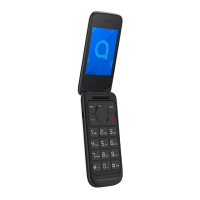
| Form factor | Clamshell |
| Personal info management (PIM) | Alarm clock, Calculator, Calendar |
 Weight and Dimensions
| Depth | 16.9 mm |
|---|---|
| Width | 50.4 mm |
| Height | 103 mm |
| Weight | 89 g |

 To Next Page