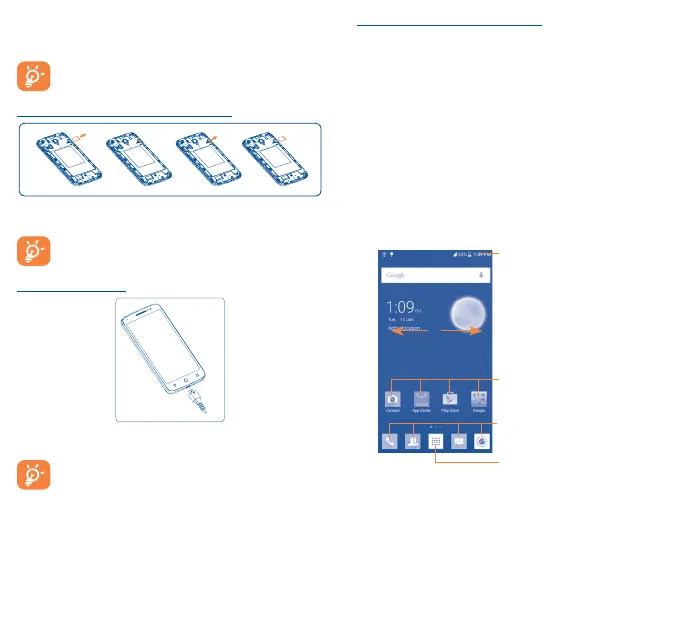
4 5
To install, place the SIM card with the chip facing down into the
housing, and then slide it into its slot. Make sure that it is correctly
inserted. To remove the card, press and slide it out.
Your phone only supports micro-SIM cards. To avoid
damaging your phone, do not attempt to insert other SIM
types, such as mini and nano cards.
Installing and removing the microSD card
Insert the microSD card with the golden contacts facing down into
the slot. To remove the microSD card, gently press and slide it out.
To avoid data loss and SD card damage, please ensure that
the SD card is unmounted before removing it (Settings\
Storage\Unmount SD card).
Charging the battery
Connect the battery charger to your phone and wall socket
respectively, the LED indicator will light while charging.
To reduce power consumption and energy waste, when
the battery is fully charged, disconnect your charger from
the plug; switch off Wi-Fi, GPS, Bluetooth or background-
running applications when not in use; reduce the backlight
time, etc.
1�2�2 Power on your phone
Hold down the Power key until the phone powers on. It may take a
few seconds before the screen lights up.
Set up your phone for the first time
The first time you power on the phone, you should set the following
options: language, input method, date & time, etc.
Even if no SIM card is installed, your phone will still power on and
you will be able to connect to a Wi-Fi network, sign into your Google
account, and use some of the phone's features.
1�2�3 Power off your phone
Hold down the Power key from the Home screen until the phone
options appear, select Power off.
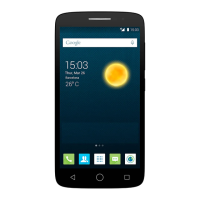
1�3 Home screen
You can bring all of the items (applications, shortcuts, folders and
widgets) you love or use most frequently to your Home screen for
quick access. Touch the Home key to switch to the Home screen.
Application tab
• Touch to open main menu.
Status bar
• Status/Notification indicators
• Touch and drag down to open
the notification panel.
Touch an icon to open an
application, folder, etc.
Favorite tray applications
• Touch to enter the application.
• Touch and hold to move or
change applications.
The Home screen is provided in an extended format to allow more
space for adding applications, shortcuts, etc. Slide the Home screen
horizontally left and right to get a complete view.




 To Next Page