6 7
1�3�1 Using the touchscreen
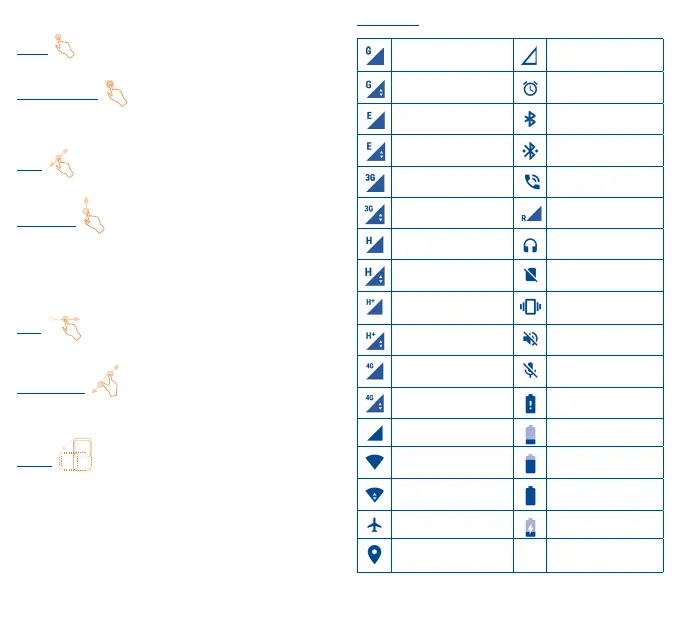
Touch
To access an application, touch it with your finger.
Touch and Hold
To enter the available options for an item, touch and hold the item.
For example, select a contact in Contacts, touch and hold this
contact, an options list will then appear on screen.
Drag
Place your finger on the screen to drag an object to another location.
Slide/Swipe
Slide the screen to scroll up and down the applications, images, web
pages… at your convenience.
The device also supports one finger zoom in (Messaging, Browser,
Email, Camera, and Gallery) by double tapping the screen then slide
with one finger to zoom in/out).
Flick
Similar to swiping, but flicking makes it move quicker.
Pinch/Spread
Place your fingers of one hand on the screen surface and draw them
apart or together to scale an element on the screen.
Rotate
Automatically change the screen orientation from portrait to
landscape by turning the phone sideways to have a better view.
1�3�2 Status bar
From the status bar, you can view both phone status and notification
information.
Status icons
GPRS connected No signal
GPRS in use Alarm is set
EDGE connected Bluetooth is on
EDGE in use
Connected to a
Bluetooth device
3G connected
Speakerphone is on
3G in use Roaming
HSPA (3G+) connected Headset connected
HSPA (3G+) in use No SIM card installed
HSPA+ connected Vibrate mode
HSPA+ in use Ringer is silenced
4G connected
Phone microphone
is mute
4G in use Battery is very low
Signal strength Battery is low
Wi-Fi is on
Battery is partially
drained
Connected to a Wi-Fi
network
Battery is full
Airplane mode Battery is charging
GPS is on





 To Next Page