Need help?
Do you have a question about the Alcatel APPRISE and is the answer not in the manual?
Identifies external and internal parts of the Alcatel APPRISE phone, including ports and buttons.
Step-by-step guide for inserting SIM and microSD cards into the phone.
Explains basic touch interactions like tapping, swiping, and using navigation buttons.
How to access and manage alerts, notifications, and quick settings menus.
Instructions for changing the home and lock screen wallpaper.
Guide to adding, moving, deleting apps, and creating folders on the home screen.
Overview of services like myCricket and Visual Voicemail.
Details on Face Unlock security and the phone's warranty information.
How to initiate calls, select contacts, and answer incoming calls.
Steps to check voicemail and manage call waiting functions.
Guide for composing and sending SMS messages to contacts.
Instructions for attaching photos or media to messages.
Steps to configure your Gmail account on the device.
How to compose, add attachments, and send emails.
Using the shutter, zoom, and record functions for media capture.
Explains how to use filters, panorama mode, and other camera settings.
Description of Google Go, YouTube, Assistant, Maps, and Google Pay.
Links to online support, user manuals, and customer care contact details.
Information on purchasing accessories and FCC compliance statements.
The Alcatel APPRISE™ is a smartphone designed for ease of use and convenience, offering a range of features for communication, entertainment, and productivity. This quick start guide provides an overview of its functions, usage, and maintenance.
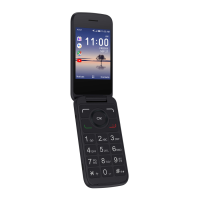
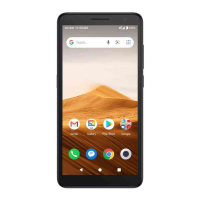
The phone features a speaker, headset port, light and proximity sensor, camera, and LED indicator on the front. On the right side, you'll find the volume keys and the power/lock key. The touch screen is the primary interface for interaction. At the bottom, there's a charging port. For navigation, the device includes a Google Assistant button, a back button, recent apps button, and a home button.
Setting up your Alcatel APPRISE™ is straightforward. First, remove the back cover by gently pulling up on the indentation located on the bottom left. Once the cover is off, insert your nano SIM card and microSD™ card (if applicable) with the gold contacts facing down. Ensure both cards are properly secured in their slots. After the cards are in place, reattach the back cover. It's crucial to use only the standard NANO SIM card provided by your service provider to avoid any damage to the phone.
The touch screen is central to interacting with your phone. You can tap the screen with your fingertip to select items, or use quick flicks of your finger to swipe up, down, left, or right, allowing you to scroll through content and navigate menus.
To return to the previous screen, tap the "Back" button. The "Home" button will take you back to the home screen at any time. To access recently viewed applications, tap the "Recent apps" button. You can also swipe up from the home screen to access all applications installed on your phone.
The notification panel keeps you informed about new messages, emails, and software updates. To view it, drag your finger down from the top of the home screen. Within the panel, you can swipe right or left to clear individual notifications. To clear all notifications at once, tap "CLEAR ALL." If you need to access the Quick Settings menu, drag down from the top of the screen again while the notification panel is open. For a comprehensive list of settings, tap the "Settings" icon.
The Alcatel APPRISE™ allows for personalization to make your phone feel uniquely yours.
Set Wallpaper: To change your home or lock screen wallpaper, touch and hold a blank part of the home screen and tap "WALLPAPERS." You can then select a wallpaper and tap "Set wallpaper" to apply it. You'll have the option to set it for the lock screen, home screen, or both. Additionally, you can tap "My photos" for more options from your personal gallery.
Add to Home Screen: To add app shortcuts to your home screen, swipe up to access your applications. Press and hold the desired app, then drag it to your preferred location on the home screen.
Organize Home Screens: You can easily rearrange app shortcuts by pressing and holding an icon and then dragging it to a new spot. To delete an app shortcut, drag it to the "X Remove" area at the top of the screen. To create a folder, press and hold one app shortcut and drag it on top of another; release to create the folder. To rename a folder, tap the folder title and type a new name.
Cricket Services enhance your phone experience.
Make a Call: From the home screen, tap the "Phone" icon. You can then type a name or phone number, or choose from several options: tap the "#" icon to manually enter a number, the star icon to select from frequently called contacts, the clock icon to choose from a list of recently called or received calls, or the people icon to make a call from your contacts list.
Check Voicemail: From the home screen, tap the "Phone" icon, then tap the "#" icon. Press and hold the "1" key to access your voicemail.
Call Waiting: Call waiting allows you to answer a second call while your existing call is on hold. You'll hear a tone if another call comes in. To answer an incoming call, tap the green phone icon. To switch between active calls, tap the "U" icon. To merge calls, tap the merge icon. To end a call, tap the red phone icon.
Send a Text Message: From the home screen, tap the "Messaging" icon. Tap the "+" "New message" button to start a new text message. In the "To" field, enter a number or a contact name, or select a contact from your Favorites or All Contacts. Tap the "Type message" field to enter your message. Finally, tap the send icon to send the message.
Send a Picture Message: Follow steps 1-4 for sending a text message. Then, tap the "Paper Clip" icon. You can tap the "Picture" icon to select a desired picture from your gallery, or tap the "Camera" icon to take a new picture to attach. Tap the send icon to send the message.
Gmail Setup: From the home screen, tap the "Google" folder, then tap "Gmail." Enter your email address and tap "NEXT," then enter your password and tap "NEXT" again. Confirm your email account settings and tap "NEXT." Enter your name, which will be displayed on outgoing emails, and tap "NEXT."
Create and Send an Email Message: From the home screen, tap the "Google" folder, then tap "Gmail." To compose a new message, tap the "+" icon. Tap the "To" field and enter the email address or name of the recipient. Enter a subject and your email message. To attach files, tap the "Paper Clip" icon and make your selection. Finally, tap the "Send" icon to send the message.
Take a Picture or Make a Video: From the home screen, tap the "Camera" icon. You can zoom in and out by pinching with your fingers on the screen. To take a photo, tap the "Shutter" icon or press the "Volume Key." In Video mode, tap the "Record" icon to start recording, and tap it again to stop. You can also take a photo while in Video mode by tapping the "Shutter" icon.
Modes and Settings: Slide left or right on the camera screen to switch between different modes.
Google apps are preinstalled to improve work efficiency and enhance your experience.
On the Web: Detailed support information, including a full user's manual, is available at www.cricketwireless.com/support/devices.
On the Phone: You can call Customer Care at 1-855-246-2461 or dial 611 from your cell phone for assistance.
Accessories: For more information about accessories, visit your local Cricket store or go to www.cricketwireless.com/shop/accessories. Note that store and online inventories may vary.
The Alcatel APPRISE™ (5002R) smartphone comes with a 2-year limited warranty from TCT Mobile Inc. for defects in materials or workmanship. For more information, visit https://us.alcatelmobile.com/warranty/2year/.
This device complies with FCC Radio Frequency Exposure Guidelines and Part 15 of the FCC Rules, meaning it may not cause harmful interference and must accept any interference received.
All "Signature" ringtones embedded in this phone were composed, arranged, and mixed by NU TROPIC (Amar Kabouche).
 General
| Network Technology | GSM / HSPA / LTE |
|---|---|
| Build | Glass front, plastic back, plastic frame |
| SIM | Nano-SIM |
| Type | TFT LCD |
| Internal | 32GB 2GB RAM |
| Features | LED flash, HDR, panorama |
| Video | 1080p@30fps |
| Selfie Camera | 5 MP |
| Loudspeaker | Yes |
| 3.5mm jack | Yes |
| WLAN | Wi-Fi 802.11 b/g/n, Wi-Fi Direct, hotspot |
| GPS | Yes, with A-GPS |
| NFC | No |
| Radio | FM radio |
| USB | microUSB 2.0 |
| Sensors | Accelerometer, proximity |
| Colors | Black |
| Models | 5002R |
| Status | Available. Released 2020, September |
| Size | 5.5 inches |
| Resolution | 720 x 1440 pixels |
| OS | Android 10 |
| CPU | Quad-core Cortex-A53 |
| Main Camera | 8 MP, AF |
| Bluetooth | 4.2, A2DP |

 To Next Page