22
9. INSTALLATION
Having prepared for the installation, you are safe to proceed.
1. Remove the rear cover of the Alde control
panel. Press the tabs either side and pull.
2. Connect the cable (1) with the white 4-pole
connector to the Alde control panel. There is
a connection diagram inside the rear cover of
the control panel.
3010and3020Aldecontrolpanelshavedif-
ferent internal layout.
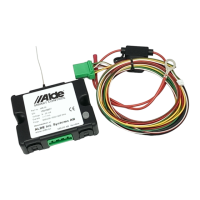
3. Connect the other end of the adaptor cable
(1) to the module, the green connector.
4. ConnecttheRedwiretoa12Vbatteryposi-
tive(+)andtheBrownwiretoa12Vbattery
negative (-).
1
Connect to Alde Control Panel
Connect to module
Follow step 5-7 below if you have other accessories that you wish to connect to the
module. Ensure cable length for any other accessories does not exceed the included
length.
5. Connect the Yellow wire for the “additional output” to an accessory of your choosing.
You can set the connected equipment to On or Off in Alde Smart Control App. The
outputisspecied12Vand0.5A.
6. The Green wire is used for the control of a refrigerator. You can set the connected
equipmenttoOnorOffintheAldeSmartControlApp.Checkthespecicationforyour
refrigerator if any other devices in between are necessary and how it should be con-
nected.Theoutputisspecied12Vand0.5A.
7. Connect the Red/White and brown wire (minus) to an external alarm, e.g. a burglar
alarm.
8. Securelytthemoduleinthevehicleandreconnectthe12Vbattery.Theantenna
should be as unimpeded by walls, bulkheads and furniture as possible.
9. The communication to the module must be switched on in the Alde panel.
Depending on the panel version it has different names. Look for:
3010613: “Translator” in the settings menu.
3020013:“Translator”inthesettingsmenu.
3020113:“ThirdPartyPanel”inthe“InstalledAccessories”menu.
Check the panel instruction for more details.
OUT
(*) Requires optional parts, not included.


 To Next Page