EasyManua.ls Logo

Alesis 320USB - User Manual

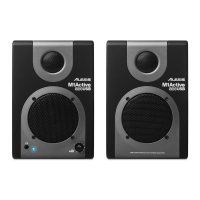
Alesis 320USB
44 pages
Print Icon
To Next Page IconTo Next Page
Loading...
QUICKSTART OWNER’S MANUAL
(ENGLISH) 1 – 8
MANUAL DE INICIO RÁPIDO DEL USUARIO
(ESPAÑOL) 9 – 16
GUIDE D’UTILISATION SIMPLIFIÉ
(FRANÇAIS) 17 – 24
KURZBEDIENUNGSANLEITUNG
(DEUTSCH) 25 – 32
MANUALE RAPIDO DI UTILIZZO
(ITALIANO) 33 – 40

Questions and Answers

  • C
    Carmen ValenciaJul 25, 2025
    Why Alesis 320USB Speakers do not work?
    • A
      arthur48Jul 26, 2025
      There are several reasons why your Alesis Speakers might not be working: * Ensure the speakers are plugged into a working power outlet. * Verify the speakers are powered on; the blue LED should be lit. * Confirm the speakers are properly connected to a functioning USB port on your computer. * Avoid using USB hubs; connect the speakers directly to your computer. * Check if headphones are plugged in, as this will disable the speaker output. Disconnect them to listen through the speakers. * Make sure the volume knob is turned up to an audible level.
  • G
    Gary ButlerJul 30, 2025
    What to do if I am experiencing distortion when recording from external sources on my Alesis 320USB?
    • S
      Susan LopezJul 30, 2025
      If you're getting distortion while recording from external sources with your Alesis Speakers, it could be due to a couple of things. First, the gain levels of your input sources might be too high, so try turning them down. This is especially important when using multiple sources because the inputs on the rear panel of the speakers are summed together before going to your computer. Also, make sure that software monitoring is turned off to prevent feedback loops and distortion.
  • D
    Denise SullivanAug 4, 2025
    What to do if my software DAW is not “seeing“ the Alesis 320USB Speakers?
    • C
      Charles LopezAug 4, 2025
      If your software DAW doesn't recognize the Alesis Speakers, it might be because the speakers were connected after the software was launched. Some configurations require audio and MIDI devices to be connected before starting software applications. Try restarting the application with the speakers plugged in and powered on.
  • S
    sarah43Aug 10, 2025
    What to do if I am experiencing a lot of latency or “lag“ with Alesis 320USB Speakers?
    • M
      monicagarciaAug 10, 2025
      If you're experiencing latency or lag with your Alesis Speakers, the buffer size in your software might be set too high. Try lowering the buffer size in your software's audio settings or preferences. Also, consider downloading the free ASIO4ALL driver from www.asio4all.com, as it may help achieve better results under extremely low latency settings if the class-compliant audio drivers are insufficient.
  • W
    William LindseyAug 14, 2025
    What to do if I am experiencing audio dropouts and glitches with my Alesis Speakers?
    • A
      amy65Aug 15, 2025
      If you're experiencing audio dropouts and glitches with your Alesis Speakers, it could be because the buffer size in your software is set too low. Extremely low buffer sizes can cause your computer to work harder than it can, leading to these issues. Try selecting a higher buffer size in your software to resolve this problem.
  • H
    hthompsonAug 20, 2025
    How to fix Alesis 320USB Speakers when I am only hearing audio from the left speaker?
    • J
      Jason ReedAug 20, 2025
      If you're only hearing audio from the left speaker of your Alesis Speakers, ensure that the right speaker is properly connected to the left speaker using the included 1/8“ cable.

Summary

Introduction

Hookup Diagram

Front Panel Overview

Vol;Power

Controls power and volume, indicated by a blue LED.

Headphones

Connects 1/8" headphones for listening; speakers mute when connected.

Rear Panel Overview

Power

Connects the speaker to a power source using the included cable.

AC Voltage Selector

Sets the speaker's AC input voltage for country compatibility.

Output to Left Speaker

Audio connection from right speaker to left speaker using a 1/8" cable.

USB (1.1)

Connects speakers to computer via USB for plug-and-play audio.

1;8 Stereo Input

Connects external sound sources using a 1/8" stereo cable.

1;4 TS Inputs

Connects external sound sources using 1/4" TS cables.

RCA Inputs

Connects external sound sources using stereo RCA cables.

Bass Boost

A 2-position switch to increase the speakers' bass frequencies.

Speaker Placement

Speaker Height

Configuration Under Windows

About Latency & Third-Party ASIO Drivers

Configuration Under MacOSX

Configuring Your DAW

Playback

Ensures speakers are enabled as an audio output device in DAW software.

Recording

Enables speakers as audio input device in DAW for recording external sources.

Troubleshooting

Technical Specifications

Alesis 320USB Specifications

General IconGeneral
TypeActive Studio Monitors
Configuration2-way
HF Driver Size1 inch
Frequency Response80 Hz - 20 kHz
InputsRCA, USB
Power Output10W per channel
LF Driver Size3" (76.2 mm)
Enclosure TypeBass-reflex

Related product manuals