EasyManua.ls Logo

Alesis Q25 - User Manual

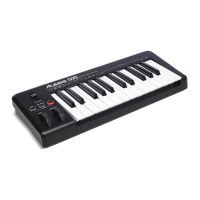
Alesis Q25
20 pages
Print Icon
To Next Page IconTo Next Page
Loading...
25
USB/MIDI KEYBOARD CONTROLLER
QUICKSTART GUIDE
ENGLISH ( 3 – 5 )
GUÍA DE INICIO RÁPIDO
ESPAÑOL ( 6 – 8 )
GUIDE D'UTILISATION RAPIDE
FRANÇAIS ( 9 – 11 )
GUIDA RAPIDA
ITALIANO ( 12 – 14 )
KURZANLEITUNG
DEUTSCH ( 15 – 17 )

Questions and Answers

  • T
    tjacksonAug 3, 2025
    How to fix Alesis Electronic Keyboard display that does not light up?
    • G
      gary92Aug 3, 2025
      If the display on your Alesis Electronic Keyboard does not light up, it could be due to a lack of power. Please ensure that the Q25 is connected to your computer and that the computer is powered on. If you're using a power adapter, verify that it is plugged into a live power outlet.
  • M
    Mrs. Tina FlynnAug 10, 2025
    Why do notes sustain continuously on my Alesis Electronic Keyboard?
    • J
      jonathanbarkerAug 10, 2025
      If the notes on your Alesis Electronic Keyboard sustain continuously, it might be due to the sustain pedal being plugged in after the Q25 was powered on, or it could be due to stuck notes from incomplete MIDI data. To resolve this, turn the unit's power off, wait a moment, and then turn it back on.
  • K
    Kristina RamirezAug 18, 2025
    What to do if sustain pedal works in reverse on Alesis Electronic Keyboard?
    • T
      Terry MooreAug 18, 2025
      If your sustain pedal is working in reverse on your Alesis Electronic Keyboard, it's likely because the sustain pedal was plugged in after the power was turned on. To fix this, with the pedal plugged in, turn the unit's power off, wait a moment, and then turn it on again.
  • D
    Dr. Jason Robertson IVOct 25, 2025
    What to do if there is no sound from target device on Alesis Electronic Keyboard?
    • B
      Brian PetersonOct 25, 2025
      If your Alesis Electronic Keyboard isn't producing any sound on the target device, there are several things to check: * Ensure the Q25 is properly connected to your computer. Verify that your computer recognizes the Q25 by checking the USB connection. If needed, try replugging the connection and restarting your computer. * If you're controlling an external hardware module, confirm that the MIDI cable is correctly connected from the Q25 to the device's MIDI IN port. * If the Q25 was connected after the software application started, restart the application with the controller plugged in. * If you're using a USB hub, unplug the Q25 from the hub and connect it directly to the computer. * Make sure your software application is set to receive MIDI data from the Q25. Check that the Q25...

Summary

INTRODUCTION

CONNECTION DIAGRAM

Explains how to connect the Q25 via USB or power adapter.

REAR PANEL OVERVIEW

Details the rear panel ports: Power, USB, MIDI OUT, Sustain.

TOP PANEL OVERVIEW

KEYBOARD AND CONTROLS

Overview of the Q25 keyboard and its control elements.

SELECTING & EDITING MIDI COMMANDS

MIDI PARAMETER ADJUSTMENT

Guide to adjusting MIDI parameters and sending messages.

TROUBLESHOOTING

CONNECTION AND POWER ISSUES

Solutions for display, power, sound, and MIDI connectivity problems.

SUSTAIN PEDAL ISSUES

Troubleshooting for sustain pedal functionality.

SPECIFICATIONS

TECHNICAL DETAILS

Overview of power, keyboard, accessories, and MIDI/USB ports.

MIDI IMPLEMENTATION CHART

BASIC MIDI INFORMATION

Details basic MIDI parameters and their transmit/receive status.

MIDI TIMING AND SYNCHRONIZATION

Information on MIDI timing and synchronization features.

Alesis Q25 Specifications

General IconGeneral
MIDI-keyboard number of keys25 keys
Product colorBlack
InterfaceUSB
DC-in jackYes
USB ports quantity1
Input voltage9 V
Power source typeDC
Weight and Dimensions IconWeight and Dimensions
Depth185 mm
Width485 mm
Height60 mm
Weight1400 g

Related product manuals