2
www.observint.com
b. If the camera is not powered using PoE (Power over Ethernet injector), connect the 12 Vdc
power cable to the camera drop cable. The polarity of the drop cable connector is shown in
the drop cable photo above.
CAUTION
Do not apply power to the camera at this time. Before applying power to the camera, ensure
that the polarity is correct. An incorrect connection may cause a malfunction and can damage
the camera.
6. Attach an earth ground cable to the ground terminal on the back of the camera body. Follow
local electrical codes when grounding the camera.
7. For outdoor installations, seal holes drilled in the mounting surface to block moisture and other
contaminants, if necessary.
8. Secure the camera to the mounting surface using appropriate fasteners.
9. Apply power to the camera through the 12 Vdc power cable or PoE injector, as congured.
Step 3. Install the Alibi Config Tool software
NOTE: If the camera LAN extension cable is attached to a Network Video Recorder (NVR), skip this step.
The Alibi Cong Tool is a PC-based network utility for discovery of Alibi compatible devices. It provides
an easy way to activate devices, congure camera and recorder network conguration settings, and set
device passwords. It can be installed on a Microsoft® Windows® operating system that has direct access
to the network where your Alibi devices are installed. You can download the Alibi Conguration Tool
from AlibiSecurity.com/Resources.
1. Download the Alibi Cong Tool from the AlibiSecurity.com/Resources website. At the time
when this document was published, the le is named: alibi-cong-tool.zip and is about 80MB.
2. Un-zip the le on a computer with Microsoft Windows (Windows 7 or newer) that is connected
to the LAN where your Alibi camera is connected.
3. Run the le contained in the zip le: Alibi Cong Tool.exe. Follow the on-screen instructions
to install the le.
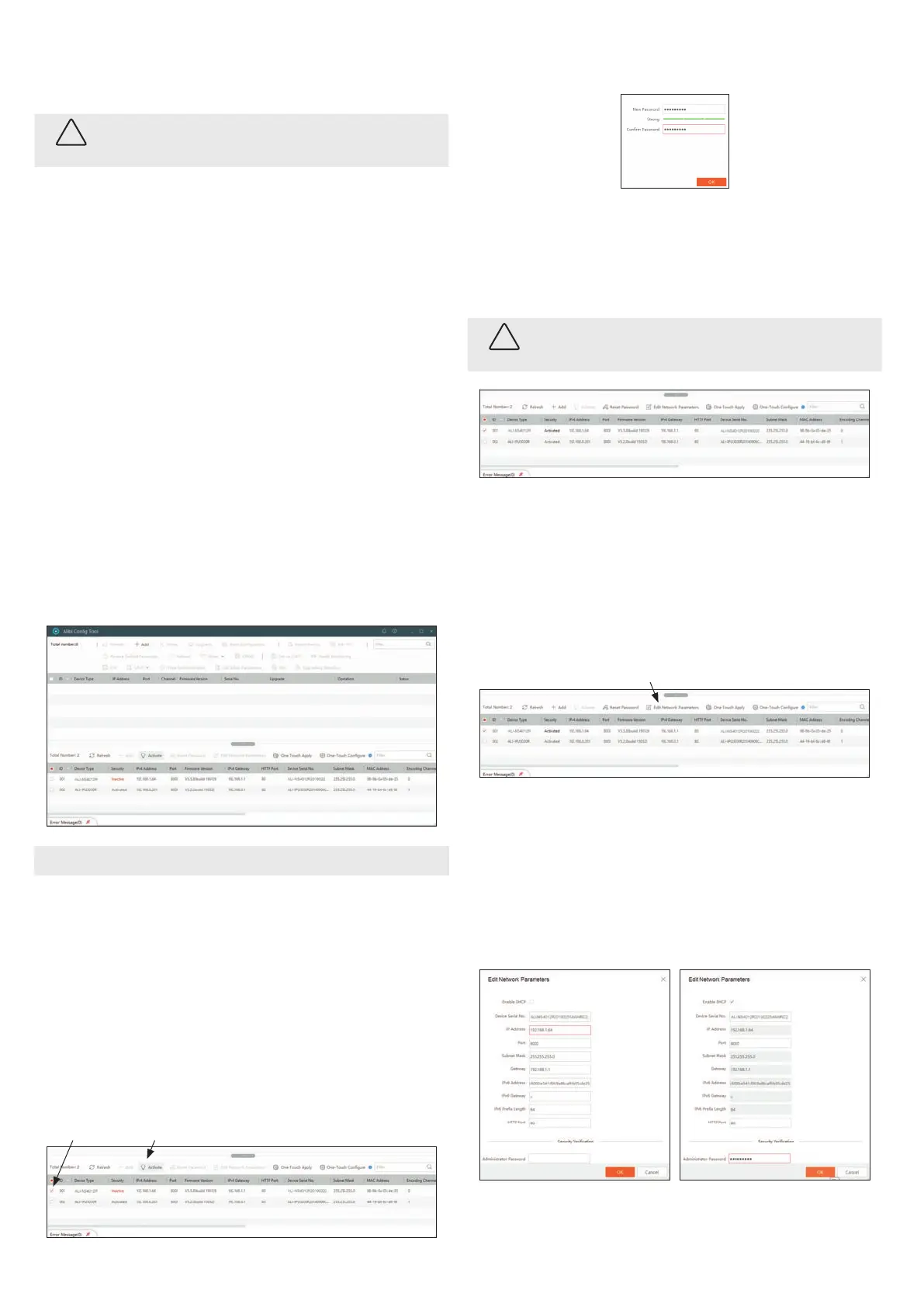
4. Open the Alibi Cong Tool application. When the application opens, it automatically “discovers”
and lists all Alibi compatible devices on the LAN. See below.
NOTE
In the screen above, the tool can discover devices on other sub-nets. It will also list other Alibi
compatible devices on the LAN, and devices with the address 192.168.1.64 (an inactive Alibi device).
Step 4. Activate Inactive Alibi device
NOTE: If the camera LAN extension cable is attached to a Network Video Recorder (NVR), skip this step.
Refer to the documentation available for your NVR rmware for the procedure to activate the camera.
When an Alibi device is rst installed, or reset to its factory conguration, it must be “Activated” before
it can be used. In the Alibi Conguration Tool, “Inactive” devices have a Security status of Inactive,
and an IPv4 address of 192.168.1.64. A device is “Activated” when a password is assigned to the
admin username of the device.
In the example below, an ALI-NS4012R camera is activated and congured for its network. The
procedure is similar for all other Alibi network cameras currently available.
1. Peruse the list of devices the Alibi Cong Tool discovered for the Inactive device you want to
activate (see below). Click on the device in the list to highlight it, and then click the select box to
check it.
ActivateSelected
2. Click the Activate button. In the Activate window, you will create a password for the admin
(administrator) username.
a. In the Activate window, enter an a password for admin in the New Password eld.
Include a combination of uppercase, lowercase alphabetic characters and numbers to
create a “Strong” password. The rating is shown beneath the Password eld. See above.
b. Enter the admin password again in the Conrm eld, and then click Activate. In the
screen below, notice that the device Security status shows “Active”. Record your admin
password for reference later.
CAUTION
If you lose your admin (administrator) password, you cannot congure the device or restore
it to its factory settings. To reset your password, call your support organization for specic
instructions.
Notice that although the device is now activated, it retained the default IP address.
Step 5. Edit Network Parameters
NOTE: If the camera LAN extension cable is attached to a Network Video Recorder (NVR), skip this
step. The camera will receive network conguration settings from the NVR. Refer to the documentation
available for your NVR rmware for more information.
You can change the network parameters of devices that are active.
1. In the list of devices discovered, click on the device you want to change the network settings for,
and then click the select box to check it. See below.
Edit Network Parameters
2. In the popup window, edit the current network parameters, and then enter the Administrator
(admin) user password in the eld at the bottom.
a. Enable DHCP: You can select Enable DHCP to acquire compatible network settings
from a DHCP server installed on the LAN. However, these settings might be changed later
by the DHCP server. Since it is recommended to use an unchanging IP address, you can use
DHCP to acquire compatible network settings, and then uncheck Enable DHCP and save
that conguration to retain the new network parameters.
b. In the example below, Enable DHCP was checked to acquire compatible network
settings from the DHCP server.
3. Click OK to save your settings. The parameter change(s) will be shown device’s network
parameters (see below).
© 2019 Observint Technologies. All rights reserved.


 To Next Page
 Loading...