EasyManua.ls Logo

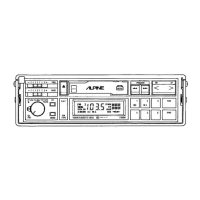
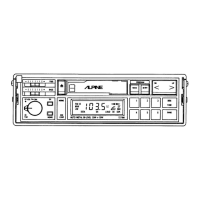
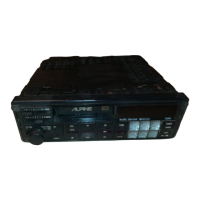
Alpine 7390M - Operation; Basic Operations; Mode Switching and Radio Operation

Alpine 7390M
72 pages
Print Icon
To Next Page IconTo Next Page
To Previous Page IconTo Previous Page
Loading...
-7390M
|
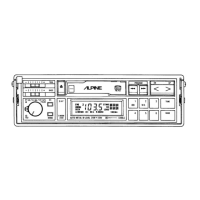
OPERATION
@
BASIC
OPERATION
Power
Switch
and
Volume
Control
&
Rotating
the
Power
Switch
49
clockwise
turns
power
ON
and
continuously
increases
the
volume.
Rotating
the
control
counterclockwise
will
continuously
decrease
the
volume,
and
turn
the
Power
Off.
Note:
Keep
the
volume
control
turned
fully
counterclockwise
before
your
program
starts.
Adjust
the
volume
by
gradually
turning
the
contro!
clockwise
once
playback
begins.
Do
not
turn
the
control
clockwise
abruptly
as
the
excessive
power
could
damage
the
speakers.
Balance
Control
@
Pull
on
the
Volume
Control
@
and
rotate
to
balance
between
left
and
right
speakers.
Fader
Control
Rotate
the
Fader
Control
@
for
your
desired
front
to
rear
volume
balance.
Separate
Bass
and
Treble
Controls
(©,
@)
;
Slide
these
controls
to
the
right
to
increase,
and
to
the
left
to
decrease
the
level
of
Bass
or
Treble.
Loudness
Press
and
hold
the
LOUD
button
@0
for
more
than
two
seconds
to
activate
the
loudness
function.
Press
and
hold
the
LOUD
button
for
more
than
two
seconds
again
to
defeat
this
feature.
Mode
Switching
of
the
7390M
1.
Radio
Mode
Press
the
TUNER
Switch
©
to
put
the
unit
into
Radio
mode.
The
Band
indicator
@
(FM,
MW
or
LW)
will
appear
in
the
display.
2.
Cassette
Player
Mode
Press
the
TAPE
button
&
to
put
the
unit
into
the
cassette
player
mode.
3.
C.D.
Changer
Mode
Press
the
DISC
button
@
to
put
the
unit
into
the
CD
mode.
If
the
Alpine
5952
CD
Changer
has
not
been
connected,
“E
E E
E"
will
appear
in
the
display
@.
@
RADIO
OPERATION
Turn
the
power
on
and
set
the
unit
to
the
Radio
mode.
Band
Selector
Switch
Press
the
BAND
Switch
©
to
select
the
desired
tuning
band.
The
Band
Indicator
@
shows
your
selection.
Local/Distance
(DX)
Sensitivity
Switching
for
FM,
MW
and
LW
You
can
select
the
radio
SEEK
sensitivity
(local
or
distance
(DX))
by
pressing
the
DX
Switch
©.
In
the
distance
mode,
with
DX
indication
@,
the
radio
tunes
in
both
strong
and
weak
stations
(from
A
to
M
in
the
illustration).
In
the
Local
mode,
with
no
DX
indication
@,
the
radio
tunes
in
only
strong
stations
(C,
F,
H
and
L
in
the
illustration).
-
Signal
Strength
hal
dalt
Station
Frequencies
—14—
OPERATION
Automatic
FM
Stereo/Monaural
Switching
During
FM
stereo
reception,
the
“ST”
indicator
©
lights
up.
When
the
station
signal
becomes
weak,
the
unit
automatically
switches
to
the
monaural
mode
to
reduce
the
noise
and
the
“ST”
indicator
disappears.
Should
the
signal
become
strong
enough,
the
unit
automatically
changes
back
to
the
stereo
mode.
Manual
Tuning
1.
Press
the
TUNE
button
©
until
the
SEEK
63
and
A.
MEMO
42
indicators
disappear
in
the
display
©.
2.
To
select
the
tuning
band,
press
the
BAND
Switch
©.
The
band
indicator
@
shows
your
selection.
3.
To
tune
to
higher
frequencies,
press
the
M.S.
-
CD
button
on
the
top
(UP)
®.
4.
To
tune
to
lower
frequencies,
press
this
same
button
on
the
bottom
(DowN)
@9.
Auto
Seek
Tuning
1.
Press
the
TUNE
button
©
until
the
SEEK
indicator
@
appears
in
the
display.
2.
Select
the
tuning
band
with
the
BAND
Switch
©.
3.
Press
the
UP
pp
or
DOWN
4
@
button.
The
unit
automatically
tunes
to
the
next
higher
or
lower
frequency
and
locks
on
that
station.
Manual
Memory
Preset
Follow
the
instructions
below
to
program
stations
into
preset
memory.
1.
Select
the
tuning
band
(FM1,
FM2,
MW,
LW)
@
with
the
BAND
switch
©.
2.
Tune
in
your
desired
station
by
manual
or
Auto
Seek
tuning.
3.
Press
and
hold
any
Preset
Button
(@
@)
for
more
than
two
seconds.
The
tuned
frequency
in
the
Numeric
Display
©
will
begin
to
blink.
Press
that
button
a
second
time
while
the
indication
is
blinking
(within
five
seconds.)
4.
Your
selected
station
will
be
placed
into
that
preset
location
and
the
indicator
will
light.
Note:
|f
a
preset
memory
has
already
been
programmed
in
that
location,
it
will
be
cleared
and
the
new
station
will
replace
in
the
preset
memory.
Auto
Memory
Preset
1.
Press
the
TUNE
button
©
to
light
up
the
A-LMEMO
indicator
2.
2.
Select
the
desired
tuning
band
(FM1,
FM2,
MW
or
LW)
@
with
the
BAND
Switch
@®.
3.
Press
the
UP
®
or
DN
@
button.
The
tuner
will
automatically
seek
the
six
strongest
stations
in
each
band
and
memorize
them
in
order
of
the
signal
strength.
These
stations
are
automatically
placed
in
the
preset
memory
with
the
strongest
station
in
Preset
No.
1
and
the
6th
strongest
station
in
Preset
No.
6.
When
seeking
stations,
the
tuner
first
seeks
in
the
local
tuning
mode.
If
less
than
6
stations
are
memorized,
the
tuner
seeks
again
in
the
distance
(DX)
mode.
4.
After
finishing
Auto
Memory
Preset,
the
tuner
goes
to
the
station
placed
in
preset
memory
No.
1.
If
no
stations
are
memorized,
it
returns
to
the
original
station
you
were
listening
to
before
the
auto
memory
preset
procedure
began.
Preset
Tuning
After
the
preset
stations
have
been
memorized,
you
can
tune
in
your
desired
station
(within
the
band
displayed)
with
one
touch
of
a
button.
1.
Select
the
tuning
band
(FM1,
FM2,
MW
or
LW)
@
with
the
BAND
Switch
©.
2.
Press
any
one
of
the
Preset
buttons
{@
@)
and
the
indicator
in
that
button
will
light.
3.
The
frequency
of
the
station
placed
in
the
selected
preset
location
will
appear
in
the
display.
D.A.P.
(Direct
Access
Preset)
This
feature
allows
the
storage
of
FM,
MW
and
LW
presets
on
the
same
band.
Press
the
D.A.P.
button
@
to
light
up
the
D.A.P.
indicator
6.
To
program
stations
into
the
D.A.P.
band,
follow
steps
2
4
as
described
in
the
Manual
Memory
Preset
section
on
Page
15.
Accessing
the
D.A.P.
Presets
1.
Press
the
D.A.P.
button
@.
The
D.A-P.
indicator
&
will
illuminate
in
the
display.
2.
Press
one
of
preset
buttons
(@—
@)
and
the
indicator
in
that
button
will
light.
3.
The
frequency
of
the
station
placed
in
the
selected
D.A.P.
location
will
appear
in
the
display.
—15—
7330M
7390M
|
OPERATION
Traffic
Information
Receiving
This
model
is
equipped
with
traffic
information
receiving
apparatus
to
£
Germany
where
the
traffic
information
is
broadcast
in
FM.
The
following
this
unit
to
receive
traffic
information
broadcasting.
1.
Select
FM
position.
2.
Depress
the
SDK
switch
@
and
tune
to
a
station.
If
the
station
is
a
tr
station,
the
SK
indicator
@
will
glow
and
show
the
reception
of
a
brox
traffic
information
station.
NOTE:
SK
Indicator
When
SK
signal
is
received
irrespective
of
the
SDK
switch
position,
tt
will
illuminate.
3. In
the
SDK
mode,
stations
other
than
traffic
information
stations
are
r
out.
Therefore,
it
is
easy
to
select
a
traffic
information
station.
4.
As
the
signal
of
the
tuned
traffic
information
station
becomes
weak,
1
will
extinguish.
Then
after
the
lapse
of
25
seconds,
a
rhythmical
alar
urge
retuning
to
another
stronger
station.
If
the
reception
of
further
t
is
required,
tune
in
the
desired
traffic
information
station.
When
rece
will
stop
and
the
SK
indicator
illuminates.
Since
the
alarm
will
contint
from
any
other
traffic
stations
can
be
received,
release
SDK
switch
fc
normal
broadcasting.
5.
When
the
unit
is
playing
a
tape
or
a
CD
with
the
SDK
switch
pushed
traffic
information
station,
the
tape
or
CD
play
is
interrupted
and
char
if
the
pre-tuned
station
begins
a
traffic
information
message.
When
1
over,
the
unit
reverts
to
tape
or
CD
play
automatically.
6.
Even
if
the
VOLUME
control
is
set
to
the
minimum
position,
the
volur
information
will
be
automatically
adjusted
to
proper
level.
After
the
n
sound
volume
returns
to
the
previously
adjusted
level.
7.
If
traffic
information
reception
is
no
longer
necessary,
release
SDK
sv
radio
reception.
NOTE:
When
the
SDK
switch
is
pressed
and
there
is
no
SK
signal,
ALA
after
the
lapse
of
25
seconds.
Press
the
SDK
switch
again
to
s
@
TAPE
PLAYER
OPERATION
Turn
the
unit
on
and
press
the
TAPE
»
/
&
button
@
to
access
the
t
Dolby*
B/C
Noise
Reduction
Before
playing
a
cassette
tape,
check
to
see
if
it
is
encoded
with
Dolb:
reduction.
:
Press
the
Dolby
B
or
C
button
(@
or
@)
when
playing
a
Dolby
encodec
B
or
Dolby
C
indicator
in
the
button
will
illuminate
to
show
you
which
noi:
system
you
have
activated.
Cassette
Loading
and
Reloading
1.
Insert
a
prerecorded
cassette
tape
into
the
tape
slot
©
with
the
open
your
right.
2.
If
the
cassette
tape
is
not
completely
loaded
into
the
deck,
lightly
pre
into
the
slot.
Eject
Press
the
EJECT
button
9
to
eject
the
cassette
tape
from
the
tape
Playback
1.
Insert
a
prerecorded
cassette
tape
with
open
side
facing
right.
The
pl
immediately.
2.
If
a
cassette
tape
is
already
loaded
in
the
unit,
press
the
Play
(
»
/
Il
start
playback.
3.
To
stop
tape
play,
press
the
EJECT
button
69
or
turn
the
power
off
w
switch
69.

Related product manuals