30-EN
01GB04INE-W940E.fm
ALPINE INE-W940E 68-25285Z52-A (EN)
Adjustment becomes necessary when the display position on the LCD
and the touch position on the touch panel do not match.
Setting item: Screen Alignment
1
Touch [Screen Alignment] in the Screen/LED
Customize screen.
The adjustment screen appears.
2
Accurately touch the mark provided in the
upper left corner of the screen.
3
Accurately touch the mark provided in the lower
right corner of the screen.
This completes adjustment, and returns to the previous
screen.
• If you touch [
Cancel] on the adjustment screen, no adjustment is
done and returns to the previous screen.
Initialise the corrected values adjusted by Adjusting the Touch Panel.
1
Touch [Screen Alignment Reset] in the Screen/
LED Customize screen.
2
After the confirmation message appears, touch
[OK].
The corrected values are initialised.
Visual Setting
[Visual] is selected on the General setup menu in step 3. Refer to
“General Setup Operation” (page 28).
1
Touch the desired item.
• “Other” can be selected while a video is playing.
• If “Camera Select” is set to “Off,” this option is not available.
2
Touch [] of the desired item.
Setting item: Other (Video Media)
Setting contents: Display Mode/ Bright / Color / Contrast
Setting item: Camera
Setting contents: Bright / Color / Contrast
3
Touch [] or [] to change its setting.
4
Touch [] to return to the previous screen.
• Immediately after changing the settings of Display Setup (While the
system is writing data automatically) do not turn the ignition key to
OFF. Otherwise, the settings may not be changed.
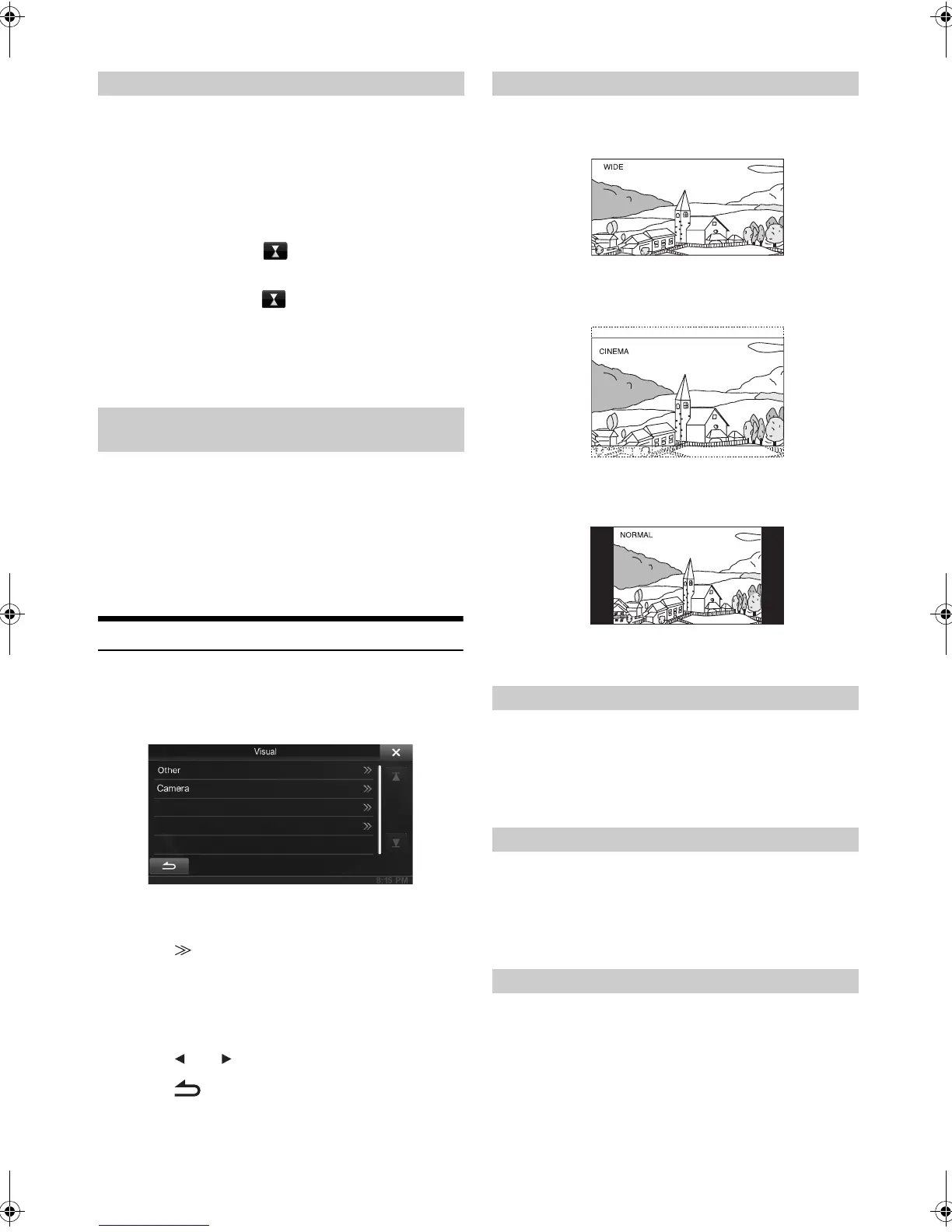
Setting item: Display Mode
Setting contents: WIDE (Initial setting) / CINEMA / NORMAL
In WIDE mode, the monitor displays a normal picture wider to fit
in a wide-screen monitor by evenly stretching out the picture
horizontally.
In CINEMA mode, the monitor displays a normal picture by
stretching out the picture horizontally and vertically. This mode is
good for displaying a cinema type picture at the 16:9 ratio.
In NORMAL mode, the monitor displays a normal picture at the
center of the screen with a vertical black band at each side.
Setting item: Bright
Setting content: -15 to +15 (Initial setting: 0)
You can adjust the brightness between MIN (-15) and MAX
(+15). When it reaches the minimum or maximum point, the
display shows “MIN” or “MAX” respectively.
Setting item: Color
Setting content: -15 to +15 (Initial setting: 0)
You can adjust the colour between MIN (-15) and MAX (+15).
When it reaches the minimum or maximum point, the display
shows “MIN” or “MAX” respectively.
Setting item: Contrast
Setting content: -15 to +15 (Initial setting: 0)
You can adjust the contrast between LOW (-15) and HIGH (+15).
When it reaches the minimum or maximum point, the display
shows “LOW” or “HIGH” respectively.
Adjusting the Touch Panel
Initialising the Touch Panel Corrected
Values
Switching Display Modes
Adjusting Brightness
Adjusting Colour of Picture
Adjusting Image Contrast
01GB00INE-W940E.book Page 30 Monday, July 8, 2013 5:14 PM


 To Next Page