19-EN
01GB04INE-W947E.fm
ALPINE INE-W947E 68-24567Z10-A (EN)
3
Input the user name from the keypad and touch
[OK].
The BLUETOOTH Device Setup screen is displayed.
• Touch [ ] to edit the name.
For details of how to input characters from the keypad, refer to
“How to Input Characters and Numbers (Keypad)” (page 22).
4
Touch [Link], then touch [OK].
The BLUETOOTH Device List is displayed.
• The BLUETOOTH devices registered here are used to
automatically identify the user.
Also, a cellular phone can be used as a hands-free phone.
For details, see “BLUETOOTH Setting” (page 48).
• Touching [Do not Link] exits user registration without
registering a BLUETOOTH device.
5
Touch [Search].
The system starts searching for BLUETOOTH devices.
When the search is completed, the BLUETOOTH Device
List is displayed.
• Set the BLUETOOTH setting on the preregistered
BLUETOOTH device side to [ON].
6
Touch a registered BLUETOOTH device and touch
[OK].
My Favourites screen for USER1 is displayed.
• You can edit My Favourites icons.
For details of how to add, edit, delete or set My Favourites
icons, refer to “Adding My Favourites” (page 19).
Register User 2
7
Press the (My Favourites) button.
The My Favourites screen is exited and the display returns
to the original screen.
8
Press and hold the (My Favourites) button for at
least 3 seconds.
The My Favourites user guide is displayed. Repeat steps 2
through 6 to register USER2.
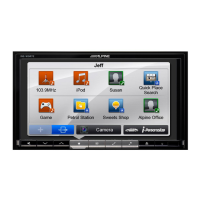
Setting My Favourites
Configure the My Favourites settings.
1
Press the (My Favourites) button.
My Favourites screen for USER1 is displayed.
• To configure My Favourites settings for USER2, press and hold the
(My Favourites) button for at least 3 seconds. The My
Favourites screen is displayed.
You can register up to eight My Favourites for each user.
You cannot, however, register the same items (categories).
1
Touch [].
The addition items (categories) are displayed.
2
Touch the desired addition item (category).
Current position : Registers your current position in My Favourites
Current source : Registers the audio source currently playing in My
Favourites
Navigation : Registers the destination search category or nearby place
search category in My Favourites
[Specific Place] : You can display the places registered in
My Favourites and set your destination.
Search for a place registered in My Favourites by Address/
Find Place/Address Book/History, then touch Add.
[Quick Place Search] : Displays the address search keypad
[Help Nearby] : Displays the nearby search screen
[POI category] : Displays the selected POI category list
• For details of navigation operations, refer to “Navigation System
OM”.
Adding My Favourites
01GB00INE-W947E.book Page 19 Tuesday, April 9, 2013 1:33 PM


 To Next Page