22-EN
01GB04INE-W947E.fm
ALPINE INE-W947E 68-24567Z10-A (EN)
Settings When Switching Users
The functions/settings that are affected when switching users are as
shown below.
*
1
Except i-Personalize Setup
*
2
The display pattern can be set when a camera equipped with a switch
function on the Camera screen is connected.
Items whose settings are affected when switching
registered users, are indicated by
“ ” in this manual.
Example:
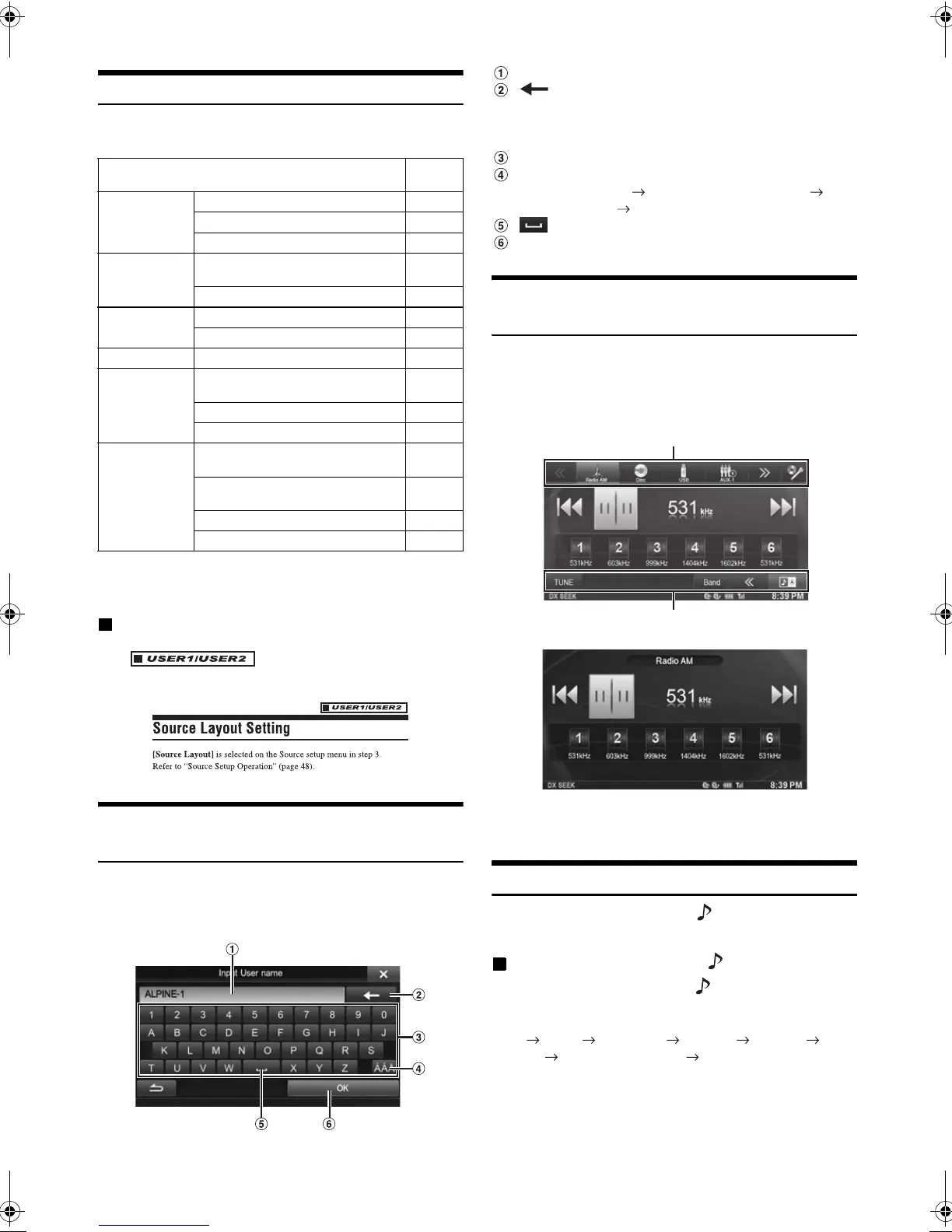
How to Input Characters and Numbers
(Keypad)
Character input is required for user registration, place searches, etc.
The displayed screens and procedures may vary slightly depending on
the function used, but the basic input method is the same.
Input screen area.
(Delete)
Returns to the previous character and erases it.
Touching here for more than 2 seconds will erase all
input characters.
Character keypad
Special character selector switch
Character keypad Special character keypad
Symbol keypad Character keypad
(Space)
Input number is confirmed.
Top banner and Bottom banner Fade Out
Setting
When “Top/Bottom Banner Fade Out” is set to [On], the Top banner and
Bottom banner on the Audio/Visual Playback screen fade out after 5
seconds if no operation is performed. To display the keys again, touch
the middle of the screen.
• For details of how to set Top/Bottom Banner Fade Out, refer to
“Setting Top banner and Bottom banner Display” (page 35).
Switching Sources
During audio/visual playback, press the (AUDIO) button or touch a
source button in the top banner to switch to the desired source.
Switching Sources Using the (AUDIO) Button
During audio/visual playback, press the (AUDIO) button repeatedly
to switch to the desired source.
Radio Disc*
1
USB/iPod*
1
AUX-1*
2
AUX-2*
2
AUX-3*
3
BLUETOOTH-AUDIO Radio…
*
1
When no disc is inserted or no USB memory/iPod is connected, this
option is not available.
*
2
When AUX In is set to “Off”, this option is not available.
*
3
When AUX3 In Sel. is set to “iPod Video,” this option is not
available.
Item Ref.
page
My Favourites User Registration 18
Setting My Favourites*
1
19
Displaying the Camera Image*
2
21
General Setup Setting Top banner and Bottom banner
Display
35
Switching the Display Colour 35
Sound Setup Turning Subwoofer ON/OFF 39
Adjusting the Subwoofer Level 39
Source setup Source Layout Setting 44
Hands-Free
Phone Control
Assigning as a Short Cut Dialling
Number
56
Redial Function 55
Phone Book Function 56
Camera
Operation
Switching the Image Pattern for the
Rear Camera*
2
62
Switching the Image Pattern for the
Front Camera*
2
65
Guide Display ON/OFF Setting 62, 65
Adjusting the Caution Display Location 62, 65
Top banner
Bottom banner
01GB00INE-W947E.book Page 22 Tuesday, April 9, 2013 1:33 PM


 To Next Page