15
It shows warning for the current road (for example, dangers, sharp curves).
See page 75.
It shows the available destinations and the road numbers. See page 18.
By tapping it, you can check the details of the next few service stations (gas
stations, restaurants) when traveling on a freeway. See page 20.
Parking
around
destination
It appears near the destination. By tapping it, you can check the available
parking facilities around your destination. See page 65.
It appears near the destination. By tapping it, you can check the trip
summary, find Places around your final destination, save the current location,
or suspend the navigation.
It shows the Freeway services, Parking around destination, or the
Destination menu button if they are available during navigation.
It shows the current street name. By tapping it, you can open the Where Am I
screen. See page 67.
They display hills, mountains, roads, landmarks, and buildings in 3D.
By pressing the navigation hardkey button, you can open the Navigation menu, where you can reach
other parts of Alpine Navigation System.
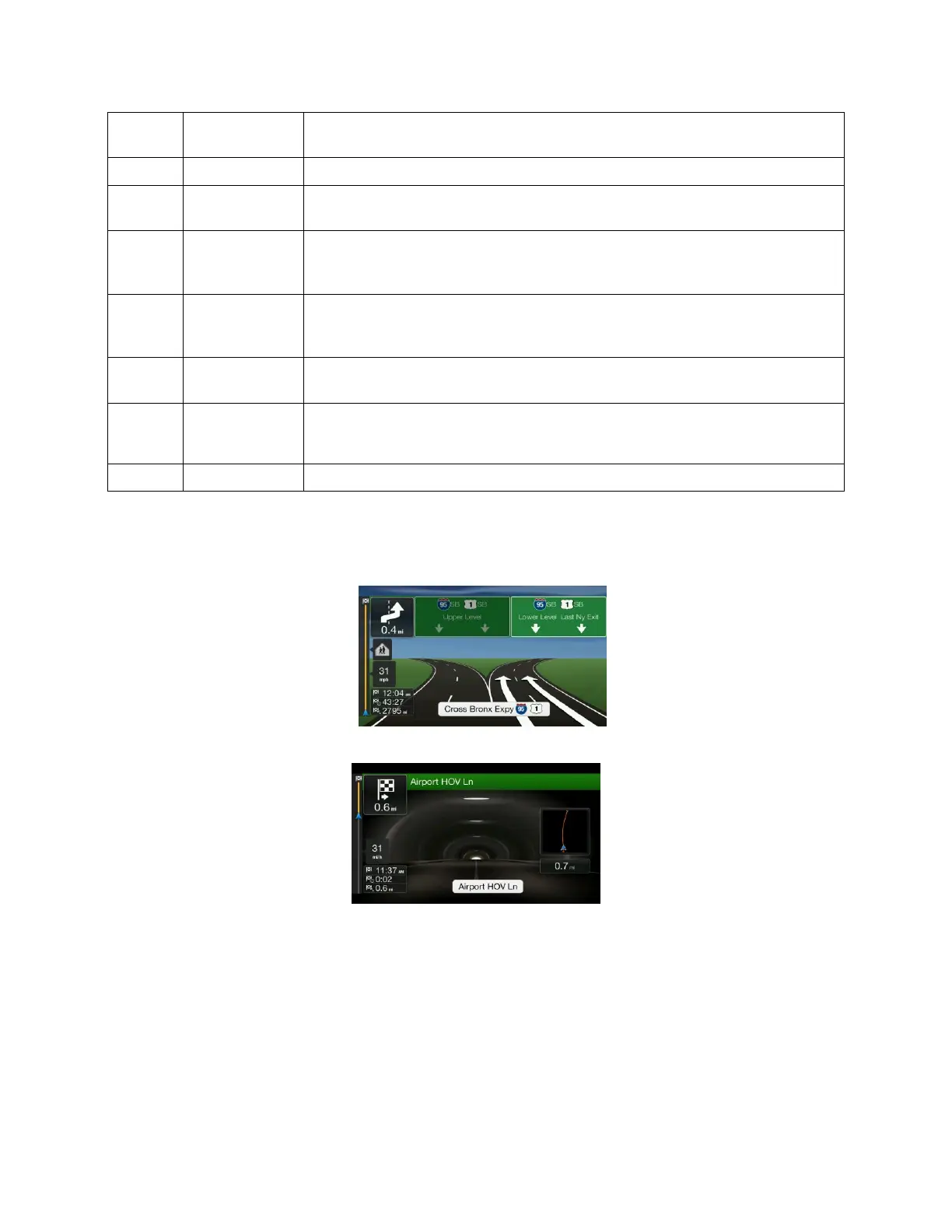
If you are approaching a freeway exit or a complex intersection and the needed information exists, the
map is replaced with a 3D view of the junction. See page 19.
When entering a tunnel, the map is replaced with a generic tunnel image. See page 19.
2.3.1 Streets and roads
Alpine Navigation System shows the streets similarly to paper road maps. Their width and colors
correspond to their importance; you can easily tell a freeway from a small street.


 To Next Page