EasyManua.ls Logo

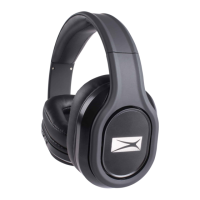
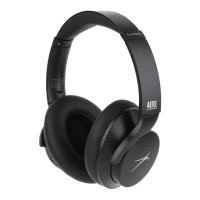
Altec Lansing EVOLUTION II - User Manual

Altec Lansing EVOLUTION II
2 pages
Print Icon
To Next Page IconTo Next Page
Loading...
Make sure the following items are included in your package.
USB Cable
Item # MZX667
Quick Start Guide
Charging Your Headphones
These headphones include a Micro USB cable that can be connected to your
computer or charging adapter to charge the internal battery. Plug the Micro USB end
of the included cable into the Micro USB port under the left ear-cap of the headphone.
Plug the other end into a USB port on your computer or USB charging adapter. The
LED indicator will flash RED while charging. Once fully charged, the indicator light will
turn o. A full charge will take around 2 hours to complete. A fully charged battery
has enough power to last for 10 hours talking and/or music time, and up to 200 hours
standby time.
Note: These headphones feature a built-in lithium ion battery. Please charge for at
least 4 hours before using for the first time, to help condition the internal battery.
For a look at the various buttons and parts of your headphones, view the graphic below
1. Previous Song/Volume +
2. Next Song/Volume -
3. Microphone
4. Micro USB Charging Port
5. Line-in
6. Power Button, LED Light
Pairing Your Headphones With A Bluetooth Device
Ensure that your device is powered on.
To pair the headphones with a device it has not been previously paired with, first power on the headphones following the previous steps. Your headphones will enter pairing
mode.
Turn on the Bluetooth on your phone or tablet, and search for available devices.
Select “BT-1050” from the list of found devices on your Bluetooth device.
When Bluetooth is paired successfully, there will be a prompt tone, and the flashing BLUE light will turn solid.
Note: If your headphones have been previously paired with another device, they will automatically connect to it if it is powered on and in range of the headphones.
Wearing Your Headphones
For the best sound performance and a secure, comfortable fit, be sure that the
ear cups rest gently on your ear, and the frame sits securely on top of your head.
Listening To Music
Powering ON/Powering OFF Your Headphones:
Press and hold the Power button for approximately two seconds to power on your
headphones. The LED indicator will flash BLUE briefly. The headphones will enter
pairing mode, and the LED will flash BLUE rapidly. When the headphones are
connected to a device and ready for use, the LED will stay lit BLUE.
Once powered on, you can press and hold the Power button again for approximately
three seconds to power o your headphones. The LED indicator light will briefly turn
RED before powering o.
NOTE: In order to save power, your headphones will automatically power o if left
unpaired and idle for over three minutes.
Play/Pause
Press the Power button to play or pause music from your audio device.
Next/Previous Song
Quickly press the Next Song or Previous Song buttons to advance to the next song, or
go back to the previous one.
Increase/Decrease Volume
Press and hold the Volume Up or Volume Down buttons to increase or decrease the
volume.
NOTE: Music will automatically pause when a call is dialed out, or when there is an
incoming call. It will resume when the call ends.
Using Your Headphones During Phone Calls
Making a Call
To make a call, use your mobile phone as you would normally with the headphones
connected to it. The audio will come through the headphones seemlessly.
Answering an Incoming Call
To answer an incoming call, quickly press the Power button.
Ending a Call
To end a call, quickly press the Power button, and the call will be disconnected.
Adjusting Volume
By pressing the Volume Up or Volume Down buttons you can increase or decrease
the volume of the phone call.
MZX667
EVOLUTION II
Bluetooth
Headphones
AUX Cable
Storing Your Headphones
The ear cups of your headphones can fold in, making it easy to store when not in use.
Using Your Headphones Wired
You can use these headphones with the included AUX cable. Connecting the headphones with the AUX cable will disable the wireless functionality.
1
2
3
4
5
6
BLUETOOTH HEADPHONES
EVOLUTION II

Question and Answer IconNeed help?

Do you have a question about the Altec Lansing EVOLUTION II and is the answer not in the manual?

Overview

The Altec Lansing Evolution II Bluetooth Headphones (Item # MZX667) are designed for wireless audio and communication, offering a blend of functionality, comfort, and portability. These headphones are compatible with a wide range of devices including Android phones, iPhones, computers, iPods, and tablets.

Function Description:

The Evolution II headphones provide wireless audio playback and hands-free calling via Bluetooth connectivity. They can also be used in a wired mode with an AUX cable, disabling the wireless functionality for a direct connection. The integrated microphone allows for clear communication during phone calls.

Important Technical Specifications:

  • Battery Life: A full charge provides approximately 10 hours of talking and/or music time, and up to 200 hours of standby time.
  • Charging Time: Approximately 2 hours for a full charge.
  • Charging Port: Micro USB.
  • Connectivity: Bluetooth and 3.5mm AUX Line-in.
  • LED Indicator: Flashes BLUE briefly on power-on, flashes BLUE rapidly in pairing mode, solid BLUE when connected, flashes RED during charging, and turns off when fully charged. Briefly flashes RED on power-off.
  • Automatic Power Off: The headphones will automatically power off if left unpaired and idle for over three minutes to conserve battery.

Usage Features:

  • Powering On/Off: Press and hold the Power button for approximately two seconds to power on. Press and hold the Power button for approximately three seconds to power off.
  • Bluetooth Pairing:
    1. Power on the headphones; they will enter pairing mode (LED flashes BLUE rapidly).
    2. Enable Bluetooth on your device (phone, tablet, etc.).
    3. Search for available devices and select "BT-1050."
    4. A prompt tone will sound, and the LED will turn solid BLUE upon successful pairing.
    • Note: If previously paired with another device, the headphones will automatically connect if powered on and within range.
  • Wired Usage: Connect the included AUX cable to the headphones to use them in wired mode. This disables wireless functionality.
  • Wearing: Ensure ear cups rest gently on the ear and the frame sits securely on the head for optimal sound performance and comfort.
  • Music Playback Controls:
    • Play/Pause: Quickly press the Power button.
    • Next Song: Quickly press the "Next Song" button.
    • Previous Song: Quickly press the "Previous Song" button.
    • Increase Volume: Press and hold the "Volume Up" button.
    • Decrease Volume: Press and hold the "Volume Down" button.
    • Note: Music will automatically pause during outgoing or incoming calls and resume when the call ends.
  • Phone Call Controls:
    • Making a Call: Use your mobile phone normally; audio will seamlessly route through the headphones.
    • Answering an Incoming Call: Quickly press the Power button.
    • Ending a Call: Quickly press the Power button.
    • Adjusting Call Volume: Press the "Volume Up" or "Volume Down" buttons.
  • Voice Assistant: Pressing the Power button twice will activate your device's voice assistant (e.g., Siri, Google Assistant).
  • Storing: The ear cups can fold in, making the headphones compact and easy to store.

Maintenance Features:

  • Charging: Use the included Micro USB cable to charge the internal battery. Connect the cable to the Micro USB port on the headphones and the other end to a computer USB port or a USB charging adapter. The LED indicator will flash RED during charging and turn off when fully charged. It is recommended to charge for at least 4 hours before the first use to condition the internal battery.
  • Cleaning: While not explicitly detailed in the manual, general electronic device care suggests wiping the headphones with a soft, dry cloth. Avoid using harsh chemicals or excessive moisture.
  • Troubleshooting & Warranty: For technical support or warranty service, contact Altec Lansing at 1-855-292-4087 or visit www.alteclansing.com. The product comes with a one-year warranty covering defects in material or workmanship under normal usage. Proof of purchase is required for warranty service. Damages from unauthorized repairs, tampering, modification, accidents, or non-normal use are not covered.

Altec Lansing EVOLUTION II Specifications

General IconGeneral
BrandAltec Lansing
ModelEVOLUTION II
CategoryHeadphone
LanguageEnglish

Related product manuals