required for the BAT-Connect to be able to properly congure the system settings.
T-Connect will set the following elds automatically:
Communicate to IP/GSM device rst (*55) = 1 (IP/GSM rst)
6. Installation is complete. After installing BAT-Connect, or modifying any panel programming, verify
proper operation and reporting of all event codes using your control panel’s installation manual.
(Continued)
Connecting via Wi-Fi:
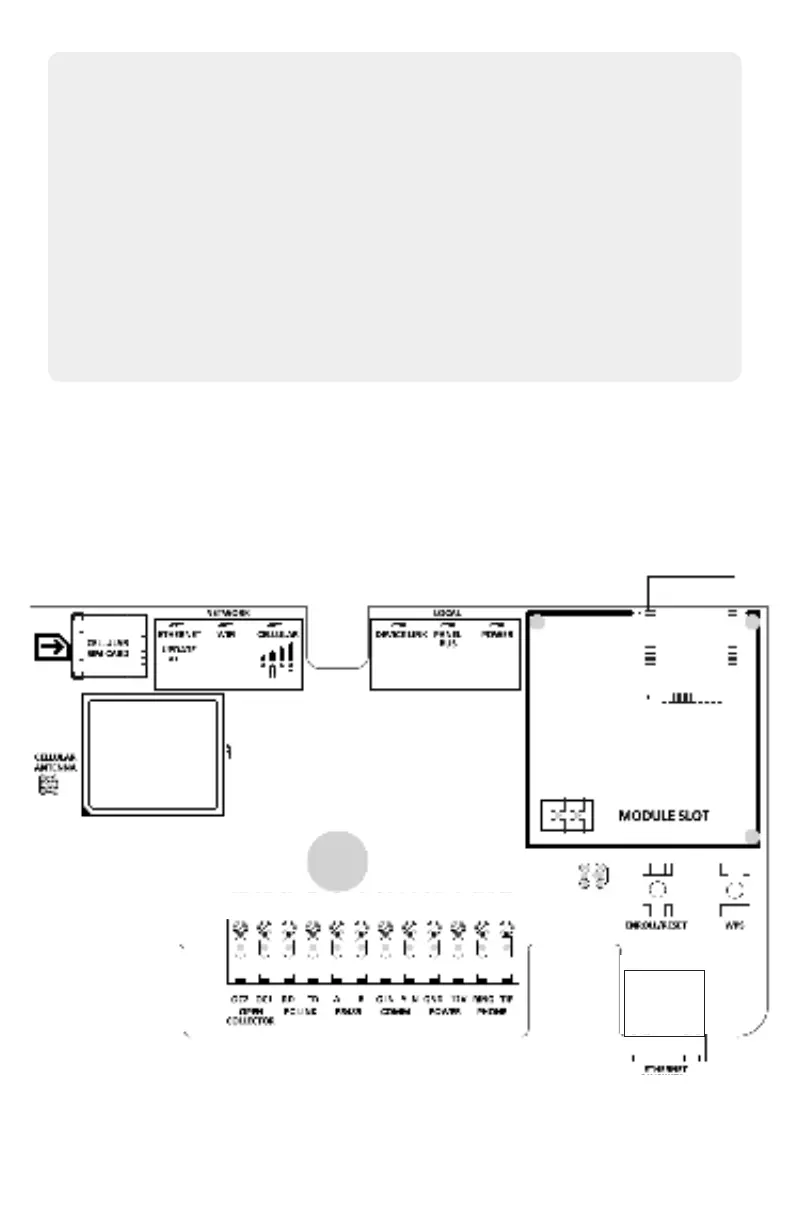
1. Enable WPS on router.
2. Press and hold WPS button until WiFi LED ashes on BAT-Connect.
3. Unplug the ethernet cable (if used). After approximately 1-2 minutes, the Wi-Fi LED will
turn on. Wi-Fi network credentials are now saved in BAT-Connect.
4. If the Wi-Fi LED does not turn on after 2 minutes, then WPS was not successful. Repeat
steps 1-3.
5. If WPS is unavailable, Wi-Fi credentials can alternately be entered in the AlulaConnect
portal.
6. Reconnect ethernet cable (if used).


 To Next Page