Touchpad Mounting Options
Table Top Mounting
1. Connect the power adapter by inserting the connector into the black port. Once inserted,
turn the connector to the right to lock into place.
After selecting the desired panel, the Touchpad will progress through stages of discovery
and authentication. Upon success it will show the DISARMED screen. If the wrong panel was
selected, press the "Restart"button in the side menu.
Troubleshooting Steps if Enrollment Fails:
• Conrm the panel is disarmed and in wireless enrollment mode. A red light will ash
on the panel if in wireless enrollment mode.
• Check whether the panel is already full. The limit is four Touchpads. To conrm
number of Touchpads connected, log into your account.
• Tap the "Restart" button to try again.
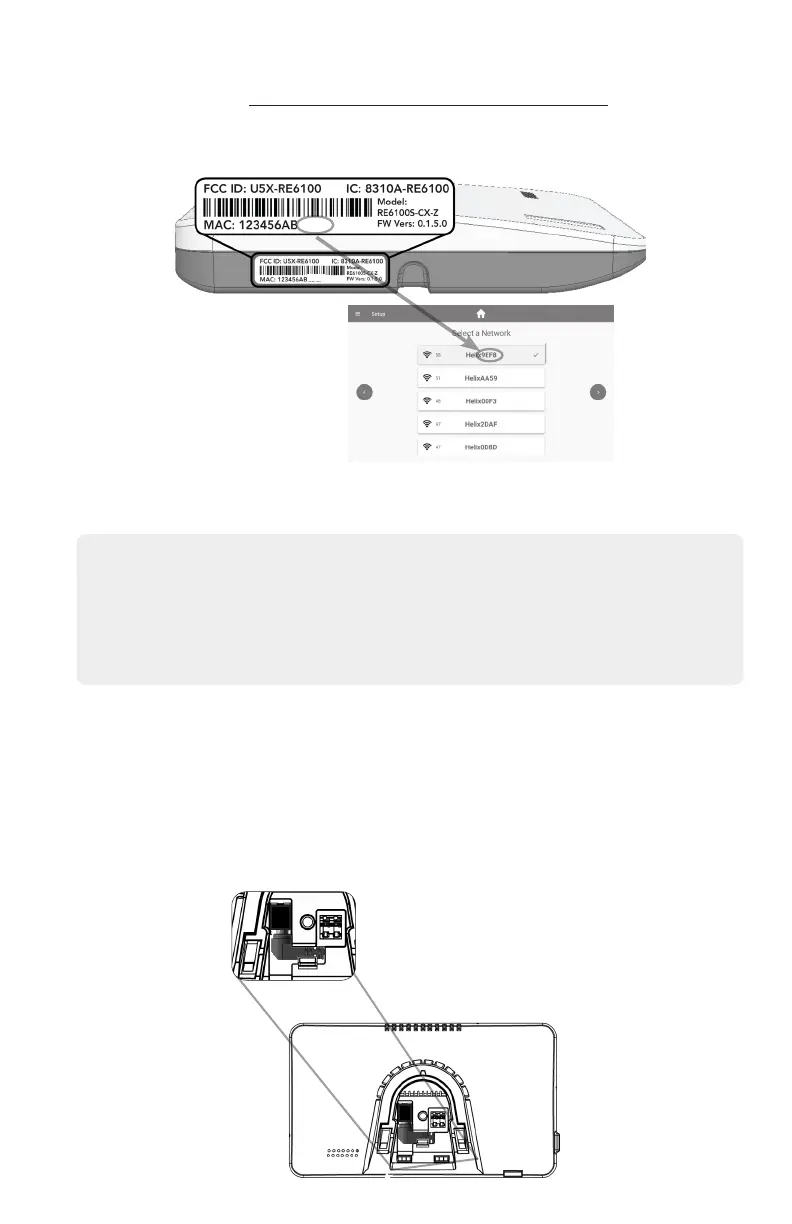
9EF8
9EF8
4. Mount the Touchpad. Refer to section “Touchpad Mounting Options” for mounting
instructions.
5. Enroll the Touchpad by pressing the enroll button on the side of the panel until it beeps once
and then selecting the desired panel on the Touchpad. Note, the Touchpad will list all panels
within range, not just the ones in enrollment mode. The network “names” will include the last
4 digits of the MAC Address printed on the panel label.
6. Test the Touchpad by arming and disarming the panel from the Touchpad.


 To Next Page