Installation & Operation Guide Page 5 of 48
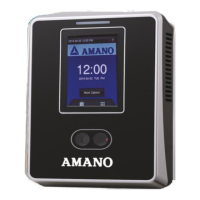
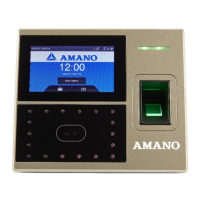
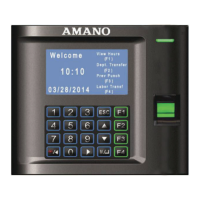
Basic Installation for Time Guardian MTX-30/AXXX
Step 1 – Wall Mount the MTX-30 (see page 7). Connect the MTX-30 terminal using
direct connection with included USB cable to host PC, or Ethernet cable for network
connection. Plug in the AC adapter to the MTX-30 then to an AC outlet and the MTX-30
terminal will power up.
Step 2 – Install the Time Guardian Software on the host PC. The installation should
start automatically, but if it stalls, browse on the CD to
Disk1\InstData\Windows\VM\install.exe
Step 3 – Perform software activation by entering the activation code Number (found on
your disk or clock sticker) when requested after the initial software installation and complete
on-line registration for Time Guardian.
Note: QuickBooks® integration is available, but it needs to be setup in Time Guardian.
Also, it’s recommended that QuickBooks be installed on the same host computer
and running for synchronization.
Step 4 – Perform Wizard Setup by completing the Steps 1 - 9 and end Time Guardian
installation by pressing Wizard Complete
button.
If using biometric terminal all employees must be enrolled at the MTX-30 terminal for
identification and validation. This employee information will be synchronized with Time
Guardian by performing polling and downloading commands from the Time Guardian
software. This action is necessary to save the biometric fingerprint templates for newly
enrolled employees in the Time & Attendance database. Download also sends time, Daylight
Saving Time settings, hours worked (if enabled) for the current pay period, and employee
assignments to the MTX-30 terminal.
Synchronization will occur with employee data (punches) to Time Guardian when the MTX-30 terminal is
polled. The hours worked will be retained at the MTX-30 terminal from the date of the last download for
up to 14 days. When Time Guardian downloads to the MTX-30, the terminal display will show
Downloading…., followed by Working…, and finish with Restarting…. The terminal will power off then
back on to refresh with the options just downloaded to it.


 To Next Page
 Loading...