EasyManua.ls Logo

Amazon Smart Light Bulb - User Manual

Amazon Smart Light Bulb
6 pages
Print Icon
To Next Page IconTo Next Page
Loading...
1
Amazon Basics Smart Light Bulb Troubleshooting Guide
This guide provides troubleshooting tips during installation and setup of
the Amazon Basics Smart Light Bulb (Dimmable Soft White, Tunable
White, Color Changing). Additional product information is included on the
product detail page.
1. Getting Started
I. Download the Alexa App
II. Network requirement
2. Setup & Use with Alexa app
I. Barcode scan for setup with Alexa
II. Add device in Alexa app
III. Rename you device
IV. Use your device with Alexa
V. Create Alexa routines
VI. Delete your device
VII. Create Smart Home groups
VIII. Learn more about Alexa App
3. Troubleshooting
I. Factory reset
II. Have issue with connectivity
III. Alternative setup methods
IV. Error code (-1:-1:-1:-1)
Question and Answer IconNeed help?

Do you have a question about the Amazon Smart Light Bulb and is the answer not in the manual?

Summary

Getting Started

Download the Alexa App

Instructions for downloading and installing the latest Alexa App from your mobile device app store.

Wi-Fi Requirements

Confirms that a 2.4GHz Wi-Fi network is required for setup and explains compatibility with dual-band routers.

Setup & Use with Alexa App

Barcode Location for Setup

Details where to find the barcode for Alexa setup, distinguishing it from packaging barcodes.

Setting Up the Smart Light Bulb

Step-by-step guide on how to set up the Amazon Basics Smart Light bulb using the Alexa app.

Renaming Your Light Bulb

Instructions on how to rename your light bulb within the Alexa app for easier control and identification.

Using the Light Bulb with Alexa

Explains how to control the light bulb via the Alexa app or voice commands.

Creating Alexa Routines

Steps to create custom routines in the Alexa app to automate light bulb actions.

Removing the Light Bulb from Alexa

Guide on how to remove your smart light bulb from the Alexa app.

Creating Smart Home Groups

Instructions for creating room or device groups for your smart light bulbs in the Alexa app.

Troubleshooting

Factory Resetting the Bulb

Procedures for factory resetting the Amazon Basics Smart Light Bulb, including app deletion or manual toggle.

Connectivity Issues

Steps to resolve issues where the Alexa app cannot find or connect to the smart LED light bulb.

Alternative Setup Methods

Guidance on setting up the smart light bulb using alternative methods if the quick start guide is lost.

Error Code Handling

Advice on what to do when encountering error code (-1:-1:-1:-1) during Alexa setup.

Summary

Getting Started

Download the Alexa App

Instructions for downloading and installing the latest Alexa App from your mobile device app store.

Wi-Fi Requirements

Confirms that a 2.4GHz Wi-Fi network is required for setup and explains compatibility with dual-band routers.

Setup & Use with Alexa App

Barcode Location for Setup

Details where to find the barcode for Alexa setup, distinguishing it from packaging barcodes.

Setting Up the Smart Light Bulb

Step-by-step guide on how to set up the Amazon Basics Smart Light bulb using the Alexa app.

Renaming Your Light Bulb

Instructions on how to rename your light bulb within the Alexa app for easier control and identification.

Using the Light Bulb with Alexa

Explains how to control the light bulb via the Alexa app or voice commands.

Creating Alexa Routines

Steps to create custom routines in the Alexa app to automate light bulb actions.

Removing the Light Bulb from Alexa

Guide on how to remove your smart light bulb from the Alexa app.

Creating Smart Home Groups

Instructions for creating room or device groups for your smart light bulbs in the Alexa app.

Troubleshooting

Factory Resetting the Bulb

Procedures for factory resetting the Amazon Basics Smart Light Bulb, including app deletion or manual toggle.

Connectivity Issues

Steps to resolve issues where the Alexa app cannot find or connect to the smart LED light bulb.

Alternative Setup Methods

Guidance on setting up the smart light bulb using alternative methods if the quick start guide is lost.

Error Code Handling

Advice on what to do when encountering error code (-1:-1:-1:-1) during Alexa setup.

Overview

This document provides a comprehensive troubleshooting guide for the Amazon Basics Smart Light Bulb, covering various aspects of its installation, setup, and use with the Alexa app. The guide is designed to assist users with Dimmable Soft White, Tunable White, and Color Changing versions of the bulb.

Function Description

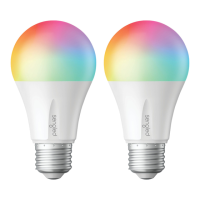
The Amazon Basics Smart Light Bulb is an intelligent lighting solution designed to integrate seamlessly with the Amazon Alexa ecosystem. Its primary function is to provide customizable lighting within a smart home environment, allowing users to control illumination through voice commands or the Alexa app. Depending on the model, the bulb offers dimmable soft white light, tunable white light (allowing adjustment of color temperature), or full-spectrum color changing capabilities. This versatility enables users to set the perfect ambiance for any occasion, from bright task lighting to subtle mood lighting. The bulb connects to a 2.4GHz Wi-Fi network, facilitating remote control and integration into smart home routines.

Usage Features

The smart light bulb offers a range of usage features that enhance convenience and control:

  • Alexa App Integration: The core of the bulb's functionality lies in its integration with the Amazon Alexa app. Users can download the app from their mobile device's app store, sign in with their Amazon account, and manage their smart bulbs.
  • Easy Setup Process: The guide outlines a straightforward setup process. After screwing in the bulb and turning it on, it will flash, indicating readiness for setup. Users then navigate to the "More" icon in the Alexa app, select "Add a Device," choose "Light" and "Amazon Basics," and follow on-screen instructions. Barcode scanning, found on the light bulb socket or the quick start guide, is a key part of the setup, though the guide explicitly states not to use the barcode on the packaging box. For multi-pack bulbs, the recommendation is to set up one bulb at a time.
  • 2.4GHz Wi-Fi Connectivity: The bulb exclusively operates on a 2.4GHz Wi-Fi network. The guide provides clear instructions for users with dual Wi-Fi routers, explaining how to ensure the bulb connects to the correct frequency by either creating a dedicated 2.4GHz signal or selecting it from available networks.
  • Device Renaming: Once added to the Alexa app, bulbs are initially labeled "first light." Users are encouraged to rename their bulbs based on function, purpose, or location (e.g., "Living Room Lamp," "Kitchen Light") to facilitate easier identification and control. Renaming is done through the "Devices" tab, selecting the bulb, tapping the gear icon for "Settings," and then "Edit Name."
  • Voice and App Control: Users can control the light bulb directly from the Alexa app by tapping "Devices" or by using Alexa Voice Commands, such as "Alexa, turn on the first light."
  • Alexa Routines: A powerful feature is the ability to create Alexa routines. This allows users to automate lighting based on specific triggers (e.g., time of day, other smart home events). The process involves opening the Alexa app, selecting "More" then "Routines," tapping "Plus," defining "When this happens," and then "Add action" to specify the desired lighting behavior. Multiple actions can be included in a single routine.
  • Smart Home Groups: To manage multiple bulbs efficiently, users can create Smart Home groups within the Alexa app. This involves selecting "Devices," tapping "+," choosing "Add Group," and then opting to "Create a room or device group" or "Combine rooms or groups." This allows for simultaneous control of several lights, such as turning all lights in a living room on or off with a single command.
  • Alternative Setup Methods: For users who may have misplaced their quick start guide, the document references alternative setup methods, including adding the device with the barcode on the light bulb itself or adding it without a barcode, with detailed instructions found in the User Manual.

Maintenance Features

While smart light bulbs generally require minimal physical maintenance, the guide provides crucial troubleshooting and reset procedures that can be considered digital maintenance:

  • Factory Reset: If a bulb is experiencing persistent issues or needs to be reconfigured, a factory reset can resolve many problems. The primary method is to delete the device from the Alexa app. If this is not possible, an alternative method involves using a light switch to quickly turn the light on and off five times. On the sixth turn-on, the bulb will flash rapidly five times, then softly twice, indicating a successful factory reset and readiness for re-setup.
  • Connectivity Troubleshooting: The guide addresses common issues where the Alexa app cannot find or connect to the smart LED light bulb. Troubleshooting steps include:
    • Ensuring the phone/tablet and Alexa app have the latest software version.
    • Verifying that the phone/tablet and the smart LED light bulb are connected to the same 2.4 GHz Wi-Fi network (reiterating incompatibility with 5 GHz Wi-Fi).
    • Checking that the phone/tablet is within 30 feet (10 meters) of the smart LED light bulb.
    • Restarting the smart LED light bulb by powering it off and on.
    • If issues persist after restarting, performing a full reset of the light bulb.
  • Error Code Resolution: For users encountering the specific error code (-1:-1:-1:-1) during Alexa setup, the guide advises ensuring Bluetooth is turned on throughout the setup process and that the device is in pairing mode. Restarting the device by powering it off and on, then attempting setup again, is recommended.
  • Device Removal: The guide details how to remove a smart light bulb from the Alexa app, which is essential for re-setup or if the bulb is no longer in use. This involves selecting "Devices," choosing the bulb, tapping the gear icon for "Settings," and then selecting the "Trash" icon.

The Amazon Basics Smart Light Bulb is designed for user-friendly operation and offers robust support through its comprehensive troubleshooting guide, ensuring a smooth and integrated smart lighting experience.

Amazon Smart Light Bulb Specifications

General IconGeneral
Brightness800 Lumens
Lifespan25, 000 hours
ShapeA19
BaseE26
Voltage120V
TypeLED
Color Temperature2700K (adjustable)
CompatibilityAlexa
ConnectivityWi-Fi
DimmableYes
Wattage Equivalent60W