48
• Relay Out: This checkbox allows the user to enable the camera to trigger an alarm when illegal access is detected.
• Alarm Delay: This field specifies in seconds how long the delay between alarm activation and relay alarm activation
should be.
• Send Email: This checkbox allows the user to enable the camera to send an email when illegal access is attempted.
To reset to default settings, click the Reset Defaults button. To refresh the page, click the Refresh button.
To save the settings, click the Save button.
5.4.4 Storage
This menu section allows the user to change storage settings for the camera.
5.4.4.1 Schedule
The schedule menu manages the recording schedule for the camera. This menu has 3 tabs: Record
Schedule, Snapshot Schedule, and Holiday Schedule.
5.4.4.1.1 Record Schedule
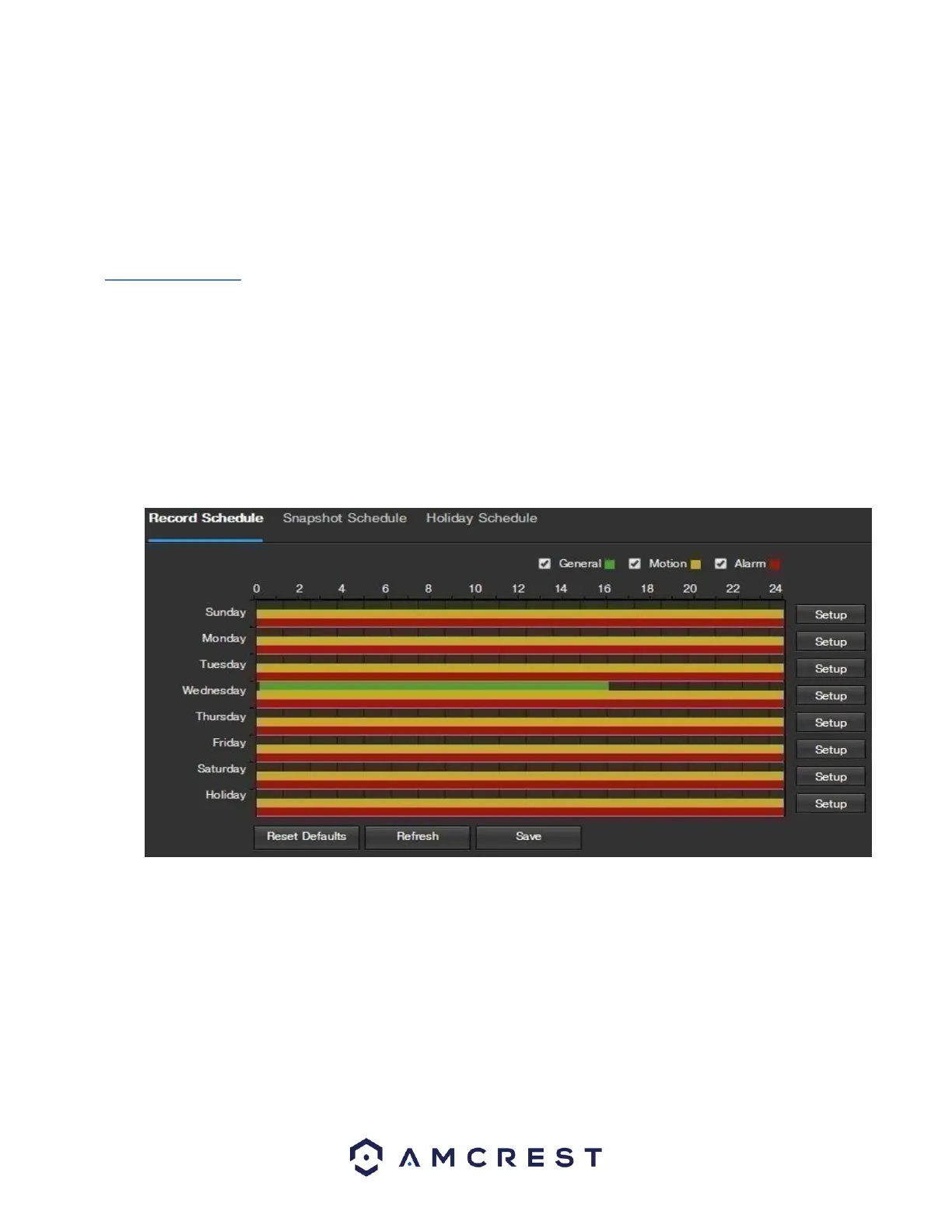
This tab is where video recording settings are configured. Below is a screenshot of the Record Schedule
settings screen:
Below is an explanation of the fields on the Record Schedule settings tab:
Record Type: These checkboxes allow the user to select which recording type they want to configure on
the schedule. There are 3 types of recordings:
o General: General recording means that the camera captures all footage for the specified
time period. General recording is represented by the color green.
o Motion: Motion Detection recording means that the camera captures only footage when
the motion detection alarm is activated. Motion recording is represented by the color
yellow.
o Alarm: Alarm recording means that the camera captures only footage when an alarm is
activated. Alarm recording is represented by the color red.











 To Next Page