EasyManua.ls Logo

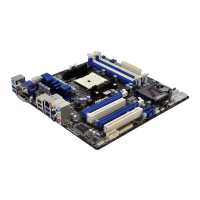
AMD A75 - User Manual

AMD A75
20 pages
Print Icon
To Next Page IconTo Next Page
Loading...
USER'S MANUAL
Of
AMD A75 /A55 Chipset
Based
M/B for Socket FM1 AMD Processor
Trademark:
* Specifications and information contained in this documentation are furnished for information use only, and are
subject to change at any time without notice, and should not be construed as a commitment by manufacturer.
NO. G03-A55M-F
Rev
1.0
Released in: October, 2011

Questions and Answers

  • P
    Patricia LarsonJul 29, 2025
    What to do if my AMD Motherboard shows an 'Invalid Configuration' or 'CMOS Failure' message?
    • J
      James EricksonJul 29, 2025
      If your AMD Motherboard displays a screen message saying “Invalid Configuration” or “CMOS Failure”, review your system’s equipment and ensure the correct information is in the setup.
  • B
    bradleydeniseAug 5, 2025
    How to fix AMD A75 Motherboard with no power?
    • T
      Thomas StevensAug 5, 2025
      To fix an AMD Motherboard that has no power, where the power light doesn’t illuminate, and the fan inside the power supply doesn’t turn on, first ensure the power cable is securely plugged in. If the issue persists, replace the cable.
  • P
    perryrichardAug 12, 2025
    What to do if AMD Motherboard doesn't boot from hard disk drive but boots from optical drive?
    • B
      bettyhornAug 12, 2025
      If your AMD Motherboard doesn't boot from the hard disk drive but can boot from the optical drive, check the cable running from the disk to the disk controller board and ensure both ends are securely plugged in. Also, verify the drive type in the standard CMOS setup. Backing up the hard drive is extremely important, as all hard disks are capable of breaking down at any time.
  • C
    christophercarterAug 21, 2025
    What to do if my AMD A75 system is inoperative but keyboard lights are on?
    • C
      Carrie HerreraAug 21, 2025
      If your AMD Motherboard system is inoperative, but the keyboard lights are on, the power indicator lights are lit, and the hard drive is spinning, apply even pressure on both ends of the DIMM. Press down firmly until the module snaps into place.

Summary

Environmental Safety Instructions

Chapter 2 Hardware Installation

2-1 Hardware Installation Steps

Provides a step-by-step procedure for installing hardware components before system setup.

2-2 Jumper Setting

Explains the purpose and procedure for setting jumpers, specifically the CMOS RAM clear function.

2-3 CPU Installation

Details the AMD FM1 CPU socket and the correct procedure for installing the CPU.

2-3-1 About AMD FM1 CPU Socket

Describes the AMD FM1 CPU socket and essential considerations before installation, like cooling.

2-3-2 CPU Installation Guide

Offers a visual, step-by-step guide for the physical installation of the CPU into the socket.

2-4 Memory Installation

Covers the installation of DDRIII memory modules, detailing configurations and dual-channel support.

Chapter 3 Connectors and Headers

Chapter 4 Useful Help

AMD A75 Specifications

General IconGeneral
BrandAMD
ModelA75
CategoryMotherboard
LanguageEnglish

Related product manuals