INSTALLATION AND OPERATING INSTRUCTIONS
72-0113 08-03-18 4211-149 7014363 314 SYRA 77 D
Page 2
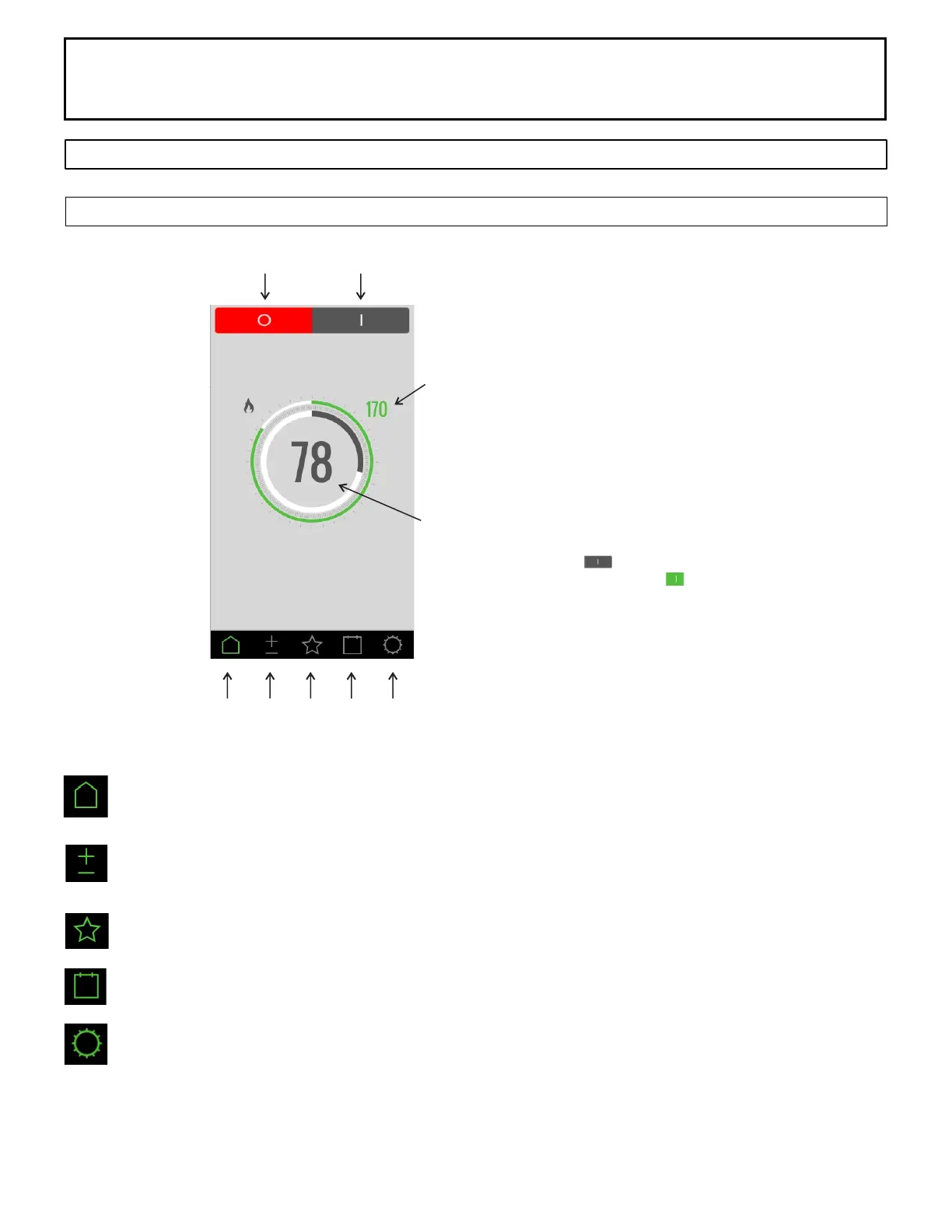
A. - Off Button
B. - On Button
C. - Set Point Room Temperature
D. - Current Room Temperature
E. - Home Button
F. - Temperature Button
G. - Favorites Button
H. - Calendar Button
I. - Settings Button
A. B.
C.
D.
E.
F.
G. H. I.
To Start Immediately
1. Press the icon in the upper right corner
2. Icon will change color
3. System has started
Note: The sauna room set point temperature is D.
The sauna room current temperature is E.
SECTION 2: PREMIUM/A60 CONTROL (1601-33 or 1601-33-1) OPERATION
Home Screen
The Home button: touch this to return to the main screen. Here you will see the current temperature in the sauna room, the
temperature setting, the remaining sauna time (if any) and the time of day. Touch the screen to show the sauna length and Start
on/off buttons, too.
The Settings button: touch this to display the Settings screen. Here you can adjust the temperature and duration for the current
bath. You can also manually turn on the installed options when the bath is on (and turn on some options, such as Lights, when the
sauna is off). You can also save your settings as a favorite so you can always have them available for your sauna without having to
change settings after someone else has a sauna.
The Favorites button: Here you can select a sauna with your favorite settings, once you've saved it.
The Calendar button: Here you schedule a sauna session to start and run at a later time. You can select by the day of the week or
using a calendar month and select for one time sauna or recurring.
The Tool button: here you make the many selections for what functions and options are available to be used, and much more.
The Change Menu arrows are used to move between related menu screens. Press < to return to the previous screen or > to
continue to the next one.


 To Next Page
 Loading...