|3
10. I don´t have or do not want to use a magnetic case
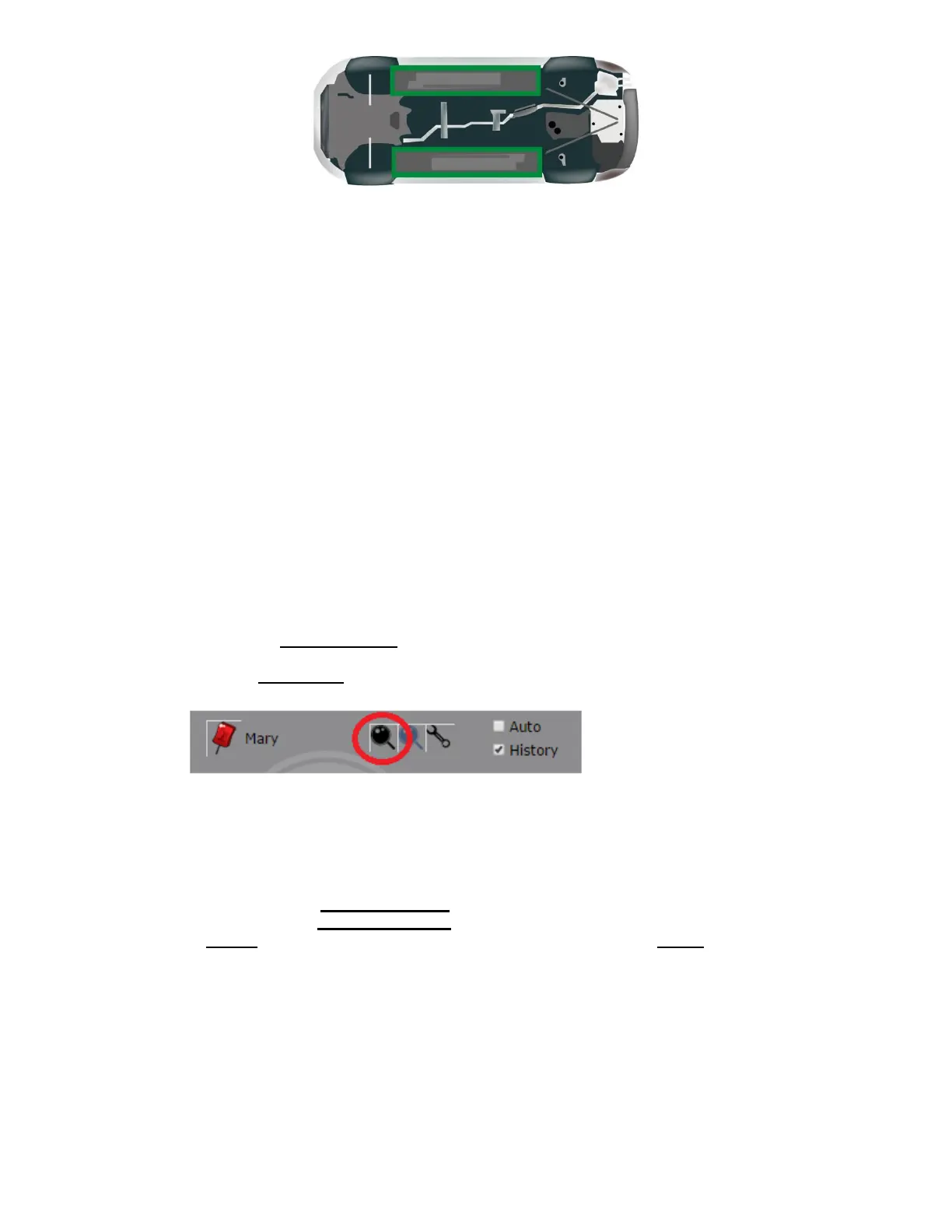
The device can be placed inside the trunk, glove compartment, door compartment or under a seat.
We recommend you place the device in a location where you have confirmed it can transmit data
properly. These spots most of the time work fine, but it depends also on the vehicle so we
encourage our clients to look for the best spot inside their vehicle were they see it best reports.
11. My device reports a location that is slightly off from the actual location.
Accuracy depends on many factors beyond our control. For example: weather, clouds, tall buildings
or trees, bodies of water and device location.
12. Does weather affect my device?
Atmospheric conditions, such as rain or snow, can weaken signals. For example, if your car or case
has a thick coating of snow, then you can expect a lower accuracy level. Extreme temperatures
can also affect battery operated devices and cause signal degradation which may result in lower
accuracy or communication failures Too high temperatures will damage the device or even cause
battery explosion.
BASIC LOCATION INSTRUCTIONS
A. HOW TO LOCATE YOUR DEVICE
Follow these instructions to locate your device:
1. Click on menu 1. your devices; your list of devices will appear.
2. Select the device you wish to locate.
3. Click on the Locate now icon to activate real time searches. As the search is performed, the
map will display the last known location.
4. The map will show the current location of the device as well as a legend with details on the
current status of the device.
B. HOW TO WATCH HISTORY (User interface may change if you are using the website on a PC or in a
mobile phone)
1. Navigate to the menu 2 tracking history section. Select from the list of pre-determined date and
time ranges or select Advanced Search to perform a historical search.
2. Click Search to view the results of the device you selected. Then Click Watch to view a map and
table of all the actions and paths taken by a given device for the date range selected.


 To Next Page
 Loading...