8
Connect to the New Extended Network
During the countdown process, the Range Extender
will reboot and disconnect the Wi-Fi connection.
At this point, you will need to reconnect your PC or
tablet to the new Extended Network. You may
connect to either the 2.4GHz or 5GHz Extended
Network. Follow the instructions on the screen to
connect. Once you have connected, click OK to
complete the setup process.
If there are problems with your configuration, the setup
wizard will inform you to rescan for a network to extend.
If there are no problems, you will see the Setup Summary
page below.
Scan for a Home Network to Extend
5
Highlight and select the wireless network(s)
that you wish to repeat. If you have a dual band
router, select BOTH the 2.4GHz and 5GHz network
names.
Click Next to continue.
Recommended Signal
Select the wireless network with a signal
strength greater than 70% for the most
reliable connection.
>70%
If you see your wireless network listed below 70% or
not at all, you need to move the Range Extender closer
to the router and scan again. A poor signal could
result in slower speeds or dropped connections.
3
Open your Web Browser
Recommended browsers: Google Chrome, Safari or Internet Explorer (8.0 and up). Do not use Firefox.
http://setup.ampedwireless.com
If the URL fails to open, then try: http://192.168.1.240
Enter the setup web address into your browser:
Amped Wireless
http://setup.ampedwireless.com
ACCESSING THE WEB MENU DOES NOT REQUIRE INTERNET ACCESS. THE MENU IS SERVED FROM THE RANGE EXTENDER.
IF YOU HAVE PROBLEMS ACCESSING THE WEB MENU...
a) Disconnect your PC from all Wi-Fi networks.
b) Attach an Ethernet cable (not included) between the PC and the Range Extender.
c) Open your web browser and go to http://setup.ampedwireless.com again.
a
b
c
Attention Windows Users:
A prompt may appear asking: "Do you want to set up your network?"
If so, select "Connect to the network without setting it up"
or "No, just connect".
- or -
2
Connect your PC or Tablet to the Range Extender
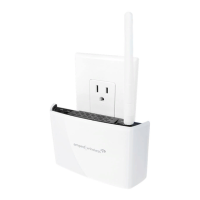
Plug the Range Extender into
a power outlet.
a
Connect to the Range Extender's
Wi-Fi network: Amped_B750EX_2.4
or Amped_B750EX_5.0.
b
a
b
Amped_B750EX_5.0
Amped_B750EX_2.4
Internet
Wi-Fi Router
Wi-Fi Range Extender
Home/Office Network
Dead Zone
>70%
RECOMMENDED
SIGNAL STRENGTH
Find a Setup Location About Half-Way Between your
Wi-Fi Router & your Wireless Dead Zone
1
THE RANGE EXTENDER MUST RECEIVE A STRONG SIGNAL FROM YOUR WI-FI ROUTER.
We recommend the signal from your router is
>
70%. We'll find out the exact strength in Step 6.
If you are connecting to a dual band router, both 2.4GHz and 5GHz connections should be greater than 70%.
4
Welcome to the Setup Wizard
The Setup Wizard will guide you through the
setup process.
Click Scan to find available networks to extend.
Setup screens for mobile devices will vary from desktop and
tablet versions.
9
Setup Summary
Congratulations, the Range Extender is now
successfully configured. Your settings are now
saved. You may also attach any wired network
devices to the wired port on the bottom of the
Range Extender.
The wizard will notify you if there is a newer firmware for
the Extender. We recommend that you upgrade your
Extender at this time if an update is available.
If you experience any problems during this process,
please contact Amped Wireless Elite Support:
Phone: 888-573-8820
Email: techsupport@ampedwireless.com
Web: www.ampedwireless.com/support
If you haven’t already positioned your Range Extender in an optimal location, you may do so now.
All Range Extender settings are saved and can be safely powered off for relocation.
If your wireless home network(s) has security
enabled, you will need to enter the security key here.
If you selected both a 2.4GHz and a 5GHz network
to repeat, you will need to enter both security keys
here.
If your wireless home network(s) does not have
security enabled, leave the security field blank.
Click Next to continue.
6
Home Network Security Settings (if necessary)
7
Configure Settings for your Extended Networks
The IDs of your Extended Networks are:
Amped_B750EX_2.4 and Amped_B750EX_5.0
If you choose to "Clone" the settings from your
Home Network, the wizard will copy the SSID and
security key of your Home Network.
The SSID of the Extended Network will have a
"_RE" at the end of its name. For example:
Home_Network_RE
You can also manually enter a new network ID and
security key. The new security key must be at least
8 characters long.
Click Next to apply the settings.
DO NOT LEAVE OR REFRESH THIS PAGE
Allow the countdown to complete and the wizard will
automatically redirect you to the next step.
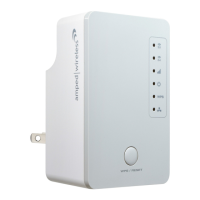
The Range Extender is equipped with a Signal Strength LED on the front of the
device to help you find the most optimal location. After setup, the LED can be your
guide for positioning the Extender to a better location (if needed). It may take 1-3
minutes for the LED to register after powering on the Extender. For optimal
performance, we recommend a signal strength of at least 70%.
Finding an Optimal Placement Location (Signal Strength LED)
Solid Green: Excellent Signal 65-100%
Blinking Green: Moderate Signal 64% and below
No Light: No Connection
Note: The LED will not turn on if the Extender is not connected to a Home Network.
RE AD F IR ST
SETUP GUIDE
GOT QU EST ION S?
Phone: 888-573-8820 or 909-217-3168
Email: techsupport@ampedwireless.com
Web: www.ampedwireless.com/support
B7 50 EX
AC750 PLUG-IN WI-FI
®
RANGE EXTENDER
Watch the Installation Video here: http://support.ampedwireless.com/b750ex

 Need help?
 General

 To Next Page