6
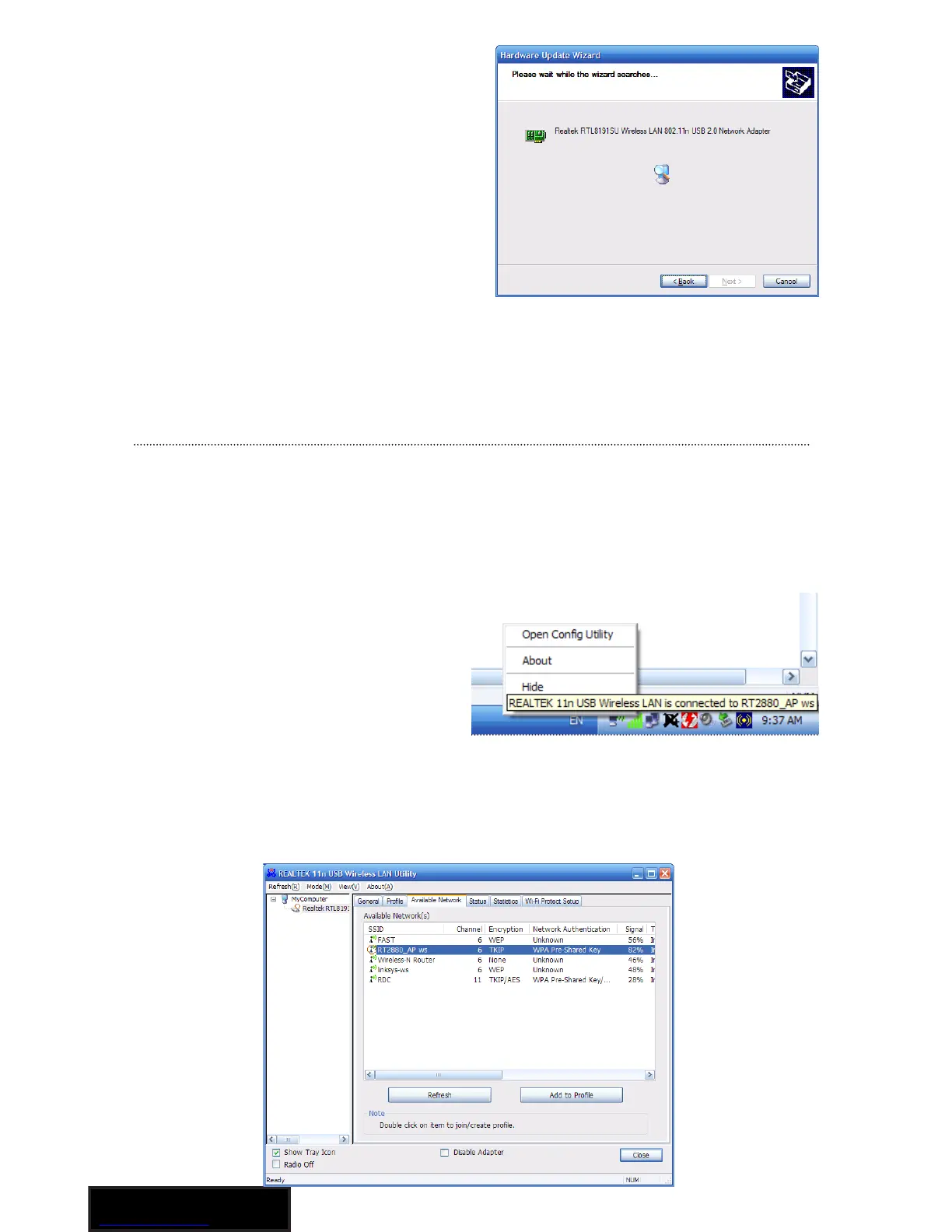
A status screen will display,
indicating that the installation is in
progress. No action is needed at
this point.
When the Completing the Found
New Hardware Wizard screen
displays, it indicates that the
installation has been successfully
completed and your Wireless-N
USB Adapter is ready for configuration.
Configuration
Once the installation is complete, you can configure the Wireless-N
USB Adapter to connect to a wireless access point (AP). The wireless
configuration utility will start automatically, and you’ll also find a tray
icon at the lower right in your Windows systems tray.
1. Right-click the Wireless
tray icon and select “Open
Config Utility.”
2. The configuration utility
will scan for wireless networks within range. Click “Refresh” to
refresh the list of available wireless networks. To join a particular
network that displays, select it and click “Add to Profile.”



 To Next Page