Overview
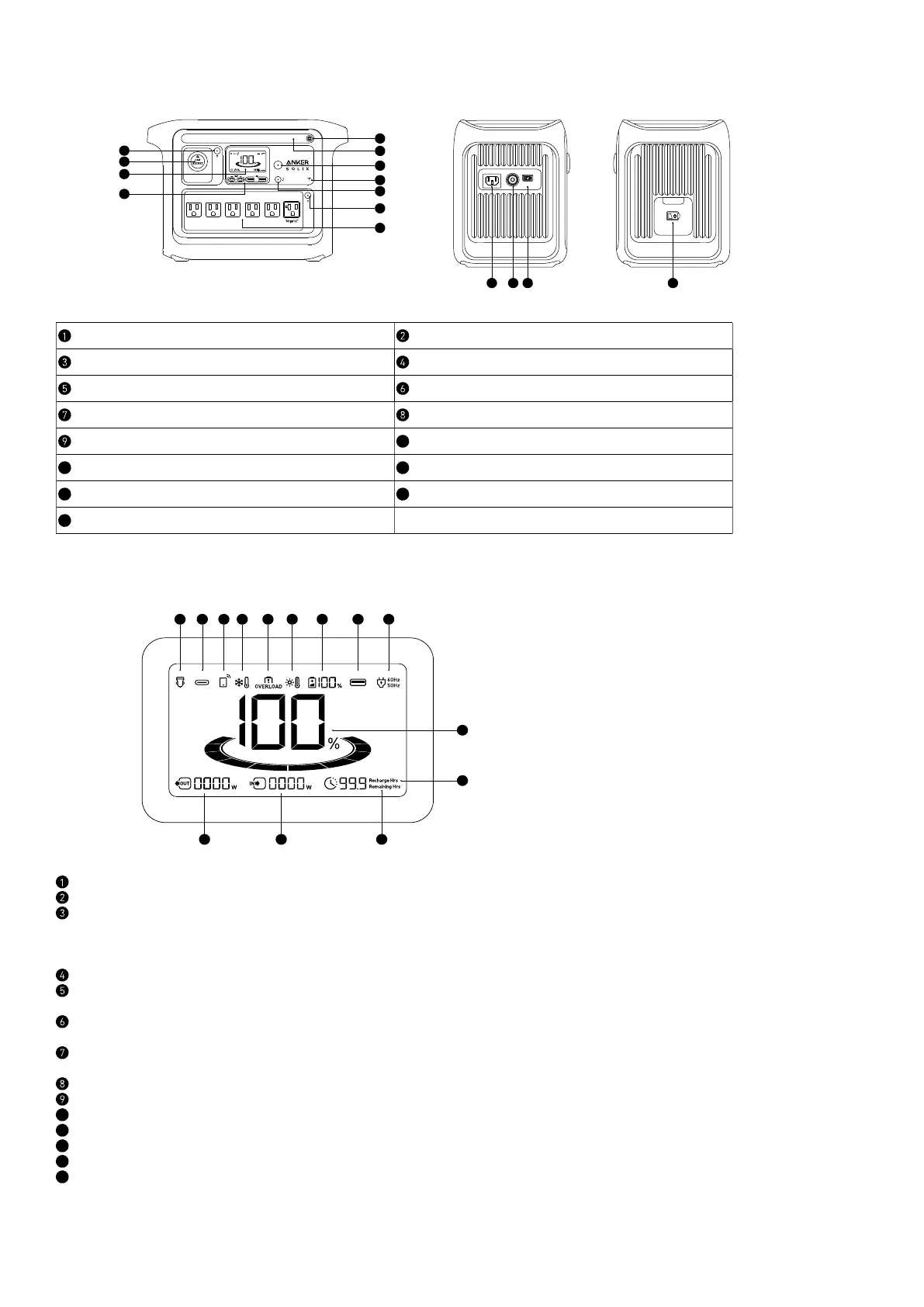
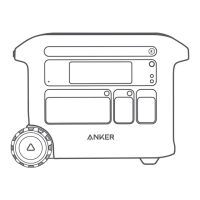
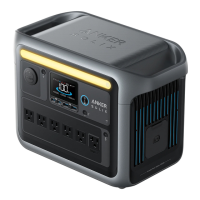
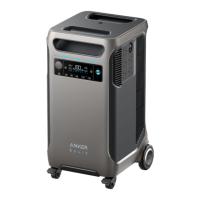
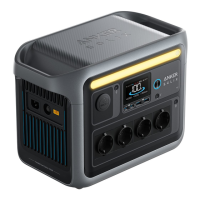
Product Overview
Ambient Light Button Ambient Light
Main Power Button Reset Button
IoT Button AC Outlet Button
AC Output Ports Car Socket Button
Car Socket
10
LCD Screen
11
USB Ports
12
AC Input Port
13
Overload Protection Switch
14
Solar / Car Input Port
15
Expansion Battery Port
LCD Screen Guide
10
11
1 2 3 4 5 6 7 8 9
14 13 12
Car Charging
USB-C Output
IoT:
Press the IoT button once to turn on Bluetooth and Wi-Fi, and connect your devices through the app when this icon appears on the screen.
Press the IoT button for 2 seconds to turn o Bluetooth and Wi-Fi.
Press the IoT button for 7 seconds to reset Bluetooth and Wi-Fi.
Low-Temperature Alert: When this icon shows, stop using the power station until the icon disappears.
Overload Warning:
This icon appears when a port is overloaded. The port will be turned o to avoid any damage. Please remove the device causing overload.
High-Temperature Alert:
When this icon shows, stop using the power station and let it cool down until the icon disappears.
Remaining Power for Expansion Battery:
When the expansion battery is connected successfully, this icon appears on the screen.
USB-A Output
AC Charge and Voltage Frequency
10
Remaining Power Station Battery
11
Estimated Time to Fully Recharge
12
Estimated Time for Battery to Deplete
13
Current Input Power
14
Current Output Power


 To Next Page