EasyManua.ls Logo

anko 43040391 - User Manual

anko 43040391
3 pages
Print Icon
To Next Page IconTo Next Page
Loading...
Instruction Manual
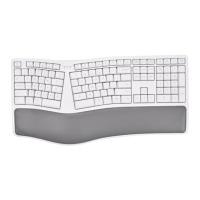
Wireless Ergonomic Keyboard
Keycode: 43040391
Package Contents
2.4GHz wireless keyboard
USB receiver (inside the battery compartment)
User manual
Safety Instructions:
Please read the instruction manual before using this device and follow all the safety
instruction to avoid damage caused by improper use.
Keep the instruction manual for future reference. Should this device be given to a third
party, then this instruction manual must also be handed over.
Use this device solely for its intended purpose.
Only use this appliance indoors.
Keep the appliance away from all hot surfaces and naked flames.
Always put the appliance on a level, stable, clean, dry surface. Protect the appliance
from extreme heat and cold, dust, direct sunlight, humidity and drops or jets of water.
Do not immerse the appliance in water or in other liquids.
Do not open the housing under any circumstances.
Do not introduce any objects into the interior of the housing.
Should the device malfunction due to electrostatic discharge or a short power surge,
disconnect it from your computer and then reconnect it again.
Features:
2.4GHz wireless technology
Ergonomic design, comfortable to use
Low voltage alarm design, low power consumption, energy conservation
Working distance up to 10m (without any obstructions)
Supports:
Windows XP/7/8/10/Linux/Mac OS
Question and Answer IconNeed help?

Do you have a question about the anko 43040391 and is the answer not in the manual?

Summary

Product Overview and Setup

Package Contents

Lists items included: 2.4GHz wireless keyboard, USB receiver, and user manual.

Safety Instructions

Guidelines for safe operation, including reading the manual and keeping away from hazards.

Product Features

Highlights key attributes: 2.4GHz wireless, ergonomic design, low power, and working distance.

System Requirements

Lists operating systems compatible with the keyboard: Windows XP/7/8/10, Linux, Mac OS.

Operation and Connectivity

Inserting Batteries

Instructions for inserting 1.5V AA batteries and notes on battery types and disposal.

Connecting the Keyboard

Steps to connect the keyboard via USB receiver and troubleshooting for pairing issues.

Key Functionality

Explains the dual function of F1-F12 keys using the Fn key and its indicator light.

Advanced Features and Support

Function Key Mapping

Details the hotkey functions for F1-F12 keys, including Fn Lock and OS compatibility notes.

Power Saving Mode

Describes how the keyboard enters power saving mode after inactivity and how to reactivate it.

Care and Maintenance

Advice on cleaning the keyboard using a dry soft cloth for optimal upkeep.

Warranty Information

Details the 12-month warranty from Kmart Australia and customer service contact information.

Summary

Product Overview and Setup

Package Contents

Lists items included: 2.4GHz wireless keyboard, USB receiver, and user manual.

Safety Instructions

Guidelines for safe operation, including reading the manual and keeping away from hazards.

Product Features

Highlights key attributes: 2.4GHz wireless, ergonomic design, low power, and working distance.

System Requirements

Lists operating systems compatible with the keyboard: Windows XP/7/8/10, Linux, Mac OS.

Operation and Connectivity

Inserting Batteries

Instructions for inserting 1.5V AA batteries and notes on battery types and disposal.

Connecting the Keyboard

Steps to connect the keyboard via USB receiver and troubleshooting for pairing issues.

Key Functionality

Explains the dual function of F1-F12 keys using the Fn key and its indicator light.

Advanced Features and Support

Function Key Mapping

Details the hotkey functions for F1-F12 keys, including Fn Lock and OS compatibility notes.

Power Saving Mode

Describes how the keyboard enters power saving mode after inactivity and how to reactivate it.

Care and Maintenance

Advice on cleaning the keyboard using a dry soft cloth for optimal upkeep.

Warranty Information

Details the 12-month warranty from Kmart Australia and customer service contact information.

Overview

This document describes the Anko Wireless Ergonomic Keyboard (Keycode: 43040391), a peripheral designed for comfortable and efficient typing across various operating systems.

Function Description

The Anko Wireless Ergonomic Keyboard is a 2.4GHz wireless input device featuring an ergonomic design aimed at providing a comfortable user experience. It allows users to type wirelessly, connecting to a computer via a USB receiver. The keyboard includes a range of standard keys, as well as dedicated function keys and multimedia shortcuts to enhance productivity and control. Its low voltage alarm design, coupled with low power consumption, contributes to energy conservation and extends battery life.

Important Technical Specifications

  • Connectivity: 2.4GHz wireless technology
  • Operating Distance: Up to 10 meters (without obstructions)
  • Power Source: 1.5V AA batteries (quantity not specified, but typically two for keyboards)
  • Battery Type Recommendation: Alkaline or Rechargeable batteries
  • Compatibility: Supports Windows XP/7/8/10, Linux, and Mac OS
  • Power Saving Mode: Automatically enters power saving mode after ten minutes of inactivity.
  • Low Voltage Indicator: Flashes green when the battery is running low.

Usage Features

Setup and Connection:

  1. Battery Insertion: Remove the battery compartment cover(s) on the keyboard and insert the required 1.5V AA batteries. Ensure correct polarity. Replace the cover(s).
  2. Power On: Toggle the power switch on the keyboard to the "ON" position.
  3. USB Receiver: Plug the USB receiver (located inside the battery compartment) into an available USB port on your computer. The keyboard should then function normally.

Troubleshooting Connection:

If the keyboard does not work normally after initial setup:

  1. Remove the USB receiver from the computer's USB port.
  2. Toggle the keyboard's power switch to the "ON" position again.
  3. Simultaneously press the "ESC" and "Q" keys on the keyboard. The indicator light in the top right corner will light up or flash, indicating pairing mode.
  4. Re-insert the USB receiver into the computer's USB port. The indicator light will turn off once the matching process is successful.

Function Keys (Fn Key Integration):

The keyboard features a dedicated "Fn" key that modifies the behavior of the F1-F12 keys, allowing access to both their original functions and a set of shortcut key functions.

  • Original Function Access: When the "Fn" indicator light is off, pressing F1-F12 keys will activate their original functions (e.g., F1, F2, F3, etc.).
  • Shortcut Key Function Access: When the "Fn" key is pressed (and the "Fn" indicator light turns green), pressing F1-F12 keys will activate their corresponding shortcut functions.

Shortcut Key Functions (when Fn indicator is green):

ICON Windows Function ICON Windows Function ICON Windows Function
fn+esc Fn Lock F6 (※) Brightness - F12 (?) Volume -
F1 (?) Home F7 (?) Brightness + F12 (?) Volume +
F2 (✉️) Mail F8 (⏪) Previous F12 (?) Calculator
F3 (⭐) Favorite F9 (⏯️) Play/Pause F12 (?) Print
F4 (?) Music F10 (⏩) Next F12 (?) Set
F5 (?) Search F11 (?) Volume Mute F12 (?) Lock Screen

Note: The hot keys for Volume Mute, Volume-, Volume+, Calculator, Print, Set, and Lock Screen are not supported on Mac OS systems.

Power Saving Mode:

To conserve battery life, the keyboard will automatically enter a power saving mode if it remains unused for ten minutes. To reactivate the keyboard, simply move the mouse or press any key.
Maintenance Features

General Care:

  • Wipe all parts of the keyboard with a dry, soft cloth to keep it clean.

Battery Care:

  • It is recommended to use Alkaline or Rechargeable batteries.
  • If the device will not be used for an extended period, remove the batteries to prevent leakage and damage.
  • Batteries should be disposed of in an environmentally friendly manner, in accordance with local regulations, and not in household waste.
  • Keep batteries and device components away from children. Seek immediate medical attention if a battery is swallowed.
  • Do not attempt to recharge non-rechargeable batteries, activate batteries by other means, dismantle them, throw them into fire, or short-circuit them.
  • Remove batteries before disposing of the device itself.

Safety Instructions:

  • Read the instruction manual thoroughly before use and follow all safety instructions to prevent damage.
  • Keep the manual for future reference and pass it on if the device is given to a third party.
  • Use the device only for its intended purpose and indoors.
  • Keep the appliance away from hot surfaces and naked flames.
  • Always place the appliance on a level, stable, clean, and dry surface.
  • Protect the appliance from extreme heat, cold, dust, direct sunlight, humidity, and water splashes or jets.
  • Do not immerse the appliance in water or other liquids.
  • Do not open the housing under any circumstances.
  • Do not insert any objects into the interior of the housing.
  • In case of malfunction due to electrostatic discharge or a short power surge, disconnect the keyboard from your computer and then reconnect it.

anko 43040391 Specifications

General IconGeneral
Brandanko
Model43040391
CategoryKeyboard
LanguageEnglish

Related product manuals