Tools
Clock
1. Opening the Clock
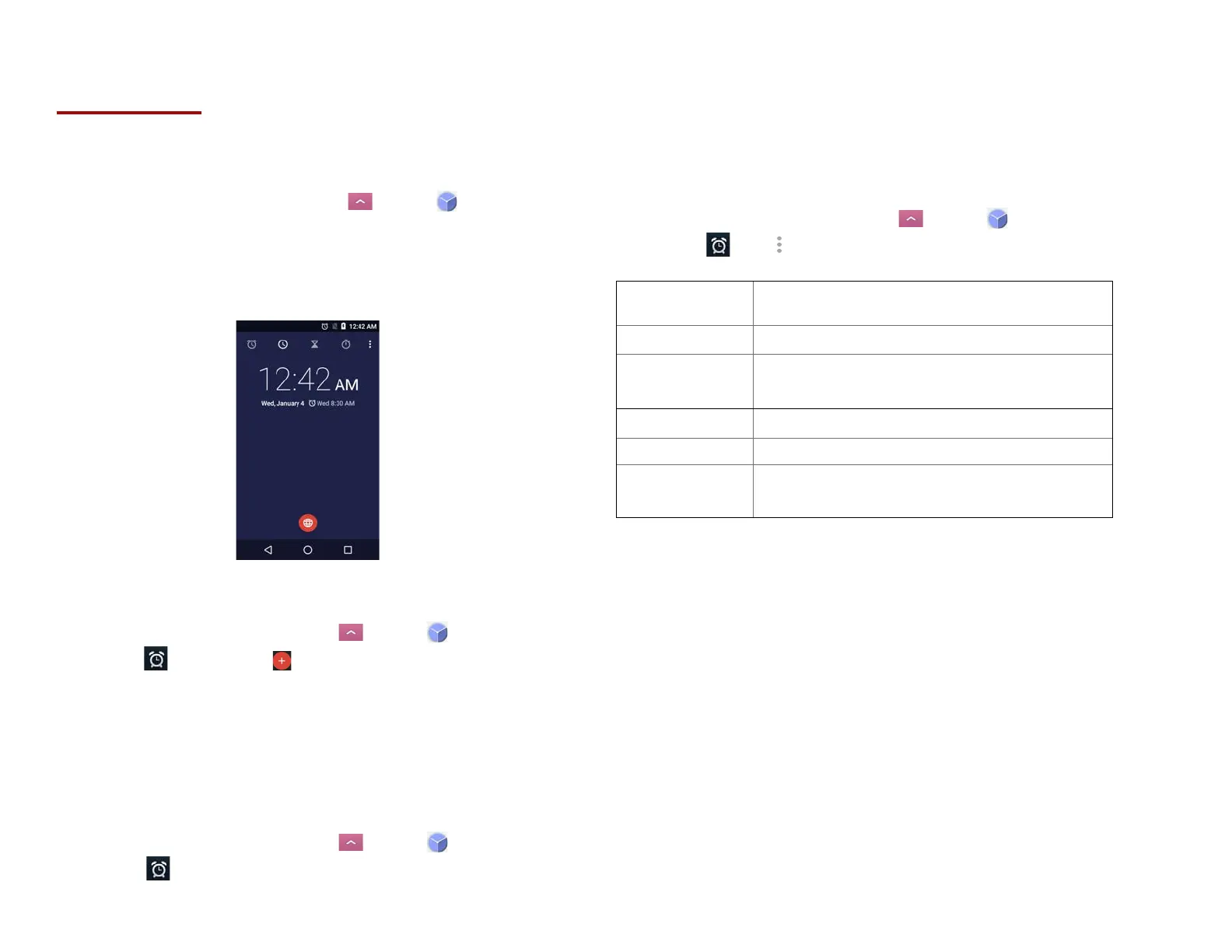
1. From the Home screen, tap Apps > Clock.
• The Clock application opens and displays the date,
time and other useful information.
•Tap Set alarm to set alarm.
2. Managing Alarms
1. Adding a new alarm
1. From the Home screen, tap Apps > Clock.
2. Tap Set alarm> Add alarm.
3. To change the alarm time, scroll up and down to type
the number. Then toggle AM/PM >Set.
4. Check the checkbox, ‘Turn alarm on’.
5. Edit Turn alarm on, Time, Repeat, Ringtone,
Vibrate and Label >Ok.
2. Editing an alarm
1. From the Home screen, tap Apps > Clock.
2. Tap > Tap an existing alarm.
3. Turn the alarm on or off by checking or
un-checking the checkbox, ‘Turn alarm on’. In
the alarm list, set alarms are underlined in green.
4. Edit Time, Repeat, Ringtone, Vibrate and Label
>Done. Or tap Delete to remove the alarm >OK.
3. Changing alarm settings
1. From the Home screen, tap Apps > Clock
2. Tap > tap Option >Settings.


 To Next Page