Need help?
Do you have a question about the AOC 24B3CF2 and is the answer not in the manual?
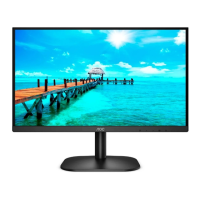
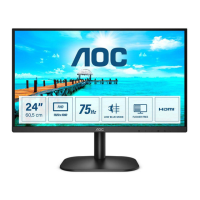
This document serves as the user manual for the AOC LCD Monitor models 24B3CF2 and 27B3CF2, providing comprehensive instructions for its safe operation, setup, adjustment, and troubleshooting.
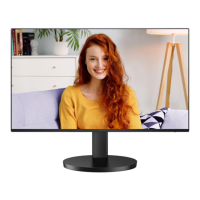
The AOC LCD Monitor is a display device designed to connect to a computer system, providing visual output for various tasks, from general computing to gaming and multimedia consumption. It supports high-definition multimedia input and offers a range of features to enhance the user's viewing experience. The monitor is equipped with an On-Screen Display (OSD) menu that allows users to customize various display settings, including luminance, color, and game-specific adjustments. It also incorporates Adaptive-Sync technology, which helps to eliminate screen tearing and stuttering during fast-paced gaming by synchronizing the monitor's refresh rate with the graphics card's frame rate. The monitor includes USB-C connectivity, offering a versatile single-cable solution for video, data, and power delivery. Built-in speakers provide audio output, eliminating the need for external speakers in many scenarios.
The monitor offers a user-friendly experience with intuitive setup and adjustment options.
The manual provides clear instructions for setting up the stand and base, ensuring stability. It details the process of connecting the monitor to a PC using various input options, including HDMI and USB-C. For users who prefer a wall-mounted setup, the manual outlines the steps for preparing the monitor for an optional wall mounting arm, emphasizing the importance of using manufacturer-approved kits and following their instructions. Crucially, it highlights the need to maintain adequate ventilation around the monitor to prevent overheating and potential damage.
Users can adjust the monitor's viewing angle to their preference, with a tilt range of -5° to 23° and a height adjustment of 110mm. The manual advises holding the stand firmly during adjustment to prevent the monitor from toppling and warns against pressing on the LCD screen, which could cause damage.
The monitor features a set of hotkeys for quick access to common functions:
The OSD menu is logically organized into several categories:
The monitor supports Adaptive-Sync technology via DP/HDMI, ensuring a smooth gaming experience by eliminating screen tearing and stuttering. The manual lists compatible AMD Radeon graphics cards and processors, advising users to check the AMD website for the most up-to-date compatibility information.
The LED indicator provides visual cues about the monitor's status: white for full power mode and orange for active-off mode.
Proper maintenance ensures the longevity and optimal performance of the monitor.
The manual stresses the importance of regular cleaning of the cabinet with a water-dampened, soft cloth. For the screen, a soft cotton or microfiber cloth, damp and almost dry, should be used, with a strict warning against allowing liquid into the case. Users are instructed to disconnect the power cord before cleaning the product to prevent electric shock.
The manual outlines several critical safety measures:
The manual includes a comprehensive troubleshooting section to help users resolve common issues, such as the power LED not turning on, no images on the screen, fuzzy pictures, flickering, or color defects. It provides possible solutions, including checking cable connections, adjusting display settings, and ensuring proper installation of monitor drivers. For more complex issues, users are directed to the Service Center or the AOC website for further support.
 General
| Panel Type | IPS |
|---|---|
| Refresh Rate | 75 Hz |
| Response Time | 4ms (GtG) |
| Brightness | 250 cd/m² |
| Contrast Ratio | 1000:1 |
| Viewing Angle | 178° (H) / 178° (V) |
| Color Gamut | 72% NTSC |
| VESA Mount | 100x100mm |
| Resolution | 1920 x 1080 |
| Ports | HDMI, VGA |
| Features | Flicker-Free, Low Blue Light |
| Screen Size | 23.8 inches |

 To Next Page