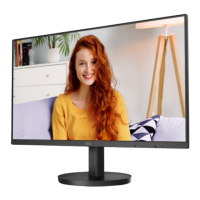
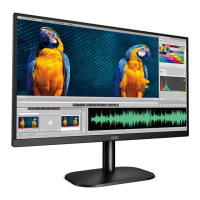
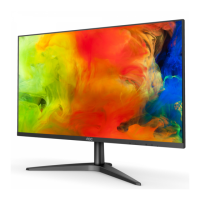
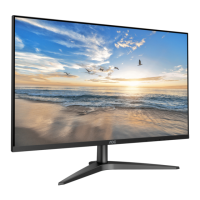
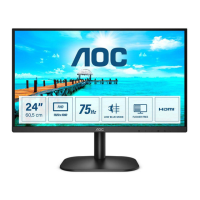
This document serves as a comprehensive user manual for the AOC 24B3HM LCD Monitor, providing essential information on its setup, operation, and maintenance. The monitor is designed for general computing tasks, offering a clear visual display and user-friendly adjustments.
Function Description
The AOC 24B3HM is an LCD monitor primarily designed for displaying visual output from a computer or other compatible devices. Its core function is to provide a visual interface for users to interact with their digital content, whether for work, entertainment, or general browsing. The monitor supports multiple input sources, including HDMI and VGA (D-Sub 15-Pin), allowing for versatile connectivity with various systems. It incorporates Adaptive-Sync technology, which helps to synchronize the monitor's refresh rate with the graphics card's frame rate, reducing screen tearing and stuttering for a smoother visual experience, particularly in dynamic content like games. The monitor also features a "Clear Vision" function, which enhances the clarity and vividness of low-resolution and blurry images, improving the overall viewing quality.
Usage Features
The monitor offers a range of features designed to optimize the user experience.
Physical Setup and Adjustments:
- Stand and Base Setup: The manual provides clear instructions for assembling and disassembling the monitor stand and base, ensuring a stable setup.
- Viewing Angle Adjustment: Users can adjust the monitor's tilt angle from -5 degrees to 23 degrees to achieve an optimal viewing position. This flexibility helps reduce strain and improve comfort during prolonged use. It is crucial to hold the stand when adjusting the angle to prevent the monitor from toppling and to avoid touching the LCD screen directly to prevent damage.
- Wall Mounting: For users who prefer a wall-mounted setup, the monitor is compatible with VESA mounting arms (purchased separately). The manual outlines the steps for removing the base and attaching the mounting arm, emphasizing the importance of following the manufacturer's instructions and ensuring proper cable reconnection. A critical warning is provided regarding the tilt angle for wall mounting, advising against tilting downward by more than -5 degrees to prevent potential screen damage and voiding of warranty.
- Connectivity: The monitor includes HDMI, VGA (D-Sub 15-Pin), and an earphone out port. Instructions are provided for connecting the monitor to a PC, including proper power and signal cable connections. Users are advised to turn off both the PC and the LCD monitor before connecting cables to protect the equipment.
On-Screen Display (OSD) Settings:
The monitor features an intuitive OSD menu, accessible via hotkeys, allowing users to customize various display parameters.
- Hotkeys: Dedicated hotkeys provide quick access to common functions:
- Source/Auto/Exit: Used to select input sources, perform auto-configuration, or exit the OSD menu.
- Clear Vision/<: Activates and adjusts the Clear Vision function, which enhances image clarity. A demo mode is available to showcase the effect.
- Image Ratio/Volume/>: Adjusts the display's aspect ratio (4:3 or wide) and controls the volume when the OSD is not active.
- Menu/Enter: Opens the OSD menu and confirms selections.
- Power: Turns the monitor on or off.
- Luminance Settings: This section allows adjustment of:
- Contrast: Controls the difference between light and dark areas of the image.
- Brightness: Adjusts the overall intensity of the display backlight.
- Eco Mode: Offers various preset modes (Standard, Text, Internet, Game, Movie, Sports, Reading) to optimize display settings for different content types, promoting energy efficiency.
- Gamma: Fine-tunes the tonal response of the display.
- DCR (Dynamic Contrast Ratio): Dynamically adjusts contrast for improved image depth.
- HDR Mode: Provides options (HDR Picture, HDR Movie, HDR Game) to simulate or enhance HDR effects when HDR content is not natively detected, optimizing color and contrast. Note that when HDR Mode is active, Contrast, Eco Mode, and Gamma settings are locked.
- Image Setup: For analog inputs, these settings allow for precise image calibration:
- Clock: Reduces vertical line noise.
- Phase: Reduces horizontal line noise.
- Sharpness: Adjusts the crispness of the image.
- H. Position/V. Position: Controls the horizontal and vertical positioning of the picture on the screen.
- Color Setup: This menu provides options for color temperature and enhancement:
- Color Temp.: Offers preset color temperatures (Warm, Normal, Cool, sRGB) and a User mode for custom RGB adjustments.
- DCB Mode (Dynamic Color Boost): Enhances color saturation and vibrancy with modes like Full Enhance, Nature Skin, Green Field, and Sky-blue. An Auto Detect mode is also available. A DCB Demo allows users to preview the effect. Note that when HDR Mode is active, all Color Setup items are locked.
- Red/Green/Blue: Allows individual adjustment of red, green, and blue color gains.
- Picture Boost: This feature allows users to define a specific area on the screen (Bright Frame) and adjust its brightness, contrast, and position independently. This can be useful for highlighting specific content or optimizing viewing for a particular region of the screen. Note that when HDR Mode is active, all Picture Boost items are locked.
- OSD Setup: Configures the OSD menu itself:
- Language: Selects the OSD language.
- Timeout: Sets how long the OSD remains visible before automatically disappearing.
- H. Position/V. Position: Adjusts the horizontal and vertical position of the OSD menu on the screen.
- Transparence: Controls the transparency level of the OSD background.
- Break Reminder: An optional feature that reminds the user to take a break after continuous work, promoting eye health.
- Game Setting: Tailored for gaming, this section offers:
- Game Mode: Provides optimized presets for different game genres (FPS, RTS, Racing) and customizable Gamer 1, 2, and 3 profiles.
- Shadow Control: Adjusts the visibility of dark areas without overexposing bright regions, helping players spot enemies in shadows.
- Overdrive: Controls the response time of the display, reducing motion blur.
- Game Color: Adjusts color saturation for a more vibrant gaming experience.
- LowBlue Mode: Reduces blue light emission to minimize eye strain during extended gaming sessions.
- Dial Point: Places an aiming indicator in the center of the screen, assisting in First Person Shooter (FPS) games.
- Adaptive-Sync: Enables or disables Adaptive-Sync technology for smoother gameplay.
- Frame Counter: Displays the V frequency (frames per second) on a selected corner of the screen. Note that when HDR Mode is active, Game Mode, Shadow Control, Game Color, and Low Blue Mode settings are locked.
- Extra: This menu includes additional utility settings:
- Input Select: Manually selects the active input source (Auto/D-SUB/HDMI).
- Auto Config: Automatically adjusts the picture for optimal display.
- Off Timer: Sets a timer for the monitor to automatically turn off.
- Image Ratio: Manually sets the display aspect ratio to wide or 4:3.
- DDC/CI: Enables or disables DDC/CI (Display Data Channel/Command Interface) support, allowing the computer to communicate with and control monitor settings.
- Reset: Restores all OSD settings to their factory defaults.
- Exit: Closes the OSD menu.
OSD Lock Function: The monitor includes an OSD lock function to prevent accidental changes to settings. This can be activated or deactivated by pressing and holding the MENU button while turning the monitor on.
LED Indicator: A front-facing LED indicates the monitor's status: white for full power mode and orange for power saving mode.
Plug and Play (DDC2B): The monitor supports VESA DDC2B, allowing it to communicate its identity and display capabilities to the host system, enabling automatic configuration and optimal display settings.
Maintenance Features
Proper maintenance is crucial for the longevity and optimal performance of the AOC 24B3HM monitor. The manual outlines specific guidelines for cleaning and general care.
- Cleaning:
- Cabinet Cleaning: The monitor cabinet should be cleaned regularly with a water-dampened, soft cloth.
- Screen Cleaning: When cleaning the screen, a soft cotton or microfiber cloth should be used. The cloth should be damp and almost dry, ensuring no liquid enters the case.
- Power Disconnection: It is essential to disconnect the power cord before cleaning the product to prevent electrical hazards.
- General Safety and Care:
- Power Source: The monitor should only be operated from the specified power source indicated on its label. It is equipped with a three-pronged grounded plug for safety, and users are advised to ensure their outlets are properly grounded or use appropriate adapters.
- Power Surges: To protect against damage from lightning storms or power surges, the unit should be unplugged when not in use for extended periods.
- Overloading: Avoid overloading power strips and extension cords to prevent fire or electric shock.
- Ventilation: Adequate space must be maintained around the monitor for proper air circulation to prevent overheating, which could lead to fire or damage.
- Physical Handling: The monitor should not be placed on unstable surfaces. Objects should never be pushed into the monitor's slots, and liquids should not be spilled on it. The front of the product should not be placed on the floor. During operation or transportation, severe vibration or high impact conditions should be avoided. Users are warned against knocking or dropping the monitor.
- Troubleshooting: The manual includes a troubleshooting section to help users diagnose and resolve common issues such as the power LED not being on, no image on the screen, fuzzy pictures, flickering, color defects, or improper screen centering. It suggests checking cable connections, power supply, video card settings, and adjusting OSD controls. For more complex issues, users are directed to consult the service center or the AOC website for regulation and service information.
- Unusual Behavior: If the product emits a strange smell, sound, or smoke, the power plug must be disconnected immediately, and a Service Center contacted.

 Need help?
 General
 Weight and Dimensions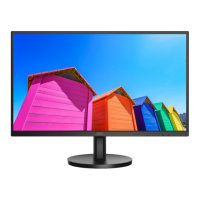

 To Next Page