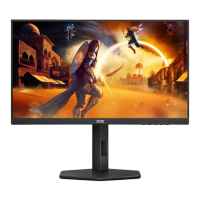
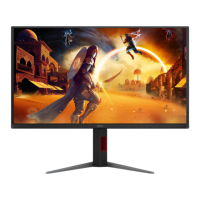
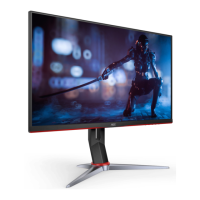
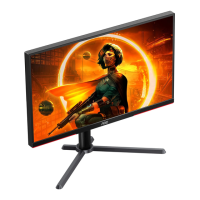
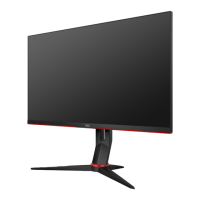
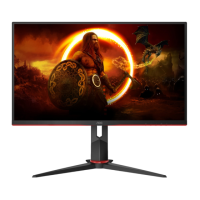
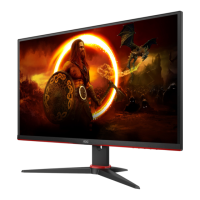
This document serves as the User Manual for the AOC Q27G4N Gaming Monitor, providing comprehensive instructions for its setup, adjustment, and troubleshooting, along with important safety information.
Function Description
The AOC Q27G4N is a gaming monitor designed to deliver an immersive visual experience. Its primary function is to display high-quality graphics and video content from a connected computer or other compatible devices. The monitor supports various display modes and settings tailored for different types of content, particularly optimized for gaming. It features Adaptive-Sync technology, which helps eliminate screen tearing and stuttering by synchronizing the monitor's refresh rate with the graphics card's frame rate, ensuring a smoother gaming experience. The monitor also supports HDR (High Dynamic Range) input signals, enhancing contrast and color accuracy for compatible content. Users can adjust various display parameters through an On-Screen Display (OSD) menu, allowing for personalization of the viewing experience.
Usage Features
The AOC Q27G4N offers a range of features to enhance usability and performance:
- Setup and Installation: The manual details how to set up the stand and base, including steps for both assembly and removal. It also provides instructions for wall mounting, emphasizing the importance of using manufacturer-approved kits and following specific guidelines to prevent damage. Clear diagrams illustrate the process for attaching the stand and for wall mounting.
- Adjusting Viewing Angle: The monitor allows for flexible adjustment of its viewing angle to achieve optimal comfort. Users can tilt the screen from -5° to 23° and swivel it 90° in both directions. The height can also be adjusted by 130mm. The manual advises holding the stand firmly during adjustments to prevent the monitor from toppling and warns against touching the LCD screen directly to avoid damage.
- Connecting the Monitor: The monitor provides multiple input options, including DisplayPort and HDMI, allowing connection to a wide range of devices. It also includes an earphone jack for audio output. The manual provides a step-by-step guide for connecting the monitor to a PC, ensuring proper cable connections and power-up sequence.
- Hotkeys: Dedicated hotkeys on the monitor provide quick access to frequently used functions. These include buttons for Source/Exit, Game Mode, Dial Point, and Menu/Enter. The Game Mode hotkey allows users to quickly switch between optimized display settings for different game genres (FPS, RTS, Racing) or custom gamer profiles. The Dial Point function places an aiming indicator on the screen, which is particularly useful for First Person Shooter (FPS) games.
- OSD Setting: The On-Screen Display (OSD) menu is the central hub for configuring all monitor settings. It is accessed via the MENU-button and navigated using directional buttons. The OSD is organized into several categories:
- Game Setting: This section offers extensive customization for gaming. Users can select various "Gaming Mode" presets (Off, FPS, RTS, Racing, Gamer 1-3) that optimize black levels, image quality, and color saturation for specific game types. "Shadow Control" allows adjustment of contrast in dark and bright areas to reveal details. "Game Color" fine-tunes color saturation. "Adaptive-Sync" can be enabled or disabled to prevent screen tearing. "Dial Point" provides an on-screen aiming reticle. "Shadow Boost" enhances screen details in dark or bright areas without oversaturation. "MBR" (Motion Blur Reduction) helps reduce motion blur, with adjustable levels, though it may reduce screen brightness. "MBR Sync" enables or disables MBR Sync, which can be adjusted when Adaptive-Sync is on and the refresh rate is ≥75Hz. "Overdrive" adjusts response time, with "Strong" potentially causing blur. "Frame Counter" displays the V frequency on the screen.
- Picture: This menu controls general image quality settings such as "Brightness," "Contrast," and "Gamma." "Eco Adjustment" offers presets like Standard, Text, Internet, Game, Movie, Sports, and Reading modes, each tailored for different content types. "Color Temp." allows users to select color temperature presets (Warm, Normal, Cool) or customize RGB gain (Red, Green, Blue). "HDR" settings allow users to select HDR profiles (DisplayHDR, HDR Picture, HDR Movie, HDR Game) or turn HDR off. "HDR Mode" offers similar options when HDR is not automatically detected. "DCR" (Dynamic Contrast Ratio) can be enabled or disabled. "Color Space" allows selection between "Panel Native" and "sRGB." "DCB Mode" (Dynamic Color Boost) provides various enhancement modes like Full Enhance, Nature Skin, Green Field, Sky-blue, and Auto Detect. "LowBlue Mode" reduces blue light emission, with presets for Multimedia, Internet, Office, and Reading. "Image Ratio" adjusts the aspect ratio of the display.
- Settings: This section includes "Language" selection for the OSD, "Input Select" to manually choose the signal source, "Break Reminder" to prompt users to take breaks, "Off Timer" to set an automatic shutdown time, "DDC/CI" (Display Data Channel/Command Interface) support, and a "Reset" option to restore all settings to default.
- Audio: This menu controls the monitor's audio output, allowing adjustment of "Volume" and "Mute" functionality for connected earphones.
- OSD Setup: This section allows customization of the OSD itself, including "Transparence," "H. Position" (horizontal position), "V. Position" (vertical position), and "Timeout" (how long the OSD remains visible).
- Information: This displays essential monitor details such as "Model Name," "Resolution," "Refresh Rate," "HDR" status, "Sync" status, "Firmware Version," "Firmware Date," and "Serial Number."
- Adaptive-Sync Function: The manual provides a list of compatible AMD Radeon™ graphics cards and AMD Ryzen™ processors that support the Adaptive-Sync function, ensuring users can leverage this feature for tear-free gaming.
- HDR Compatibility: The monitor is compatible with HDR10 input signals, which can be automatically activated with compatible players and content. Users can also manually select HDR profiles or turn off the HDR function.
Maintenance Features
The manual includes important guidelines for maintaining the monitor and ensuring its longevity:
- Cleaning: It advises regular cleaning of the cabinet with a water-dampened, soft cloth. For the screen, a soft cotton or microfiber cloth, damp and almost dry, should be used, with a strict warning against allowing liquid into the case. Users are instructed to disconnect the power cord before cleaning.
- Safety Precautions: Throughout the manual, various warnings and cautions are highlighted:
- Power Safety: Emphasizes connecting the monitor to the correct power source, using grounded plugs, unplugging during lightning storms or long periods of disuse, and avoiding overloading power strips. It also specifies using UL listed computers with appropriate receptacles.
- Installation Safety: Warns against placing the monitor on unstable surfaces, pushing objects into cabinet slots, spilling liquids, and blocking ventilation openings. It also provides specific instructions for maintaining adequate space around the monitor for air circulation to prevent overheating.
- Handling: Advises against subjecting the monitor to severe vibration or high impact conditions during operation or transportation.
- Hearing Protection: Warns about potential hearing loss from excessive sound pressure when using earphones or headphones, advising against maximizing equalizer settings.
- Troubleshooting: A dedicated section provides solutions for common issues such as the power LED not turning on, no image on the screen, fuzzy pictures, flickering, and color defects. It guides users through checking cable connections, power supply, video card settings, and OSD adjustments.
The AOC Q27G4N User Manual is a comprehensive guide designed to help users maximize their monitor's performance and ensure safe and proper operation.

 Need help?
 General

 To Next Page