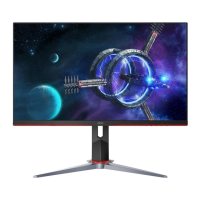
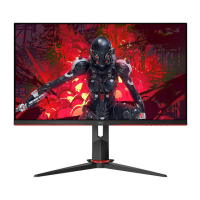
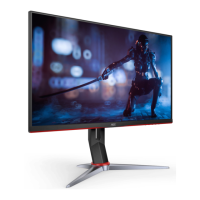
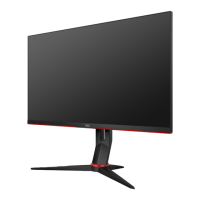
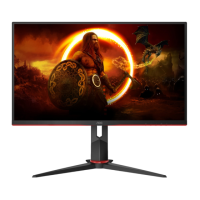
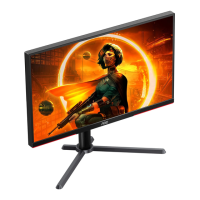
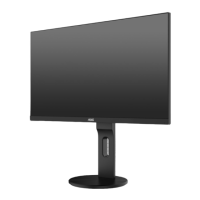
This document is a user manual for an AOC Gaming LCD monitor, model Q27G2E/BK, providing comprehensive instructions for its setup, adjustment, and maintenance, along with safety guidelines and troubleshooting information.
Function Description
The AOC Gaming LCD monitor is designed to provide a high-quality visual experience for gaming and general computing tasks. It features a large display area and supports various input signals, including HDMI and DisplayPort (DP), to connect to a wide range of devices such as personal computers, gaming consoles, and other multimedia sources. The monitor is equipped with Adaptive-Sync technology, which helps to eliminate screen tearing and stuttering by synchronizing the monitor's refresh rate with the graphics card's frame rate, ensuring a smoother and more fluid visual experience, particularly in fast-paced gaming scenarios.
The monitor offers a user-friendly On-Screen Display (OSD) menu system, accessible via hotkeys, allowing users to customize various display settings to suit their preferences. These settings include adjustments for luminance, color, and game-specific enhancements. The monitor also includes features like "Picture Boost" to highlight specific areas of the screen with enhanced brightness and contrast, and "Game Setting" modes optimized for different game genres such as First Person Shooters (FPS), Real-Time Strategy (RTS), and Racing games. These game modes improve visibility in dark areas, enhance image quality, and provide faster response times.
For audio, the monitor includes an earphone output, allowing users to connect headphones directly to the monitor for a private listening experience. The monitor is designed for both stand-alone use with its included base and for wall mounting, offering flexibility in placement.
Usage Features
The monitor's usage is centered around its intuitive OSD menu and dedicated hotkeys.
- Power Control: A dedicated power button allows users to turn the monitor on and off.
- Menu/Enter: This button is used to access the OSD menu and confirm selections within the menu. Holding it for approximately 2 seconds will turn off the monitor.
- Game Mode/<: When the OSD is not active, pressing this key allows users to quickly cycle through various pre-set game modes (FPS, RTS, Racing, Gamer 1, Gamer 2, Gamer 3), each optimized for different gaming experiences.
- Dial Point/>: This button, when the OSD is not active, toggles the display of a "Dial Point" on the screen, which can be useful for aiming in certain games.
- Source/Exit: When the OSD is closed, this button functions as a hotkey for selecting the input source. Holding it for approximately 2 seconds will initiate an auto-configure function for models with D-Sub input.
OSD Setting Navigation:
The OSD menu is structured into several categories: "Color Setup," "Picture Boost," "OSD Setup," "Game Setting," "Extra," and "Exit."
- Luminance: This section allows adjustments to "Contrast," "Brightness," "Eco mode," "Gamma," "DCR" (Dynamic Contrast Ratio), and "HDR Mode." "Eco mode" offers various presets like Standard, Text, Internet, Game, Movie, Sports, and Reading, each tailoring the display for specific content. DCR can be enabled or disabled to dynamically adjust contrast. HDR Mode offers options like HDR Picture, HDR Movie, and HDR Game.
- Color Setup: Users can adjust "Color Temp." (Warm, Normal, Cool, sRGB, User-defined RGB gains) and "DCB Mode" (Full Enhance, Nature Skin, Green Field, Sky-blue, Auto Detect, OFF). "DCB Demo" allows users to see the effect of DCB modes.
- Picture Boost: This feature allows users to define a "Bright Frame" on the screen, adjusting its size, brightness, contrast, and position to highlight a specific area for better viewing.
- OSD Setup: This section controls the OSD itself, including "Language," "Timeout" (how long the OSD stays on screen), "DP Capability" (for selecting DP1.1 or DP1.2 based on video content), "H. Position" and "V. Position" (for OSD placement), "Volume," "Transparence" (of the OSD), and "Break Reminder" (a reminder for continuous work).
- Game Setting: This is a crucial section for gamers. It includes "Game Mode" presets, "Shadow Control" (to adjust visibility in dark areas), "Low Input Lag" (to reduce input delay), "Game Color" (to adjust color saturation), "LowBlue Mode" (to reduce blue light emission), "Overdrive" (to adjust response time with options like Medium, Strong, Boost, Off), "Adaptive-Sync" (On/Off), "Frame Counter" (to display V frequency), and "MBR" (Motion Blur Reduction). Note that MBR and Overdrive Boost are available only when Adaptive-Sync is off and the vertical frequency is up to 75 Hz.
- Extra: This section includes "Input Select" (to choose the signal source), "Off Timer" (to set a time for the monitor to turn off), "Image Ratio" (to select aspect ratios like Wide, 4:3, 1:1, and various specific resolutions), "DDC/CI" (to turn ON/OFF DDC/CI Support), and "Reset" (to revert all settings to default).
Physical Adjustments:
The monitor allows for adjustment of the viewing angle, with a tilt range from -5° to 23°. Users are advised to hold the stand firmly and avoid touching the LCD screen during adjustment to prevent damage.
Connectivity:
The monitor provides multiple connection ports: HDMI-1, HDMI-2, DP, Earphone, and Power. Proper connection of the power cord and signal cables to the computer is essential for operation.
Wall Mounting:
The monitor can be wall-mounted using a VESA-compatible mounting arm (purchased separately). The manual provides steps for removing the base and attaching the mounting arm. It also specifies tilt limitations for wall-mounted configurations, advising against tilting downward more than -5 degrees to prevent panel damage.
Maintenance Features
Proper maintenance is crucial for the longevity and optimal performance of the AOC Gaming LCD monitor.
- Cleaning: The cabinet should be cleaned regularly with a water-dampened, soft cloth. For the screen, a soft cotton or microfiber cloth, damp and almost dry, should be used. It is important to avoid allowing liquid to enter the case. Crucially, the power cord must be disconnected before cleaning the product to prevent electric shock.
- Ventilation: Adequate space around the monitor is necessary to ensure proper air circulation and prevent overheating, which could lead to fire or damage to the monitor. Recommended ventilation areas are specified in the manual, with at least 12 inches (30cm) above and 4 inches (10cm) on the sides and back when installed with a stand.
- Handling and Placement: The monitor should not be placed on unstable surfaces. When moving the monitor, especially with a cart, care should be taken. Objects should never be pushed into the monitor's slots, and liquids should not be spilled on it. The front of the product should not be placed on the floor. During operation or transportation, the monitor should not be subjected to severe vibration, high impact, or knocking/dropping.
- Power Management: The monitor should only be operated from the specified power source. It is equipped with a three-pronged grounded plug for safety, and if the outlet does not accommodate it, an electrician should install the correct outlet or an adapter should be used safely. Overloading power strips and extension cords should be avoided. The unit should be unplugged during lightning storms or prolonged periods of disuse to protect against power surges.
- Troubleshooting: The manual includes a troubleshooting section to address common issues such as the power LED not being on, no images on the screen, fuzzy pictures, flickering, or incorrect color display. Solutions often involve checking cable connections, power supply, video card settings, and adjusting monitor controls. For more complex issues, contacting a service center or dealer is recommended.
- DDC2B Feature: The monitor supports VESA DDC2B, allowing it to communicate its identity and display capabilities to the host system, which aids in automatic configuration and ensures optimal display settings.
By following these guidelines, users can ensure the safe and effective operation and maintenance of their AOC Gaming LCD monitor.

 Need help?
 General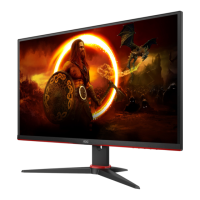

 To Next Page