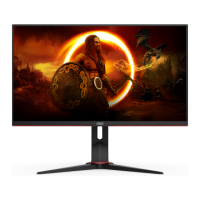
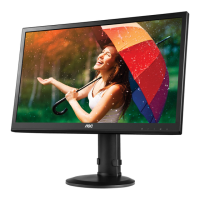
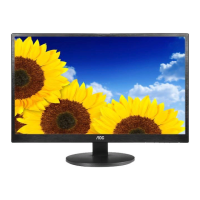
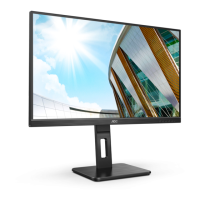
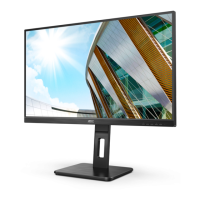
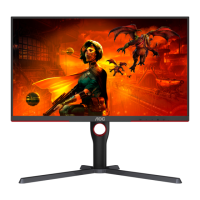
This document serves as the user manual for the AOC U28G2AE LCD Monitor, providing comprehensive instructions for its setup, operation, adjustment, and troubleshooting. It emphasizes safety precautions, proper installation, and maintenance procedures to ensure optimal performance and longevity of the device.
Function Description
The AOC U28G2AE is an LCD monitor designed for various computing tasks, ranging from general office use to gaming and multimedia consumption. It functions as a visual output device, displaying images and video from a connected computer or other signal sources. The monitor supports multiple input types, including DisplayPort (DP) and HDMI, allowing for versatile connectivity with different systems.
Key functional aspects include:
- Display Output: The primary function is to render visual content with high clarity and detail, supporting various resolutions and refresh rates.
- On-Screen Display (OSD) Menu: An intuitive OSD menu provides access to a wide range of settings for customizing the display, including luminance, color, picture boost, and game-specific adjustments.
- Hotkeys: Dedicated hotkeys offer quick access to frequently used functions such as power, game mode selection, Dial Point, and input source switching, enhancing user convenience.
- Picture-in-Picture (PIP) and Picture-by-Picture (PBP) Modes: These modes allow users to display content from multiple sources simultaneously on the screen, facilitating multitasking or comparative viewing.
- Audio Output: The monitor includes an earphone jack, enabling users to connect headphones for private audio listening.
- Power Management: It incorporates power-saving features, including an active-off mode, to reduce energy consumption when not in active use.
- Plug and Play (DDC2B): The monitor supports VESA DDC2B, allowing it to communicate its identity and display capabilities to the host system for automatic configuration, simplifying setup.
Usage Features
The AOC U28G2AE monitor offers a variety of features designed to enhance the user experience, providing flexibility and customization options:
- Adjustable Viewing Angle: The monitor stand allows for tilt adjustments, enabling users to set the screen at an optimal viewing angle to suit their preference and reduce strain. It is recommended to adjust the angle by holding the stand to prevent the monitor from toppling.
- Multiple Input Sources: With DP and two HDMI inputs, the monitor can connect to various devices simultaneously, such as a PC, gaming console, or media player. The OSD menu allows for easy switching between these sources.
- Luminance Adjustments: Users can fine-tune contrast and brightness levels (0-100) to achieve desired visual comfort. The monitor also features an "Eco Mode" with predefined settings (Standard, Text, Internet, Game, Movie, Sports, Reading, Uniformity) to optimize display for different content types and reduce eye strain.
- Dynamic Contrast Ratio (DCR): This feature can be enabled or disabled to dynamically adjust the contrast, enhancing the visual depth of images.
- High Dynamic Range (HDR) Mode: The monitor supports HDR modes (Picture, Movie, Game) for improved contrast and color accuracy, though certain other settings (Contrast, Eco Mode, Gamma) become unavailable when HDR is active.
- Color Setup: Comprehensive color adjustments are available, including color temperature presets (Warm, Normal, Cool, sRGB) and a User mode for manual RGB gain control.
- DCB Mode (Dynamic Color Boost): This feature offers various modes (Full Enhance, Nature Skin, Green Field, Sky-blue, Auto Detect, or OFF) to dynamically enhance specific color ranges, improving the vibrancy and realism of images. A "DCB Demo" mode is available to showcase the effect.
- LowBlue Mode: Designed to reduce blue light emissions, this mode has presets (Multimedia, Internet, Office, Reading, or Off) to decrease the blue light wave by controlling color temperature, helping to alleviate eye fatigue during prolonged use.
- Picture Boost: This unique feature allows users to define a specific "Bright Frame" area on the screen and adjust its brightness, contrast, and position independently. This can be useful for highlighting particular content or for specific viewing scenarios.
- OSD Setup: The OSD menu itself is customizable, allowing users to select the display language, set the timeout duration, adjust its horizontal and vertical position, and control its transparency. A "Break Reminder" can be activated to prompt users to take breaks after continuous work.
- PIP/PBP Settings: Users can enable Picture-in-Picture or Picture-by-Picture modes, select main and sub-screen sources, adjust the sub-screen size (Small, Middle, Large), and position it (Right-up, Right-down, Left-up, Left-down). Audio can be routed from either the PIP source or the main source, and a "Swap" function allows for easy exchange of main and sub-screen content.
- Game Settings: The monitor is equipped with several features tailored for gamers:
- Game Mode: Predefined modes (FPS, RTS, Racing, Gamer 1, Gamer 2, Gamer 3, or off) optimize display settings for different game genres, enhancing visibility and response.
- Shadow Control: Allows adjustment of dark theme black level details (0-100), making it easier to spot enemies in dark areas or to clarify overly bright scenes.
- Low Input Lag: Can be turned On or Off to reduce the delay between input and display, providing a more responsive gaming experience.
- Game Color: Provides a 0-20 level adjustment for color saturation, allowing gamers to fine-tune the vibrancy of in-game visuals.
- Overdrive: Offers settings (Off, Weak, Medium, Strong, Boost) to adjust the response time of the pixels, reducing motion blur in fast-paced games.
- Adaptive-Sync/AMD FreeSync: When enabled (On/Off), this feature synchronizes the monitor's refresh rate with the graphics card's frame rate, eliminating screen tearing and stuttering for smoother gameplay.
- Frame Counter: Can display the V frequency on a selected corner of the screen (Off, Right-up, Right-Down, Left-Down, Left-Up).
- MBR (Motion Blur Reduction): Adjustable from 0-20, this feature helps reduce motion blur, particularly useful in fast-moving scenes. Note that MBR and Overdrive Boost are only available when Adaptive-Sync/AMD FreeSync is off, and their activation may result in darker overall brightness or abnormal display effects like flicker or ghosting.
- Image Ratio: The monitor supports various image ratios (Wide, 4:3, 1:1, and specific resolutions like 17", 19", 19"W, 21.5"W, 22"W, 23"W, 23.6"W, 24"W, 27"W) to ensure content is displayed correctly without distortion.
- DDC/CI Support: This feature can be turned On or Off, allowing the monitor to communicate with the computer for automatic display configuration.
- Reset Function: A reset option is available to revert all OSD settings to their default values.
Maintenance Features
Proper maintenance is crucial for the longevity and performance of the AOC U28G2AE monitor. The manual outlines simple yet effective cleaning and care instructions:
- Cabinet Cleaning: The monitor cabinet should be cleaned regularly with a soft cloth. A soft detergent can be used to remove stains, but strong detergents should be avoided as they can damage the product cabinet.
- Screen Cleaning: When cleaning the screen, it is important to ensure that no detergent leaks into the product. The cleaning cloth should not be too rough, as this can scratch the screen surface.
- Power Disconnection: Always disconnect the power cord before cleaning the product to prevent electrical hazards.
- Environmental Considerations:
- Ventilation: Adequate space (at least 4 inches/10cm around the sides and 12 inches/30cm at the top) should be maintained around the monitor to ensure proper air circulation and prevent overheating, which could lead to fire or damage.
- Stability: The monitor should be placed on a stable cart, stand, tripod, bracket, or table recommended by the manufacturer to prevent it from falling and causing injury or damage.
- Liquid and Object Ingress: Never spill liquids on the monitor or push any objects into its slots, as this can damage internal circuits and lead to fire or electric shock.
- Impact and Vibration: Avoid engaging the LCD monitor in severe vibration or high impact conditions during operation or transportation. Do not knock or drop the monitor.
- Power Cord Safety: Use safety-approved power cords. For Germany, H03VV-F, 3G, 0.75 mm2, or better is specified, with suitable types for other countries.
- Earphone/Headphone Use: Be mindful of excessive sound pressure from earphones and headphones, as it can cause hearing loss. Adjusting the equalizer to maximum increases output voltage and sound pressure level.
- Troubleshooting Guide: The manual includes a comprehensive troubleshooting section to help users diagnose and resolve common issues such as no image on screen, fuzzy pictures, flickering, or color defects. This guide provides practical solutions like checking cable connections, power supply, driver installation, and adjusting display settings.
- Service Information: In cases of unusual smells, sounds, or smoke, users are instructed to immediately disconnect the power plug and contact a Service Center, emphasizing safety and professional assistance for severe issues.

 Need help?
 General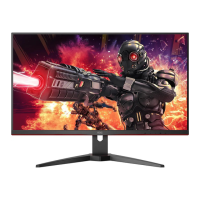

 To Next Page