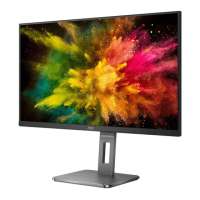
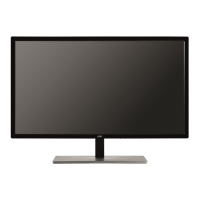
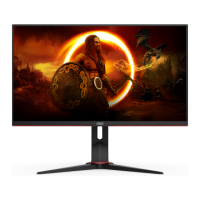
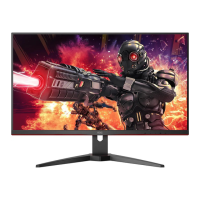
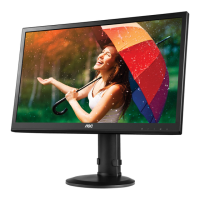
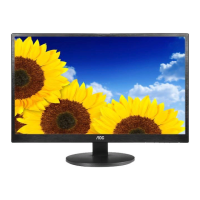
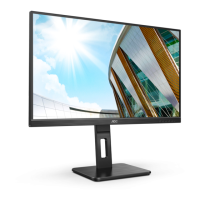
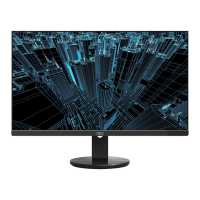
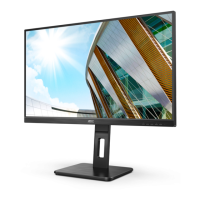
This document is the user manual for the AOC U28P2A LCD Monitor, providing comprehensive information on its setup, operation, and maintenance.
Function Description
The AOC U28P2A is an LCD monitor designed for general computing and display purposes. It offers a range of features for adjusting display settings, managing multiple input sources, and enhancing the visual experience. The monitor supports various display modes and includes functionalities like Picture-in-Picture (PIP) and Picture-by-Picture (PBP) for multitasking. It also incorporates "Clear Vision" technology to improve the clarity of low-resolution images and "Picture Boost" for enhancing specific areas of the screen. Game-specific settings are available to optimize the display for different gaming genres, including FPS, RTS, and Racing. The monitor is equipped with multiple connectivity options, including HDMI, DisplayPort (DP), and USB ports, making it versatile for different computer setups.
Important Technical Specifications
- Model Name: U28P2A
- Driving System: TFT Color LCD
- Viewable Image Size: 70.9 cm diagonal
- Pixel Pitch: 0.16mm(H) x 0.16mm(V)
- Horizontal Scan Range: 30k-140kHz
- Horizontal Scan Size (Maximum): 620.93mm
- Vertical Scan Range: 40-60Hz
- Vertical Scan Size (Maximum): 341.28mm
- Optimal Preset Resolution: 3840x2160@60Hz
- Max Resolution: 3840x2160@60Hz
- Plug & Play: VESA DDC2B/CI
- Power Source: 100-240V~, 50/60Hz, 1.5A
- Power Consumption:
- Typical (Brightness = 90, Contrast = 50): 45W
- Max. (brightness = 100, contrast =100): < 100.5W
- Standby mode: < 0.5W
- Connector Type: HDMI×2, DP, USB3.2 Gen1x4, USB upstream, Earphone
- Signal Cable Type: Detachable
- Temperature (Operating): 0°~40°C
- Temperature (Non-Operating): -25°~55°C
- Humidity (Operating): 10%~85% (non-condensing)
- Humidity (Non-Operating): 5%~93% (non-condensing)
- Altitude (Operating): 0~5000 m (0~16404ft)
- Altitude (Non-Operating): 0~12192m (0~40000ft)
The monitor supports various preset display modes, including VGA, SVGA, XGA, HD, SXGA, WXGA+, WSXGA, FHD, QHD, and UHD, with corresponding resolutions and frequencies. For instance, UHD at 3840x2160@60Hz has a horizontal frequency of 133.32 kHz and a vertical frequency of 60 Hz.
Usage Features
The monitor offers a user-friendly interface with several hotkeys and an On-Screen Display (OSD) menu for adjustments.
- Hotkeys: Dedicated buttons for Source/Exit, Clear Vision, Volume, Menu/Enter, and Power.
- Power: Turns the monitor on/off.
- Menu/Select: Activates the OSD menu and confirms selections.
- Volume: Adjusts headphone output volume when the OSD is closed.
- Source Switching/Exit: Activates signal source switching or acts as an exit key in the OSD menu.
- Clear Vision: Enhances low-resolution and blurry images. It has settings for Weak, Medium, Strong, and Off, and a demo mode.
- OSD Setting: Provides access to various display parameters.
- Luminance: Adjusts Contrast, Brightness, Eco Mode (Standard, Text, Internet, Game, Movie, Sports, Reading, Uniformity), Gamma (Gamma1, Gamma2, Gamma3), DCR (Dynamic Contrast Ratio), and HDR Mode (Off, HDR Picture, HDR Movie, HDR Game). Note that when HDR Mode is active, Contrast, Eco Mode, and Gamma cannot be adjusted.
- Color Setup: Configures Color Temp (Warm, Normal, Cool, sRGB, User-defined RGB gains), DCB Mode (Full Enhance, Nature Skin, Green Field, Sky-blue, Auto Detect, OFF, and a demo mode), and LowBlue Mode (Multimedia, Internet, Office, Reading, Off) to decrease blue light. When HDR Mode is active, all Color Setup items are disabled.
- Picture Boost: Allows adjustment of a specific bright frame area on the screen. Settings include Bright Frame (on/off), Frame Size, Brightness, Contrast, H. position, and V. position for the bright frame.
- OSD Setup: Manages OSD language, Timeout, DP Capability (1.1/1.2), H. Position, V. Position, Volume, Transparence, and Break Reminder.
- PIP Setting: Configures Picture-in-Picture or Picture-by-Picture modes. It allows selecting main and sub-screen sources (HDMI1, HDMI2, DP, USB-C), adjusting sub-screen size (Small, Middle, Large), position (Right-up, Right-down, Left-up, Left-down), audio source (PIP Audio, Main Audio), and swapping sources.
- Game Setting: Optimizes display for gaming. Includes Game Mode (FPS, RTS, Racing, Gamer 1/2/3, off), Shadow Control (0-100), Low Input Lag (On/Off), Game Color (0-20), Overdrive (Weak, Medium, Strong, Off), Adaptive-Sync (On/Off), and Frame Counter (Off, Right-up, Right-Down, Left-Down, Left-Up). When HDR Mode is active, Game Mode, Shadow Control, and Game Color are disabled.
- Extra: Provides options for Input Select (Auto), Off timer, Image Ratio (Wide, 4:3, 1:1, various widescreen formats), DDC/CI (yes/no), and Reset (to default settings or ENERGY STAR® settings).
- Exit: Exits the main OSD menu.
- LED Indicator: The monitor's LED indicator shows its status: White for Full Power Mode and Orange for Active-off Mode.
Maintenance Features
- Cleaning: The cabinet should be cleaned regularly with a soft cloth and mild detergent. Strong detergents should be avoided. Care must be taken to prevent liquid from leaking into the product and to use a soft cloth to avoid scratching the screen. The power cord should be disconnected before cleaning.
- Safety Precautions:
- Operate the monitor only from the specified power source.
- Use a grounded power outlet; if unavailable, use an adapter or have an electrician install the correct outlet.
- Unplug the unit during lightning storms or prolonged non-use to prevent power surge damage.
- Avoid overloading power strips and extension cords.
- Use only UL listed computers with appropriate receptacles.
- Ensure the wall socket is easily accessible.
- Do not place the monitor on unstable surfaces.
- Never push objects into slots or spill liquids on the monitor.
- Do not place the front of the product on the floor.
- For wall mounting, use a manufacturer-approved kit and follow instructions.
- Maintain adequate ventilation space around the monitor to prevent overheating.
- Avoid tilting the monitor downward by more than -5 degrees to prevent panel damage.
- Do not press the LCD screen when adjusting the angle.
- If the product emits strange smells, sounds, or smoke, disconnect power immediately and contact a service center.
- Ensure ventilating openings are not blocked.
- Avoid severe vibration or high impact conditions.
- Do not knock or drop the monitor.
- Use safety-approved power cords.
- Excessive sound pressure from earphones/headphones can cause hearing loss; adjust equalizer settings carefully.
- Troubleshooting: The manual includes a troubleshooting section to address common issues such as the power LED not being on, no images on the screen, fuzzy or ghosting pictures, flickering, monitor stuck in "Active Off-Mode," missing colors, improperly centered/sized images, color defects, and horizontal/vertical disturbances. Solutions often involve checking cable connections, power supply, video card settings, adjusting OSD controls, or contacting a service center.

 Need help?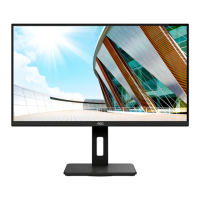

 To Next Page
 General