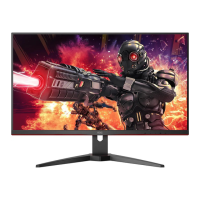
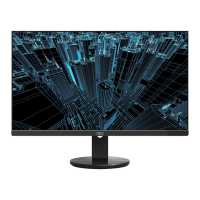
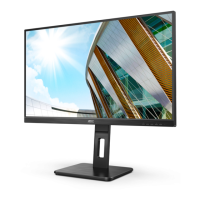
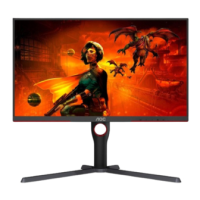
Need help?
Do you have a question about the AOC U28G2XU and is the answer not in the manual?
Details safety precautions related to the monitor's power source, plug, and cord usage.
Covers safe placement, mounting, and ventilation requirements for the monitor.
Outlines general safety advice, including handling unusual conditions and cable specifications.
Step-by-step guide for assembling and attaching the monitor stand and base.
Details on connecting the monitor to a computer using various cables.
Basic instructions for navigating and using the On-Screen Display (OSD) menu.
Detailed configuration of OSD language, timeout, transparency, and other system settings.
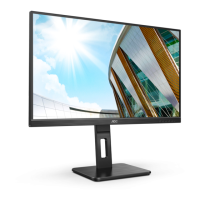
This document serves as the user manual for the AOC LCD Monitor models U28G2XU and U28G2XU/BK. It provides comprehensive instructions for safe operation, setup, adjustment, and troubleshooting of the monitor.
The AOC LCD Monitor is designed to display visual information from a connected computer or other video sources. It features a range of display modes and settings to optimize the viewing experience for various applications, including general use, gaming, and multimedia. The monitor supports multiple input sources, including DisplayPort (DP) and High-Definition Multimedia Interface (HDMI), allowing for versatile connectivity with different devices. It also includes USB ports for peripheral connections and an earphone jack for audio output.
Setup and Installation: The manual details the process of setting up the monitor, including attaching the stand and base. It emphasizes the importance of proper ventilation, recommending specific clearance around the monitor to prevent overheating. For wall mounting, it advises using a manufacturer-approved kit and following the provided instructions. Users are cautioned against placing the monitor on unstable surfaces or spilling liquids on it.
Adjusting Viewing Angle: The monitor offers adjustable viewing angles to ensure optimal comfort. Users can tilt the monitor from -5° to 23° and adjust its height by 130mm. It is crucial to hold the stand firmly and avoid touching the LCD screen directly during adjustment to prevent damage. The manual specifically warns against tilting the monitor downward by more than -5° to avoid potential screen damage, such as panel peeling, which would not be covered under warranty.
Connecting to PC: Instructions are provided for connecting the monitor to a PC using various signal cables, including DP and HDMI. Users are advised to connect the power cord securely, turn off the computer before connecting signal cables, and plug both the computer and display into a nearby outlet. The manual also includes a diagram illustrating the location of all input and output ports on the back of the monitor.
On-Screen Display (OSD) Settings: The monitor features an intuitive OSD menu for adjusting various display parameters. The OSD can be accessed and navigated using the monitor's hotkeys.
Hotkeys: The monitor features dedicated hotkeys for quick access to frequently used functions:
LED Indicator: The LED indicator provides visual feedback on the monitor's status:
Cleaning: The manual provides clear instructions for cleaning the monitor to ensure its longevity and maintain optimal display quality. Users are advised to:
Troubleshooting: A dedicated troubleshooting section helps users diagnose and resolve common issues. It covers problems such as the power LED not turning on, no images on the screen, fuzzy or ghosting pictures, screen bouncing or flickering, the monitor being stuck in "Active Off-Mode," missing primary colors, improperly centered or sized images, color defects, and horizontal/vertical disturbances. For each problem, possible solutions are provided, ranging from checking cable connections and power supply to adjusting OSD settings and installing monitor drivers. For more complex issues, users are directed to contact a Service Center or their dealer.
Safety Precautions: Throughout the manual, various safety warnings and cautions are highlighted to ensure user safety and prevent damage to the monitor. These include:
By following these guidelines, users can ensure safe and effective operation, maintenance, and troubleshooting of their AOC LCD Monitor.
 General
| Certification | True |
|---|---|
| Product color | Black, Red |
| Detachable stand | Yes |
| Country of origin | China |
| Front bezel color | Black/Red |
| Heavy metals free | Hg (mercury) |
| Market positioning | Gaming |
| NVIDIA G-SYNC | No |
| AMD FreeSync type | FreeSync Premium |
| AMD FreeSync refresh rate range | 48 - 144 Hz |
| Color depth | 8 bit |
| Screen shape | Flat |
| Backlight type | W-LED |
| Display diagonal | 28 \ |
| Surface hardness | 3H |
| Anti-glare screen | Always gives an optimal view, even in direct sunlight. |
| Adobe RGB coverage | 105 % |
| Display technology | LED |
| Native aspect ratio | 16:9 |
| Contrast ratio (dynamic) | 80000000:1 |
| Contrast ratio (typical) | 1000:1 |
| Display number of colors | 16.7 million colors |
| Display diagonal (metric) | 71.1 cm |
| Display brightness (typical) | 370 cd/m² |
| High Dynamic Range (HDR) technology | DisplayHDR 400 |
| USB hub version | 3.2 Gen 1 (3.1 Gen 1) |
| DisplayPort version | 1.4 |
| Headphone connectivity | 3.5 mm |
| USB Type-A downstream ports quantity | 4 |
| Tilt angle range | -5 - 21.5 ° |
| Height adjustment | 130 mm |
| Cable lock slot type | Kensington |
| Panel mounting interface | 100 x 100 mm |
| On Screen Display (OSD) languages | CHI (SIMPL), CHI (TR), CRO, CZE, DEU, DUT, ENG, ESP, FIN, FRE, ITA, JPN, KOR, POL, POR, RUS, SWE, TUR, UKR |
| Package type | Box |
| Package depth | 593 mm |
| Package width | 160 mm |
| Package height | 715 mm |
| Package weight | 8620 g |
| AC input voltage | 100 - 240 V |
| AC input frequency | 50 - 60 Hz |
| Energy efficiency scale | A to G |
| Power consumption (off) | 0.5 W |
| Power consumption (standby) | 0.3 W |
| Power consumption (typical) | - W |
| RMS rated power | 3 W |
| Exterior finish type | Textured |
| Recyclable packaging material | 100 % |
| Cables included | DisplayPort, HDMI |
| DisplayPort cable length | 1.8 m |
| Sustainability certificates | CE, REACH, RoHS |
| Harmonized System (HS) code | 85285210 |
| Commodity Classification Automated Tracking System (CCATS) | 8528521000 |
 Weight and Dimensions
| Depth (with stand) | 244.9 mm |
|---|---|
| Width (with stand) | 636.4 mm |
| Height (with stand) | 469.5 mm |
| Weight (with stand) | 6130 g |
| Depth (without stand) | 49.3 mm |
| Height (without stand) | 368.5 mm |

 To Next Page