8
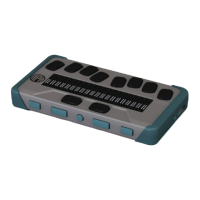
The rear section of the top face includes a Perkins-style braille keyboard
where each key represents a Dot on a braille cell. The keys under your left
hand represent Dots 1, 2, 3, and Backspace, where Dot 1 is located under
your index finger and Backspace under your little finger. The keys under
your right hand represent Dots 4, 5, 6, and Enter, where Dot 4 is located
under your index finger and Enter under your little finger.
Front Edge
On the front edge of the Chameleon are five buttons. From left to right, the
buttons are as follows:
• Previous thumb key
• Left thumb key
• Home button (circular shape) – used to return to the Main menu or exit
Terminal mode
• Right thumb key
• Next thumb key
Left Edge
On the left edge, from front to back are the following:
• USB-A port
• Power button – press and hold this button for 2 seconds to turn the
device ON.
• Green LED – visually indicates the status of the device
• USB-C port – use the cable that came with your Chameleon to connect
it to a power outlet or a PC.
Right Edge
On the right edge, from front to back are the following:
• Two volume buttons (Currently not active)
• 3.5m Audio jack (Currently not active)


 To Next Page