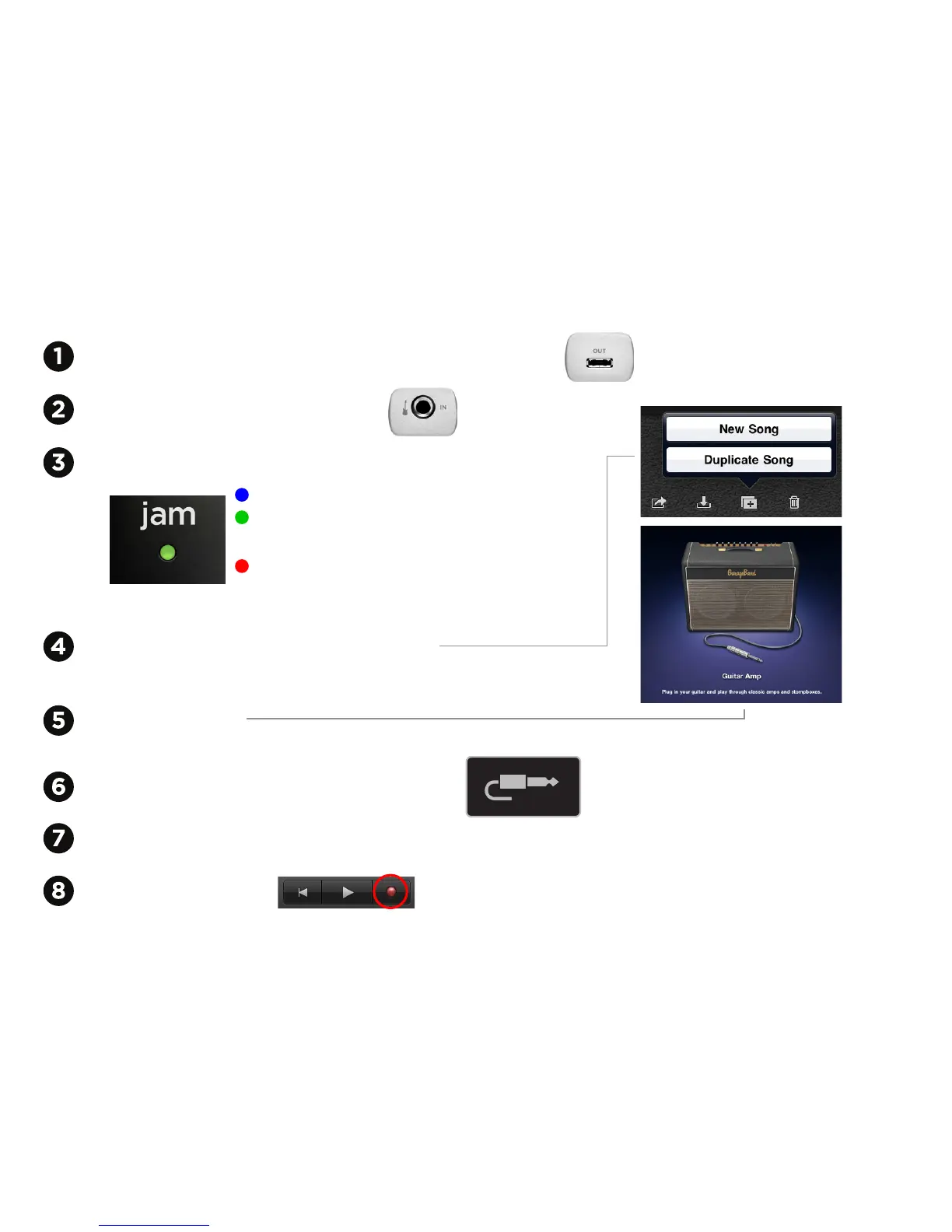
Plug JAM into your iPad using the provided iPad dock cable
Plug your guitar into JAM’s 1/4” input
Plug your headphones into iPad’s headphone output or just listen through iPad’s built-in speakers
Click the Record button and you are recording with JAM!
Using JAM with an iPad
Start up GarageBand and choose New Song
(JAM’s status light should turn to green)
Choose Guitar Amp
To hear your track, turn Monitor ON by clicking and following instructions
Check the status light on JAM, it should be Blue
Blue - JAM is connected but not ready
Green - JAM is connected, ready and
working with your software
Red - Your gain is too high, adjust
the gain using the Gain Control Knob
on the side of JAM


 To Next Page